# YesCaptcha 文档(全文)
> YesCaptcha 是验证码识别 API。用 clientKey 和任务对象(reCAPTCHA v2/v3/企业版、hCaptcha、Cloudflare Turnstile、Cloudflare 5 秒盾、FunCaptcha、AWS WAF、图片英数字、图像识别)向 https://api.yescaptcha.com/createTask 发 JSON 请求,再每 5 秒调用 /getTaskResult 取结果(同步类型直接返回结果)。按任务扣点,1 元 = 1000 点,识别失败和超时自动退点。
---
# 用一个 JSON 接口识别验证码
> YesCaptcha 是验证码识别 API:用一个 JSON 接口识别 reCAPTCHA、hCaptcha、Cloudflare Turnstile、FunCaptcha、AWS WAF 和图片验证码,按任务扣点,识别失败和超时自动退点。
Source: https://docs.yescaptcha.com/zh/ · Last verified: 2026-10-15
YesCaptcha 识别 reCAPTCHA、hCaptcha、Cloudflare Turnstile、FunCaptcha、AWS WAF 和图片英数字验证码。按任务扣点,1 元 = 1000 点;识别失败和超时自动退点。也可以安装浏览器插件,在网页上自动完成验证。
[快速开始](https://docs.yescaptcha.com/zh/getting-started/quickstart/)[浏览器插件](https://docs.yescaptcha.com/zh/extension/)
给 AI 和程序读的版本:[`llms.txt`](https://docs.yescaptcha.com/zh/llms.txt)[`llms-full.txt`](https://docs.yescaptcha.com/zh/llms-full.txt)[`OpenAPI`](https://docs.yescaptcha.com/openapi.json)[`Markdown`](https://docs.yescaptcha.com/zh/index.md)
YesCaptcha 仅限合法用途,禁止用于非法用途。
## 三步接入
1. 1
**创建任务**
用 `createTask` 提交任务类型和网站参数,得到 `taskId`。图像识别、图片英数字等同步类型直接返回结果。
2. 2
**获取结果**
每 5 秒调用一次 `getTaskResult`,`status` 变成 `ready` 时,结果在 `solution` 里。
3. 3
**提交给目标网站**
把得到的 token 填进网页的表单或请求。token 一次性使用,建议 60 秒内用掉。
POST /createTask
```json
{
"clientKey": "YOUR_CLIENT_KEY",
"task": {
"type": "NoCaptchaTaskProxyless",
"websiteURL": "https://www.google.com/recaptcha/api2/demo",
"websiteKey": "6Le-wvkSAAAAAPBMRTvw0Q4Muexq9bi0DJwx_mJ-"
}
}
```
POST /getTaskResult
```json
{
"errorId": 0,
"status": "ready",
"solution": {
"gRecaptchaResponse": "03AGdBq25SxXT-pmSeBXjzScW-EiocHwwpwqtk1QXlJnGnU..."
}
}
```
## 支持的验证码
[reCAPTCHAv2、v3、企业版,以及 v2 图像识别6 点起](https://docs.yescaptcha.com/zh/tasks/recaptcha-v2/)[hCaptcha返回 token,或者识别图片后自己点击8 点起](https://docs.yescaptcha.com/zh/tasks/hcaptcha/)[Cloudflare TurnstileTurnstile 的验证 token25 点起](https://docs.yescaptcha.com/zh/tasks/turnstile/)[FunCaptchaArkose Labs 的 token 和图像识别3 点起](https://docs.yescaptcha.com/zh/tasks/funcaptcha/)[AWS WAF / bCaptcha九宫格图像识别8 点起](https://docs.yescaptcha.com/zh/tasks/aws-bcaptcha-classification/)[图片英数字普通字符验证码,同步返回2 点起](https://docs.yescaptcha.com/zh/tasks/image-to-text/)
## 常用入口
- [**任务类型与价格**全部公开类型的价格和返回方式](https://docs.yescaptcha.com/zh/tasks/)
- [**错误码**每个错误码的含义和处理办法](https://docs.yescaptcha.com/zh/api/errors/)
- [**并发限制与自动暂停**超额和错误过多时会发生什么](https://docs.yescaptcha.com/zh/api/rate-limits/)
- [**计费与退点**点数、预扣、退点和上报返点](https://docs.yescaptcha.com/zh/getting-started/billing/)
- [**联系我们**微信、QQ、Telegram、邮箱,服务时间 9:00–21:00(UTC+8)](https://docs.yescaptcha.com/zh/help/contact/)
- [**控制台**注册、取 clientKey、充值](https://yescaptcha.com/)
---
# 简介
> YesCaptcha 是什么:通过 API 或浏览器插件识别 reCAPTCHA、hCaptcha、Turnstile、FunCaptcha 和图片验证码,按任务扣点,失败自动退点。
Source: https://docs.yescaptcha.com/zh/getting-started/introduction/ · Last verified: 2026-10-15
YesCaptcha 是一个验证码识别服务。你把验证码的信息发给 YesCaptcha 的 API,拿回可以直接提交给目标网站的 token,或者图片的识别结果。支持 reCAPTCHA(v2、v3、企业版)、hCaptcha、Cloudflare Turnstile、Cloudflare 5 秒盾、FunCaptcha、AWS WAF、bCaptcha 和图片英数字验证码。按任务扣点,1 元 = 1000 点;识别失败、超时的任务自动退点。
YesCaptcha 仅限合法用途,禁止用于非法用途。
## 两种用法
| | API | 浏览器插件(人机助手) |
| --- | --- | --- |
| 适合 | 能写代码的开发者,在程序里批量处理 | 不写代码,在浏览器里使用 |
| 怎么用 | 用 `clientKey` 调用 `createTask`、`getTaskResult` | 安装插件,填入 `clientKey`,遇到验证码自动识别并点击 |
| 支持 | 本站列出的全部任务类型 | reCAPTCHA v2、hCaptcha、FunCaptcha、AWS WAF、bCaptcha 的图片题和字符验证码 |
| 费用 | 按任务类型扣点 | 插件免费,按识别用到的 API 扣点 |
两种用法用同一个账户、同一个 `clientKey`、同一份余额。
## 识别结果有三种
- **token**:reCAPTCHA、hCaptcha、Turnstile、FunCaptcha 的大多数任务类型。返回一个字符串,填进网页的表单或请求就能通过验证,不需要点图片。都是异步:先创建任务,再每 5 秒查询一次结果。
- **图像识别结果**:名字以 `Classification` 结尾的类型。你把验证码的图片发过来,返回应该点击哪几张图或者哪个位置,由你的程序在浏览器里点击。同步返回,一次请求就拿到结果。
- **文字或 Cookie**:图片英数字识别返回图片里的文字;Cloudflare 5 秒盾返回通过验证后的 Cookie。
全部类型和价格见 [任务类型与价格](https://docs.yescaptcha.com/zh/tasks/)。
## 从这里开始
[快速开始](https://docs.yescaptcha.com/zh/getting-started/quickstart/)注册、取 clientKey、发第一个请求
[接入地址](https://docs.yescaptcha.com/zh/getting-started/endpoints/)国际节点和国内节点
[计费与退点](https://docs.yescaptcha.com/zh/getting-started/billing/)点数、预扣、退点、上报返点
[浏览器插件](https://docs.yescaptcha.com/zh/extension/)不写代码,在浏览器里自动识别
## 社区 SDK
网友提供的 SDK,非官方,使用前请自行评估:见 [示例代码与 SDK](https://docs.yescaptcha.com/zh/samples/)。
---
# 快速开始
> 5 分钟发出第一个 YesCaptcha 请求:注册、复制 clientKey、充值,再用 curl、Python 或 Node.js 识别一张图片验证码(ImageToTextTaskOcrBase,同步返回,每次 2 点)。
Source: https://docs.yescaptcha.com/zh/getting-started/quickstart/ · Last verified: 2026-10-15
这一页用最简单的任务类型 `ImageToTextTaskOcrBase`(识别图片里的英文和数字)发出第一个请求。它是同步的:一次 `createTask` 请求就返回结果,每次 2 点(0.002 元),不依赖第三方网站,适合用来确认账户和代码都没问题。
1. **注册账户**
打开 [yescaptcha.com](https://yescaptcha.com/) 注册并登录。
2. **复制 clientKey**
登录后在仪表盘([yescaptcha.com/dashboard.html](https://yescaptcha.com/dashboard.html))找到“您的密钥 ClientKey”,点复制,要完整复制。所有 API 请求都用它鉴权,不要泄露给别人;泄露了可以在同一个位置重置。
3. **充值**
余额必须大于 10 点才能创建任务。充值方式和 VIP 赠送见 [充值与 VIP](https://docs.yescaptcha.com/zh/account/recharge/)。
4. **确认 clientKey 能用**
`getBalance` 查询余额,不扣点:
```bash
curl -s https://api.yescaptcha.com/getBalance \
-H 'Content-Type: application/json' \
-d '{"clientKey": "YOUR_CLIENT_KEY"}'
```
返回 `{"errorId": 0, "balance": 12345, ...}` 就说明可以用了,`balance` 是剩余点数。返回 `ERROR_KEY_DOES_NOT_EXIST` 说明密钥复制错了。
5. **识别一张图片**
下载示例图片 [captcha.jpg](https://docs.yescaptcha.com/samples/captcha.jpg)(也可以用你自己的验证码图片),把 clientKey 放进环境变量后运行:
```bash
export YESCAPTCHA_CLIENT_KEY=你的clientKey
```
**curl**
quickstart.sh
```bash
#!/usr/bin/env bash
# First request: read an alphanumeric image captcha with ImageToTextTaskOcrBase (synchronous, 2 points per image)
# Usage: YESCAPTCHA_CLIENT_KEY=your_client_key bash quickstart.sh captcha.png
set -euo pipefail
IMAGE="${1:-captcha.png}"
BODY=$(base64 < "$IMAGE" | tr -d '\n') # no "data:" prefix, no line breaks
curl -s https://api.yescaptcha.com/createTask \
-H 'Content-Type: application/json' \
-d "{\"clientKey\": \"${YESCAPTCHA_CLIENT_KEY}\", \"task\": {\"type\": \"ImageToTextTaskOcrBase\", \"body\": \"${BODY}\"}}"
echo
```
**Python**
quickstart.py
```python
"""First request: read an alphanumeric image captcha with ImageToTextTaskOcrBase
(synchronous, 2 points per image).
Usage:
export YESCAPTCHA_CLIENT_KEY=your_client_key
python quickstart.py captcha.png
"""
import base64
import os
import sys
import requests
CLIENT_KEY = os.environ["YESCAPTCHA_CLIENT_KEY"]
image_path = sys.argv[1] if len(sys.argv) > 1 else "captcha.png"
with open(image_path, "rb") as f:
body = base64.b64encode(f.read()).decode() # no "data:" prefix
r = requests.post(
"https://api.yescaptcha.com/createTask",
json={
"clientKey": CLIENT_KEY,
"task": {"type": "ImageToTextTaskOcrBase", "body": body},
},
timeout=30,
)
data = r.json()
if data.get("errorId"):
raise SystemExit(f"{data.get('errorCode')}: {data.get('errorDescription')}")
print("text:", data["solution"]["text"])
```
**Node.js**
quickstart.mjs
```js
// First request: read an alphanumeric image captcha with ImageToTextTaskOcrBase (synchronous, 2 points per image).
// Usage: YESCAPTCHA_CLIENT_KEY=your_client_key node quickstart.mjs captcha.png
import { readFileSync } from 'node:fs';
const CLIENT_KEY = process.env.YESCAPTCHA_CLIENT_KEY;
const body = readFileSync(process.argv[2] ?? 'captcha.png').toString('base64'); // no "data:" prefix
const res = await fetch('https://api.yescaptcha.com/createTask', {
method: 'POST',
headers: { 'Content-Type': 'application/json' },
body: JSON.stringify({ clientKey: CLIENT_KEY, task: { type: 'ImageToTextTaskOcrBase', body } }),
});
const data = await res.json();
if (data.errorId) throw new Error(`${data.errorCode}: ${data.errorDescription}`);
console.log('text:', data.solution.text);
```
运行:`bash quickstart.sh captcha.jpg`、`python quickstart.py captcha.jpg` 或 `node quickstart.mjs captcha.jpg`。Python 需要先 `pip install requests`;Node.js 需要 18 以上版本。
6. **看结果**
成功时返回:
```json
{
"errorId": 0,
"status": "ready",
"solution": { "text": "LMResm" },
"taskId": "2376919c-1863-11ec-a012-94e6f7355a0b"
}
```
`errorId` 为 0 表示成功,识别出的文字在 `solution.text`。`errorId` 为 1 时看 `errorCode`,含义见 [错误码](https://docs.yescaptcha.com/zh/api/errors/)。
## 下一步
- reCAPTCHA、hCaptcha 这类返回 token 的任务是**异步**的:`createTask` 先返回 `taskId`,再每 5 秒调用一次 `getTaskResult`。完整流程见 [请求与响应](https://docs.yescaptcha.com/zh/api/overview/),例子见 [reCAPTCHA v2](https://docs.yescaptcha.com/zh/tasks/recaptcha-v2/)。
- 选任务类型:[任务类型与价格](https://docs.yescaptcha.com/zh/tasks/)。
- 一个可以直接复制进项目的客户端:[Python](https://docs.yescaptcha.com/zh/samples/python/)、[Node.js](https://docs.yescaptcha.com/zh/samples/nodejs/)。
- 不写代码:[浏览器插件](https://docs.yescaptcha.com/zh/extension/)。
---
# 接入地址
> YesCaptcha API 的两个节点:国际节点 api.yescaptcha.com 和国内节点 cn.yescaptcha.com;只接受 HTTPS POST JSON,在同一个节点创建和查询任务。
Source: https://docs.yescaptcha.com/zh/getting-started/endpoints/ · Last verified: 2026-10-15
YesCaptcha API 有两个节点,接口和参数完全相同,按你的服务器所在地选一个:
| 节点 | 地址 | 适合 |
| --- | --- | --- |
| 国际节点 | `https://api.yescaptcha.com` | 中国大陆以外的服务器 |
| 国内节点 | `https://cn.yescaptcha.com` | 中国大陆的服务器 |
接口地址 = 节点地址 + 方法名,例如创建任务:
- POST `https://api.yescaptcha.com/createTask` (国际节点)
- POST `https://cn.yescaptcha.com/createTask` (国内节点)
## 规则
- 只用 HTTPS。
- 除了 [`/useragent`](https://docs.yescaptcha.com/zh/api/useragent/),所有方法都用 `POST`,请求体是 JSON,带上请求头 `Content-Type: application/json`。请求体不能超过 6 MB。
- 用请求体里的 `clientKey` 鉴权,不需要其他请求头。
- 在哪个节点创建的任务,就到哪个节点用 `getTaskResult` 查询,不要混用。
## 全部方法
| 方法 | 作用 | 说明 |
| --- | --- | --- |
| [`createTask`](https://docs.yescaptcha.com/zh/api/create-task/) | 创建任务 | 同步类型直接返回结果 |
| [`getTaskResult`](https://docs.yescaptcha.com/zh/api/get-task-result/) | 查询任务结果 | 异步类型每 5 秒查一次 |
| [`getBalance`](https://docs.yescaptcha.com/zh/api/get-balance/) | 查询余额 | 不扣点 |
| [`getSoftID`](https://docs.yescaptcha.com/zh/api/get-soft-id/) | 查询开发者 ID | 用于开发者分成 |
| [`report`](https://docs.yescaptcha.com/zh/api/report/) | 上报识别结果 | 图像识别类型可以申请返点 |
| [`useragent`](https://docs.yescaptcha.com/zh/api/useragent/) | 获取建议的 User-Agent | `GET`,hCaptcha 用 |
连不上接口时,看 [连接与网络问题](https://docs.yescaptcha.com/zh/help/troubleshooting/)。
---
# 计费与退点
> YesCaptcha 怎么扣点:1 元 = 1000 点,按任务类型扣点;识别失败和超时自动退点,返回错误的请求不扣点;余额须大于 10 点;图像识别上报失败约 24 小时后返点。
Source: https://docs.yescaptcha.com/zh/getting-started/billing/ · Last verified: 2026-10-15
YesCaptcha 按任务扣点:每个任务类型有固定价格,1 元 = 1000 点,例如 `NoCaptchaTaskProxyless` 每个任务 15 点(0.015 元)。只为成功的任务付费:识别失败、超时的任务自动退点,返回错误的请求不扣点。各类型的价格见 [任务类型与价格](https://docs.yescaptcha.com/zh/tasks/)。
## 什么时候扣点
- **异步类型**(返回 token 的大多数类型):任务创建成功时扣点。之后如果识别失败(`ERROR_CAPTCHA_UNSOLVABLE` 等)或超时(`ERROR_TASK_TIMEOUT`,一般 110 秒),点数自动退回。
- **同步类型**(图像识别、`ImageToTextTaskOcrBase`、`ImageToTextTaskMuggle`):识别成功返回结果时扣点。
- 创建任务时就返回错误的(参数不对、余额不足、超过并发上限等),不扣点。
## 余额
- 余额必须**大于 10 点**才能创建任务,否则返回 `ERROR_ZERO_BALANCE`。
- 用 [`getBalance`](https://docs.yescaptcha.com/zh/api/get-balance/) 查询余额,不扣点。
- 充值和 VIP 赠送见 [充值与 VIP](https://docs.yescaptcha.com/zh/account/recharge/):累计充值达到 VIP 等级后,之后每次充值按比例赠送点数。
## 几种按情况计价的类型
- **reCAPTCHA v2 图像识别**(`ReCaptchaV2Classification`):1x1 小图和 3x3、4x4 大图价格不同,见 [reCAPTCHA v2 图像识别](https://docs.yescaptcha.com/zh/tasks/recaptcha-classification/)。
- **hCaptcha 图像识别**(`HCaptchaClassification`):没有识别出目标(结果为空)时不扣点。
## 上报识别错误后返点
图像识别的结果点错了,可以用 [`report`](https://docs.yescaptcha.com/zh/api/report/) 上报,符合条件的会返还点数:
- 只限 5 种图像识别类型:`FunCaptchaClassification`、`HCaptchaClassification`、`ReCaptchaV2Classification`、`AwsClassification`、`bCaptchaClassification`。
- 要在任务创建后 **1 小时内**上报,同一个任务只算一次。
- 不是立即返还,**约 24 小时后**统一结算。
- 结算时会和同一时期、同一题目的其他用户比较:上报的失败率明显高于同期水平的,按同期的失败率返还。
- 对结算结果有疑问,可以 [联系客服](https://docs.yescaptcha.com/zh/help/contact/) 申诉。
返回 token 的类型(reCAPTCHA、hCaptcha、Turnstile 等)是否通过由目标网站判定,上报不返点。
## 不扣点的情况
| 情况 | 返回 |
| --- | --- |
| 参数错误、类型不存在、`clientKey` 错误 | 对应的错误码 |
| 余额不大于 10 点 | `ERROR_ZERO_BALANCE` |
| 超过并发上限 | `ERROR_THREADS_MAXIMUM`,见 [并发限制与自动暂停](https://docs.yescaptcha.com/zh/api/rate-limits/) |
| 被自动暂停期间 | `ERROR_IP_BLOCKED_5MIN` |
| 已判定无效的 sitekey 或域名(缓存期内) | 原错误码,带 `cached: true` |
| 识别失败、超时 | 已扣的点自动退回 |
## 分成和奖励
- 用别人的软件或插件时,任务可能带有开发者 ID,开发者会得到分成,不影响你的扣点。自己开发软件的,见 [开发者分成](https://docs.yescaptcha.com/zh/account/developer/)。
- 邀请别人注册,见 [邀请奖励](https://docs.yescaptcha.com/zh/account/referral/)。
---
# 请求与响应
> YesCaptcha API 的通用约定:POST JSON、clientKey 鉴权、errorId 响应格式、同步和异步任务、每 5 秒轮询、110 秒超时、结果保留约 10 分钟、提示语言跟随 Accept-Language。
Source: https://docs.yescaptcha.com/zh/api/overview/ · Last verified: 2026-10-15
所有接口都用 HTTPS `POST` 发送 JSON(只有 `/useragent` 是 `GET`),用请求体里的 `clientKey` 鉴权,响应都是 JSON:`errorId` 为 0 表示成功,为 1 表示失败并带 `errorCode`。识别一个验证码分两步:`createTask` 创建任务,`getTaskResult` 每 5 秒查一次结果;同步类型在 `createTask` 里直接返回结果。
## 请求
```bash
curl -s https://api.yescaptcha.com/createTask \
-H 'Content-Type: application/json' \
-d '{"clientKey": "YOUR_CLIENT_KEY", "task": {"type": "ImageToTextTaskOcrBase", "body": "BASE64_IMAGE"}}'
```
- 节点:`https://api.yescaptcha.com`(国际)或 `https://cn.yescaptcha.com`(国内),见 [接入地址](https://docs.yescaptcha.com/zh/getting-started/endpoints/)。
- 请求体是 JSON,带请求头 `Content-Type: application/json`,不超过 6 MB。JSON 里不能写注释。
- 每个请求都要带 `clientKey`,完整复制后台显示的值。
- Python 的 requests 用 `json=data`,不要用 `data=data`(后者发的是表单,会返回 `ERROR_TASK_ABSENT` 或 `ERROR_REQUIRED_FIELDS`)。
## 响应
成功:
```json
{ "errorId": 0, "taskId": "61138bb6-19fb-11ec-a9c8-0242ac110006" }
```
失败:
```json
{ "errorId": 1, "errorCode": "ERROR_ZERO_BALANCE", "errorDescription": "帐户余额不足" }
```
| 字段 | 说明 |
| --- | --- |
| `errorId` | 0 成功,1 失败 |
| `errorCode` | 失败时的错误码,含义和处理办法见 [错误码](https://docs.yescaptcha.com/zh/api/errors/) |
| `errorDescription` | 失败原因的文字说明 |
| `taskId` | 任务 ID |
| `status` | `processing`(处理中)或 `ready`(完成) |
| `solution` | 识别结果,字段因任务类型而异,见各任务类型页 |
判断结果时以 `errorId` 和 `errorCode` 为准,不要解析 `errorDescription` 的文字,它可能调整。
## 同步和异步
| | 异步 | 同步 |
| --- | --- | --- |
| 哪些类型 | 返回 token 的类型(reCAPTCHA、hCaptcha、Turnstile、FunCaptcha)、Cloudflare 5 秒盾、`ImageToTextTask`、`ImageToTextTaskM1` | 图像识别(名字以 `Classification` 结尾)、`ImageToTextTaskOcrBase`、`ImageToTextTaskMuggle` |
| `createTask` 返回 | `taskId` | `status: "ready"` 和 `solution` |
| 怎么拿结果 | 每 5 秒调用一次 `getTaskResult` | 不需要再查 |
各类型属于哪一种,见 [任务类型与价格](https://docs.yescaptcha.com/zh/tasks/) 的“返回方式”列。
## 轮询
1. `createTask` 返回 `taskId` 后,等 5 秒再调用 `getTaskResult`。
2. 返回 `status: "processing"` 就再等 5 秒重试;返回 `status: "ready"` 时结果在 `solution` 里。
3. 返回 `errorId: 1` 就停止轮询这个任务,按 `errorCode` 处理。
- 同一个 `taskId` 5 秒内的重复查询会直接返回 `processing`,查得更勤不会更快拿到结果。
- 任务一般最长处理 110 秒(少数类型 180 到 220 秒),超时返回 `ERROR_TASK_TIMEOUT` 并自动退点。
- 结果在服务端保留约 10 分钟,之后 `taskId` 失效,查询返回 `ERROR_TASKID_INVALID`。
- 查询结果不扣点,只有创建任务时扣点。
## 提示文字的语言
自动暂停、无效参数缓存、停止轮询这几类提示的 `errorDescription` 按请求头 `Accept-Language` 选择语言:以 `zh` 开头返回中文,其他语言返回英文,不带这个请求头时中英文都返回。其他错误码的说明不受影响。
## 下一步
- [createTask 创建任务](https://docs.yescaptcha.com/zh/api/create-task/)
- [getTaskResult 获取结果](https://docs.yescaptcha.com/zh/api/get-task-result/)
- [并发限制与自动暂停](https://docs.yescaptcha.com/zh/api/rate-limits/):出错太多会被暂停几分钟
---
# createTask 创建任务
> POST /createTask 创建一个验证码识别任务:请求参数(clientKey、task、softID)、校验顺序、异步返回 taskId、同步直接返回 solution,余额须大于 10 点。
Source: https://docs.yescaptcha.com/zh/api/create-task/ · Last verified: 2026-10-15
`createTask` 创建一个识别任务,在 `task.type` 里指定识别哪一种验证码。异步类型返回 `taskId`,之后用 [`getTaskResult`](https://docs.yescaptcha.com/zh/api/get-task-result/) 取结果;同步类型直接返回结果。任务创建成功时扣点,余额必须大于 10 点。
- POST `https://api.yescaptcha.com/createTask` (国际节点)
- POST `https://cn.yescaptcha.com/createTask` (国内节点)
## 请求参数
| 字段 | 类型 | 必填 | 说明 |
| --- | --- | --- | --- |
| `clientKey` | string | 是 | 账户密钥,在 [yescaptcha.com](https://yescaptcha.com/) 后台复制 |
| `task` | object | 是 | 任务对象,必须有 `type`;其他字段按任务类型填,见各任务类型页 |
| `softID` | integer | 否 | 开发者 ID。你开发的软件给别人用时带上它,可以得到分成,见 [开发者分成](https://docs.yescaptcha.com/zh/account/developer/) |
## 请求示例
识别一张图片验证码(同步):
```json
{
"clientKey": "YOUR_CLIENT_KEY",
"task": {
"type": "ImageToTextTaskOcrBase",
"body": "BASE64_IMAGE"
}
}
```
获取 reCAPTCHA v2 的 token(异步):
```json
{
"clientKey": "YOUR_CLIENT_KEY",
"task": {
"type": "NoCaptchaTaskProxyless",
"websiteURL": "https://www.google.com/recaptcha/api2/demo",
"websiteKey": "6Le-wvkSAAAAAPBMRTvw0Q4Muexq9bi0DJwx_mJ-"
}
}
```
各任务类型的 `task` 字段见 [任务类型与价格](https://docs.yescaptcha.com/zh/tasks/) 下的各页。
## 返回结果
异步类型:
```json
{ "errorId": 0, "taskId": "61138bb6-19fb-11ec-a9c8-0242ac110006" }
```
记下 `taskId`,5 秒后开始用 `getTaskResult` 查询。
同步类型:
```json
{
"errorId": 0,
"status": "ready",
"taskId": "2376919c-1863-11ec-a012-94e6f7355a0b",
"solution": { "text": "LMResm" }
}
```
失败:
```json
{ "errorId": 1, "errorCode": "ERROR_TASK_NOT_SUPPORTED", "errorDescription": "任务类型不正确或不受支持" }
```
## 检查顺序
服务端按这个顺序检查请求,遇到第一个问题就返回对应的错误码,不扣点:
1. 请求体是合法的 JSON:`ERROR_REQUEST_FORMATS`
2. 带了 `clientKey`:`ERROR_REQUIRED_FIELDS`
3. `clientKey` 存在:`ERROR_KEY_DOES_NOT_EXIST`
4. 没有被自动暂停:`ERROR_IP_BLOCKED_5MIN`(见 [并发限制与自动暂停](https://docs.yescaptcha.com/zh/api/rate-limits/))
5. 余额大于 10 点:`ERROR_ZERO_BALANCE`
6. 带了 `task`:`ERROR_TASK_ABSENT`
7. `task.type` 存在:`ERROR_TASK_NOT_SUPPORTED`
8. 必填字段齐全:`ERROR_REQUIRED_FIELDS`(`errorDescription` 里写了缺哪个字段)
9. 图片类任务的图片合法:`ERROR_ZERO_CAPTCHA_FILESIZE`、`ERROR_IMAGE_TYPE_NOT_SUPPORTED` 等
## 完整示例
创建任务并轮询结果(异步类型):
**curl**
```bash
curl -s https://api.yescaptcha.com/createTask \
-H 'Content-Type: application/json' \
-d '{
"clientKey": "YOUR_CLIENT_KEY",
"task": {
"type": "NoCaptchaTaskProxyless",
"websiteURL": "https://www.google.com/recaptcha/api2/demo",
"websiteKey": "6Le-wvkSAAAAAPBMRTvw0Q4Muexq9bi0DJwx_mJ-"
}
}'
curl -s https://api.yescaptcha.com/getTaskResult \
-H 'Content-Type: application/json' \
-d '{"clientKey": "YOUR_CLIENT_KEY", "taskId": "TASK_ID"}'
```
**Python**
solve.py
```python
import os
import time
import requests
API = "https://api.yescaptcha.com"
CLIENT_KEY = os.environ["YESCAPTCHA_CLIENT_KEY"] # 从环境变量读取 clientKey
def call(method, payload):
r = requests.post(f"{API}/{method}", json={"clientKey": CLIENT_KEY, **payload}, timeout=30)
data = r.json()
if data.get("errorId"):
raise RuntimeError(f"{data.get('errorCode')}: {data.get('errorDescription')}")
return data
def solve(task):
task_id = call("createTask", {"task": task})["taskId"]
for _ in range(36): # 每 5 秒查询一次,最多等约 3 分钟
time.sleep(5)
result = call("getTaskResult", {"taskId": task_id})
if result.get("status") == "ready":
return result["solution"]
raise TimeoutError(task_id)
solution = solve({
"type": "NoCaptchaTaskProxyless",
"websiteURL": "https://www.google.com/recaptcha/api2/demo",
"websiteKey": "6Le-wvkSAAAAAPBMRTvw0Q4Muexq9bi0DJwx_mJ-",
})
print(solution["gRecaptchaResponse"])
```
**Node.js**
solve.mjs
```js
const API = 'https://api.yescaptcha.com';
const CLIENT_KEY = process.env.YESCAPTCHA_CLIENT_KEY; // 从环境变量读取 clientKey
async function call(method, payload) {
const res = await fetch(`${API}/${method}`, {
method: 'POST',
headers: { 'Content-Type': 'application/json' },
body: JSON.stringify({ clientKey: CLIENT_KEY, ...payload }),
});
const data = await res.json();
if (data.errorId) throw new Error(`${data.errorCode}: ${data.errorDescription}`);
return data;
}
async function solve(task) {
const { taskId } = await call('createTask', { task });
for (let i = 0; i < 36; i++) { // 每 5 秒查询一次,最多等约 3 分钟
await new Promise((r) => setTimeout(r, 5000));
const result = await call('getTaskResult', { taskId });
if (result.status === 'ready') return result.solution;
}
throw new Error(`timeout: ${taskId}`);
}
const solution = await solve({
type: "NoCaptchaTaskProxyless",
websiteURL: "https://www.google.com/recaptcha/api2/demo",
websiteKey: "6Le-wvkSAAAAAPBMRTvw0Q4Muexq9bi0DJwx_mJ-",
});
console.log(solution.gRecaptchaResponse);
```
---
# getTaskResult 获取结果
> POST /getTaskResult 查询异步任务的结果:每 5 秒查一次,processing 继续等,ready 取 solution,出错停止轮询;任务最长约 110 秒,结果保留约 10 分钟,查询不扣点。
Source: https://docs.yescaptcha.com/zh/api/get-task-result/ · Last verified: 2026-10-15
`getTaskResult` 查询异步任务的结果。创建任务后每 5 秒调用一次:返回 `processing` 就继续等,返回 `ready` 时结果在 `solution` 里,返回错误就停止。查询不扣点,查多少次都一样。
- POST `https://api.yescaptcha.com/getTaskResult` (国际节点)
- POST `https://cn.yescaptcha.com/getTaskResult` (国内节点)
## 请求参数
| 字段 | 类型 | 必填 | 说明 |
| --- | --- | --- | --- |
| `clientKey` | string | 是 | 账户密钥,和创建任务时用的相同 |
| `taskId` | string | 是 | [`createTask`](https://docs.yescaptcha.com/zh/api/create-task/) 返回的任务 ID |
```json
{ "clientKey": "YOUR_CLIENT_KEY", "taskId": "61138bb6-19fb-11ec-a9c8-0242ac110006" }
```
## 返回结果
| 情况 | 返回 | 怎么做 |
| --- | --- | --- |
| 处理中 | `{"errorId": 0, "status": "processing"}` | 5 秒后再查 |
| 完成 | `{"errorId": 0, "status": "ready", "solution": {...}}` | 取 `solution`,`solution` 的字段见各任务类型页 |
| 识别失败 | `{"errorId": 1, "errorCode": "ERROR_CAPTCHA_UNSOLVABLE", ...}` | 已自动退点,可以重新创建任务 |
| 超时 | `{"errorId": 1, "errorCode": "ERROR_TASK_TIMEOUT", ...}` | 已自动退点,可以重新创建任务 |
| 任务不存在或已过期 | `{"errorId": 1, "errorCode": "ERROR_TASKID_INVALID", ...}` | 停止查询这个 `taskId` |
完成时的例子(reCAPTCHA v2):
```json
{
"errorId": 0,
"status": "ready",
"solution": {
"gRecaptchaResponse": "03AGdBq25SxXT-pmSeBXjzScW-EiocHwwpwqtk1QXlJnGnU..."
}
}
```
## 规则
- **每 5 秒查一次。** 同一个 `taskId` 5 秒内的重复查询直接返回 `processing`,查得更勤不会更快。
- **任务最长处理约 110 秒**(少数类型 180 到 220 秒),超时返回 `ERROR_TASK_TIMEOUT` 并自动退点。程序里的等待上限建议设为 3 分钟左右。
- **结果保留约 10 分钟**,之后 `taskId` 失效,返回 `ERROR_TASKID_INVALID`。拿到结果要尽快使用:token 本身的有效期更短(reCAPTCHA 约 120 秒)。
- **出错就停。** 返回 `errorId: 1` 后继续查同一个 `taskId` 结果不会变;同一个已结束的任务被查到第 3 次起,`errorDescription` 末尾会提示停止轮询。`ERROR_TASKID_INVALID` 计入 [自动暂停](https://docs.yescaptcha.com/zh/api/rate-limits/) 的错误次数(同一个 ID 只算第一次)。
- 在哪个节点创建的任务,就到哪个节点查询。
- `getTaskResult` 不受自动暂停影响:暂停前已创建的任务照常可以查。
---
# getBalance 查询余额
> POST /getBalance 查询账户余额(点数,1 元 = 1000 点)以及开发者分成、邀请奖励余额,不扣点,可以用来验证 clientKey。
Source: https://docs.yescaptcha.com/zh/api/get-balance/ · Last verified: 2026-10-15
`getBalance` 返回账户的剩余点数(1 元 = 1000 点),以及开发者分成和邀请奖励的余额(元)。不扣点,常用来确认 `clientKey` 是否正确。
- POST `https://api.yescaptcha.com/getBalance` (国际节点)
- POST `https://cn.yescaptcha.com/getBalance` (国内节点)
## 请求参数
| 字段 | 类型 | 必填 | 说明 |
| --- | --- | --- | --- |
| `clientKey` | string | 是 | 账户密钥 |
```json
{ "clientKey": "YOUR_CLIENT_KEY" }
```
## 返回结果
```json
{
"errorId": 0,
"balance": 1071810,
"softBalance": 36.0098,
"inviteBalance": 0,
"inviteBy": 0
}
```
| 字段 | 类型 | 说明 |
| --- | --- | --- |
| `balance` | integer | 账户余额,单位是点(1 元 = 1000 点)。必须大于 10 点才能创建任务 |
| `softBalance` | number | 开发者分成余额,单位是元,见 [开发者分成](https://docs.yescaptcha.com/zh/account/developer/) |
| `inviteBalance` | number | 邀请奖励余额,单位是元,见 [邀请奖励](https://docs.yescaptcha.com/zh/account/referral/) |
| `inviteBy` | integer | 邀请你注册的人的用户 ID,没有时为 0 |
`clientKey` 不对时返回 `ERROR_KEY_DOES_NOT_EXIST`。`getBalance` 受 [自动暂停](https://docs.yescaptcha.com/zh/api/rate-limits/) 影响:暂停期间返回 `ERROR_IP_BLOCKED_5MIN`。
## 示例
**curl**
get-balance.sh
```bash
#!/usr/bin/env bash
# Check the balance. getBalance is free and is a quick way to verify your clientKey
set -euo pipefail
curl -s https://api.yescaptcha.com/getBalance \
-H 'Content-Type: application/json' \
-d "{\"clientKey\": \"${YESCAPTCHA_CLIENT_KEY}\"}"
echo
```
**Python**
get_balance.py
```python
"""Check the balance. getBalance is free and is a quick way to verify your clientKey."""
import os
import requests
CLIENT_KEY = os.environ["YESCAPTCHA_CLIENT_KEY"]
r = requests.post(
"https://api.yescaptcha.com/getBalance",
json={"clientKey": CLIENT_KEY},
timeout=30,
)
data = r.json()
if data.get("errorId"):
# e.g. ERROR_KEY_DOES_NOT_EXIST when the clientKey is wrong
print("error:", data.get("errorCode"), data.get("errorDescription"))
else:
print("balance (points):", data["balance"])
```
**Node.js**
get-balance.mjs
```js
// Check the balance. getBalance is free and is a quick way to verify your clientKey. Node.js 18+
const CLIENT_KEY = process.env.YESCAPTCHA_CLIENT_KEY;
const res = await fetch('https://api.yescaptcha.com/getBalance', {
method: 'POST',
headers: { 'Content-Type': 'application/json' },
body: JSON.stringify({ clientKey: CLIENT_KEY }),
});
const data = await res.json();
if (data.errorId) {
// e.g. ERROR_KEY_DOES_NOT_EXIST when the clientKey is wrong
console.log('error:', data.errorCode, data.errorDescription);
} else {
console.log('balance (points):', data.balance);
}
```
---
# getSoftID 查询开发者 ID
> POST /getSoftID 查询你的开发者 ID(softID)和累计分成金额;把 softID 放进别人使用你软件时的 createTask 请求,就能得到分成。
Source: https://docs.yescaptcha.com/zh/api/get-soft-id/ · Last verified: 2026-10-15
`getSoftID` 返回你的开发者 ID(`softID`)和累计的开发者分成金额(元)。你开发的软件或插件给别人用时,在他们的 `createTask` 请求里带上这个 ID,就能按他们的消费得到分成。分成规则和提现见 [开发者分成](https://docs.yescaptcha.com/zh/account/developer/)。
- POST `https://api.yescaptcha.com/getSoftID` (国际节点)
- POST `https://cn.yescaptcha.com/getSoftID` (国内节点)
## 请求参数
| 字段 | 类型 | 必填 | 说明 |
| --- | --- | --- | --- |
| `clientKey` | string | 是 | 你自己(开发者)的账户密钥 |
```json
{ "clientKey": "YOUR_CLIENT_KEY" }
```
## 返回结果
```json
{ "errorId": 0, "softID": 3, "balance": 0.004 }
```
| 字段 | 类型 | 说明 |
| --- | --- | --- |
| `softID` | integer | 你的开发者 ID |
| `balance` | number | 累计的开发者分成余额,单位是元 |
## 怎么使用
在使用你软件的用户发出的 `createTask` 请求里,加上顶层字段 `softID`(和 `clientKey`、`task` 同级,注意大小写):
```json
{
"clientKey": "THE_USERS_CLIENT_KEY",
"task": {
"type": "ImageToTextTaskOcrBase",
"body": "BASE64_IMAGE"
},
"softID": 3
}
```
`clientKey` 是使用者自己的密钥,扣的是使用者的点;`softID` 是你的开发者 ID。
---
# report 上报结果
> POST /report 上报任务的识别结果是否正确。图像识别类型在任务创建后 1 小时内上报失败,约 24 小时后结算返点;正确的结果也请上报,帮助改进识别。
Source: https://docs.yescaptcha.com/zh/api/report/ · Last verified: 2026-10-15
`report` 用来告诉我们一组任务的识别结果对不对。图像识别类型上报“错误”后,符合条件的会在约 24 小时后返还点数;上报的样本也用来改进识别。识别正确的任务同样请上报。
- POST `https://api.yescaptcha.com/report` (国际节点)
- POST `https://cn.yescaptcha.com/report` (国内节点)
## 请求参数
| 字段 | 类型 | 必填 | 说明 |
| --- | --- | --- | --- |
| `id` | array of string | 是 | 任务 ID 列表,可以一次报多个 |
| `isSuccess` | boolean | 是 | `true` 识别正确,`false` 识别错误 |
不需要 `clientKey`,任务 ID 本身就能对应到任务。
```json
{
"id": ["610ff5e0-68eb-11ef-95a6-22e70a0b794d", "65b88c06-68eb-11ef-8e9a-52540023ccb3"],
"isSuccess": false
}
```
一道题要识别多张图时(例如 FunCaptcha 一次要选 5 轮),最后提交失败但不知道是哪一张错了,可以把这一组任务 ID 一起上报。
## 返回结果
```json
{ "errorId": 0, "status": "success" }
```
## 上报失败后的返点
- 只有 5 种图像识别类型可以返点:`FunCaptchaClassification`、`HCaptchaClassification`、`ReCaptchaV2Classification`、`AwsClassification`、`bCaptchaClassification`。
- 只认任务创建后 **1 小时内**的上报;同一个任务只返一次。
- 不是立即返还,**约 24 小时后**统一结算。
- 结算时和同一时期、同一题目的其他用户比较,上报的失败率明显高于同期水平的,按同期的失败率返还。
- 对结算有疑问可以 [联系客服](https://docs.yescaptcha.com/zh/help/contact/) 申诉。
返回 token 的类型(reCAPTCHA、hCaptcha、Turnstile、FunCaptcha 等)能否通过由目标网站判定,上报不返点。计费规则汇总见 [计费与退点](https://docs.yescaptcha.com/zh/getting-started/billing/)。
---
# useragent 获取 UA
> GET https://api.yescaptcha.com/useragent 返回当前建议使用的浏览器 User-Agent(纯文本),hCaptcha 任务的 userAgent 只接受这个值。
Source: https://docs.yescaptcha.com/zh/api/useragent/ · Last verified: 2026-10-15
`/useragent` 返回当前建议使用的浏览器 User-Agent,纯文本,不需要 `clientKey`,不扣点。[hCaptcha](https://docs.yescaptcha.com/zh/tasks/hcaptcha/) 任务的 `userAgent` 字段只接受这个值;你访问目标网站时也用它,能让 token 更容易通过。
- GET `https://api.yescaptcha.com/useragent` (国际节点)
- GET `https://cn.yescaptcha.com/useragent` (国内节点)
## 示例
```bash
curl -s https://api.yescaptcha.com/useragent
```
返回(2026-10-15 的值,会随浏览器版本更新):
```text
Mozilla/5.0 (Windows NT 10.0; Win64; x64) AppleWebKit/537.36 (KHTML, like Gecko) Chrome/155.0.0.0 Safari/537.36
```
- 返回值会随时更新,不要写死在代码里,每次启动时取一次即可。
- 识别结果里如果带了 `userAgent`,提交 token 时用结果里的值。
---
# 错误码
> YesCaptcha API 全部错误码的含义和处理办法:请求格式、账户余额、并发与暂停、任务结果、网站参数、图片、代理、服务端。返回错误的请求不扣点。
Source: https://docs.yescaptcha.com/zh/api/errors/ · Last verified: 2026-10-15
接口出错时返回 `errorId: 1`,`errorCode` 是错误码,`errorDescription` 是文字说明。返回错误的请求不扣点:创建任务时就出错的不扣,创建后识别失败、超时的自动退点。程序里按 `errorCode` 判断,不要按 `errorDescription` 的文字判断。
```json
{ "errorId": 1, "errorCode": "ERROR_ZERO_BALANCE", "errorDescription": "帐户余额不足" }
```
## 处理原则
1. **参数类错误**(请求格式、密钥、任务类型、网站参数、图片)重发也不会变,要先改请求。
2. **识别失败和超时**(`ERROR_CAPTCHA_UNSOLVABLE`、`ERROR_TASK_TIMEOUT`)可以重新创建任务。
3. 出错后**停止轮询**这个 `taskId`,不要原样高频重发。
4. 标“计入自动暂停”的错误,同一个 `clientKey` 一分钟内出现 100 次会被暂停创建任务 5 分钟;标“缓存”的错误不计入,但缓存期内同样的请求直接返回原错误。详见 [并发限制与自动暂停](https://docs.yescaptcha.com/zh/api/rate-limits/)。
## 全部错误码
### 请求格式
| 错误码 | 含义 | 处理办法 |
| --- | --- | --- |
| `ERROR_REQUIRED_FIELDS` | 缺少必填字段(比如 `clientKey`,或这个任务类型要求的 `websiteURL`、`websiteKey`),或者请求体不是 JSON | 对照任务类型页的参数表补全字段;用 `POST` 发送 JSON,并带上 `Content-Type: application/json` |
| `ERROR_REQUEST_FORMATS` (计入自动暂停) | 请求体不是合法的 JSON | 用 JSON 库生成请求体,不要手拼字符串;JSON 里不能有 `//` 注释 |
| `ERROR_TASK_ABSENT` (计入自动暂停) | 调用 `createTask` 时没有 `task` 字段 | 把任务参数放进 `task` 对象。Python requests 要用 `json=data`,不要用 `data=data` |
| `ERROR_TASK_NOT_SUPPORTED` (计入自动暂停) | `task.type` 拼写错误,或者这个类型已经下线 | 从"任务类型与价格"复制类型名,注意大小写 |
| `ERROR_PAGE_NOT_FOUND` | 请求的路径不存在 | 检查接口地址,例如 `https://api.yescaptcha.com/createTask`,方法名区分大小写 |
| `ERROR_BAD_REQUEST` | 请求无法处理,常见于请求方法不对(用了 GET)或参数内容不合法 | 用 `POST` 发送 JSON;检查参数的类型和取值 |
### 账户与余额
| 错误码 | 含义 | 处理办法 |
| --- | --- | --- |
| `ERROR_KEY_DOES_NOT_EXIST` (计入自动暂停) | `clientKey` 不存在:复制时多了或少了字符,或者密钥已经在后台重置 | 到 yescaptcha.com 后台重新复制密钥。不要带空格和换行 |
| `ERROR_ZERO_BALANCE` | 余额不足。余额必须大于 10 点才能创建任务 | 充值后重试。可以用 `getBalance` 查余额 |
### 并发与暂停
| 错误码 | 含义 | 处理办法 |
| --- | --- | --- |
| `ERROR_THREADS_MAXIMUM` (部分情况计入自动暂停) | 这个账号这种任务同时处理中的请求超过了并发上限,响应里的 `limit` 是当前上限。这个请求没有被处理,不扣点 | 等已发出的请求返回后再发新的,或者等 1 到 2 秒再试;在程序里限制同时等待结果的请求数 |
| `ERROR_IP_BLOCKED_5MIN` | 这个 `clientKey` 短时间内错误太多,被自动暂停创建任务。响应里的 `retryAfter` 是剩余秒数,`blockReason` 是触发暂停的错误码 | 按 `blockReason` 修正请求,等 `retryAfter` 秒后自动恢复;暂停期间继续发送不会延长时间 |
| `ERROR_NO_SLOT_AVAILABLE` | 识别服务暂时忙不过来 | 等几秒后重试 |
### 任务与结果
| 错误码 | 含义 | 处理办法 |
| --- | --- | --- |
| `ERROR_TASKID_INVALID` (计入自动暂停) | `taskId` 不存在、已过期(结果保留约 10 分钟),或者不是这个 `clientKey` 创建的;也可能是在另一个节点创建的 | 停止轮询这个任务。用创建任务的同一个节点、同一个 `clientKey` 查询 |
| `ERROR_TASK_TIMEOUT` | 任务在规定时间内(一般 110 秒)没有完成,已自动退点 | 重新创建任务;持续超时可以换一个同类的任务类型 |
| `ERROR_CAPTCHA_UNSOLVABLE` | 这次没有识别出来,已自动退点。不计入自动暂停 | 重新创建任务。持续失败时检查 `websiteURL`、`websiteKey` 等参数,或者换一个同类的任务类型 |
| `ERROR_SETTLEMENT_FAILED` (计入自动暂停) | 结算时余额不足,结果没有返回 | 充值后重新创建任务 |
| `ERROR_NO_SUCH_CAPCHA_ID` | 任务已失效 | 停止轮询这个任务,重新创建 |
| `ERROR_RECAPTCHA_TIMEOUT` | 识别验证码超时,已自动退点 | 重新创建任务 |
### 目标网站参数
| 错误码 | 含义 | 处理办法 |
| --- | --- | --- |
| `ERROR_RECAPTCHA_INVALID_SITEKEY` (缓存,不计入暂停) | `websiteKey` 无效 | 重新在网页里找 sitekey(见"查找参数"教程)。同样的请求在缓存期内会直接返回这个错误,响应带 `cached: true` |
| `ERROR_RECAPTCHA_INVALID_DOMAIN` (缓存,不计入暂停) | `websiteURL` 的域名和 `websiteKey` 对不上 | `websiteURL` 填出现验证码的那个网页的地址 |
| `ERROR_INVALID_KEY_TYPE` (缓存,不计入暂停) | sitekey 属于另一种验证码,比如把 v3 的 key 用在了 v2 的任务类型上 | 先判断验证码类型(见"判断验证码类型"),再选对应的任务类型;v2 隐形版要传 `isInvisible` |
| `ERROR_DOMAIN_NOT_ALLOWED` (缓存,不计入暂停) | 这个网站暂时不支持 | 换一个同类的任务类型试试,或者联系客服 |
| `ERROR_HIGH_DEMAND_DOMAIN` (计入自动暂停) | 这个网站暂时不支持 | 停止发送这个网站的任务,联系客服确认 |
| `ERROR_FAILED_LOADING_WIDGET` | 用你给的参数加载不出验证码 | 检查 `websiteURL`、`websiteKey`;自带代理的类型检查代理能否访问目标网站 |
### 图片
| 错误码 | 含义 | 处理办法 |
| --- | --- | --- |
| `ERROR_ZERO_CAPTCHA_FILESIZE` (计入自动暂停) | 图片为空或太小 | 检查 Base64 内容是否完整,不要带 `data:image/...;base64,` 前缀 |
| `ERROR_TOO_BIG_CAPTCHA_FILESIZE` (计入自动暂停) | 图片太大 | 压缩或缩小图片后再发;整个请求体不能超过 6 MB |
| `ERROR_IMAGE_TYPE_NOT_SUPPORTED` (计入自动暂停) | 图片格式不支持,或者不是这个任务类型能处理的图片。出现 1 次就暂停 30 分钟 | 用 JPG 或 PNG;确认图片和任务类型对应,例如 reCAPTCHA 图像识别的图片要缩放到 100x100、300x300 或 450x450 |
| `ERROR_ILLEGAL_IMAGE` (计入自动暂停) | 图片尺寸不符合这个任务类型的要求 | 按任务类型页的说明调整图片尺寸 |
| `ERROR_PARSE_IMAGE_FAIL` | 图片无法解析,常见于 Base64 不完整或带了前缀 | 检查 Base64 编码;去掉 `data:` 前缀和换行 |
| `ERROR_UNKNOWN_QUESTION` | `question` 填错了,或者这道题目暂时还不支持 | 对照任务类型页的题目列表检查;确实不支持的题目可以联系客服,新题目一般 3 个工作日内支持 |
| `ERROR_UNKNOW_450x450_QUESTION` | 这道题目暂时不支持 4x4(450x450)的图片 | 在网页上刷新换一题 |
### 代理
| 错误码 | 含义 | 处理办法 |
| --- | --- | --- |
| `ERROR_PROXY_CONNECT_REFUSED` | 代理拒绝连接 | 检查代理地址、端口和协议;确认代理允许外部访问(不能是 127.0.0.1 这类本机地址) |
| `ERROR_PROXY_CONNECT_TIMEOUT` | 连接代理超时 | 换一个更稳定的代理 |
| `ERROR_PROXY_READ_TIMEOUT` | 通过代理读取数据超时 | 换一个更快的代理 |
| `ERROR_PROXY_BANNED` | 代理不可用,或者代理的 IP 被目标网站封了 | 换一个代理 |
| `ERROR_PROXY_INCORRECT` | 代理参数的格式不对 | 检查 `proxyType`、`proxyAddress`、`proxyPort`(或 `proxy` 字符串)的格式 |
| `ERROR_PROXY_TRANSPARENT` | 代理是透明代理,会暴露真实 IP | 换成匿名(高匿)代理 |
| `ERROR_PROXY_NOT_AUTHORISED` | 代理的用户名或密码不对 | 检查 `proxyLogin`、`proxyPassword` |
| `ERROR_PROXY_TLS_ERROR` | 和代理的 TLS 握手失败,常见于 `proxyType` 填错(比如 http 代理填了 https) | 核对代理协议 |
| `ERROR_PROXY_CONNECTION_FAILED` | 连不上代理服务器 | 检查代理地址和端口,确认代理正常工作 |
### 服务端
| 错误码 | 含义 | 处理办法 |
| --- | --- | --- |
| `ERROR_SERVICE_UNAVALIABLE` | 服务暂时不可用(错误码的拼写就是 `UNAVALIABLE`) | 稍后重试;持续出现请联系客服 |
| `ERROR_INTERNAL_SERVER_ERROR` | 服务端出错 | 稍后重试;持续出现请联系客服并提供 `taskId` |
| `ERROR_UNKNOWN` | 未归类的错误 | 稍后重试;持续出现请联系客服并提供 `taskId` |
## 附加字段
部分错误的响应带有额外字段:
| 字段 | 出现在 | 说明 |
| --- | --- | --- |
| `retryAfter` | `ERROR_IP_BLOCKED_5MIN`、缓存的错误 | 还要等多少秒 |
| `blockReason` | `ERROR_IP_BLOCKED_5MIN` | 触发暂停的错误码 |
| `blockDetail` | `ERROR_IP_BLOCKED_5MIN` | 触发暂停的那类请求的类型、网址、sitekey,方便定位 |
| `cached` | 缓存的错误 | 为 `true` 表示这是缓存的结果,没有实际识别 |
| `badRequest` | 缓存的错误 | 命中缓存的参数 |
| `limit` | `ERROR_THREADS_MAXIMUM` | 你当前的并发上限 |
`errorDescription` 的语言规则见 [请求与响应](https://docs.yescaptcha.com/zh/api/overview/#%E6%8F%90%E7%A4%BA%E6%96%87%E5%AD%97%E7%9A%84%E8%AF%AD%E8%A8%80)。
---
# 并发限制与自动暂停
> YesCaptcha 的并发限制(ERROR_THREADS_MAXIMUM,不扣点、不计入暂停)、错误过多时的自动暂停(一分钟 100 次暂停 5 分钟,ERROR_IP_BLOCKED_5MIN)和无效参数缓存(cached)。
Source: https://docs.yescaptcha.com/zh/api/rate-limits/ · Last verified: 2026-10-15
为了让所有用户的识别都保持速度,YesCaptcha 有三条保护规则:按账号限制**同时处理中的任务数**(并发限制);同一个 `clientKey` 短时间内**错误太多会被暂停**几分钟(自动暂停);**已经判定无效的参数**在一段时间内直接返回原错误(无效参数缓存)。这三种情况都不扣点。
## 并发限制
我们按账号、按任务类型限制同一时刻正在处理中的任务数,限制的是并发数,不是每分钟的请求数。
- 从调用 `createTask` 开始到这次调用返回为止,任务算“处理中”。图像识别类型在 `createTask` 里直接返回结果,所以 **并发数 ≈ 每秒发出的任务数 × 每个任务的耗时**。例如每个任务 0.5 秒、每秒发 40 个,并发约为 20。
- 同一账号下的请求合并计算;不同任务类型各算各的。
- 超出额度的请求立即返回 `ERROR_THREADS_MAXIMUM`,响应里的 `limit` 是你当前的上限。**不扣点,也不计入自动暂停。**
- 识别服务器忙不过来时,占用识别时间最多的账号,这种任务的上限会**临时减半,10 分钟后自动恢复**。只是限速,不会暂停账号。
- 需要更高的额度,请 [联系客服](https://docs.yescaptcha.com/zh/help/contact/)。各类型的默认额度定下来后会在本页和 [服务更新记录](https://docs.yescaptcha.com/zh/changelog/) 公布。
```json
{
"errorId": 1,
"errorCode": "ERROR_THREADS_MAXIMUM",
"errorDescription": "这个账号这种任务同时处理中的请求已达上限 30。请降低并发、等已发出的请求返回后再发;超额的请求不扣点,也不会导致封禁。",
"limit": 30
}
```
(例子里的数字只是示意。)
### 建议的做法
1. 在程序里限制“同时在等结果的请求数”,例如用信号量(Semaphore)或固定大小的线程池,而不是只控制每秒发多少个。
2. 收到 `ERROR_THREADS_MAXIMUM` 后,等已发出的请求返回再发新的,或者等 1 到 2 秒再试,不要立即循环重试。
3. 批量任务均匀地发,不要一次把成千上万个任务同时发出去。
Python(asyncio)的例子:
```python
import asyncio
import os
import aiohttp
CLIENT_KEY = os.environ["YESCAPTCHA_CLIENT_KEY"]
LIMIT = 15 # 小于你的并发上限
sem = asyncio.Semaphore(LIMIT)
async def solve(session, task):
async with sem: # 同时最多 LIMIT 个请求在处理中
result = {}
for attempt in range(5):
async with session.post(
"https://api.yescaptcha.com/createTask",
json={"clientKey": CLIENT_KEY, "task": task},
) as resp:
result = await resp.json()
if result.get("errorCode") != "ERROR_THREADS_MAXIMUM":
return result
await asyncio.sleep(1 + attempt) # 超出额度:稍等再试
return result
```
## 自动暂停
同一个 `clientKey` 短时间内产生大量错误请求时,会被自动暂停创建任务:
| 触发条件 | 暂停时长 |
| --- | --- |
| 同一自然分钟内,下面列出的错误累计 100 次 | 5 分钟 |
| `ERROR_IMAGE_TYPE_NOT_SUPPORTED` 出现 1 次 | 30 分钟 |
| 同一自然分钟内,命中“无效参数缓存”1000 次 | 5 分钟 |
计入暂停的错误:
- [`ERROR_REQUEST_FORMATS`](https://docs.yescaptcha.com/zh/api/errors/#ERROR_REQUEST_FORMATS)
- [`ERROR_TASK_ABSENT`](https://docs.yescaptcha.com/zh/api/errors/#ERROR_TASK_ABSENT)
- [`ERROR_TASK_NOT_SUPPORTED`](https://docs.yescaptcha.com/zh/api/errors/#ERROR_TASK_NOT_SUPPORTED)
- [`ERROR_KEY_DOES_NOT_EXIST`](https://docs.yescaptcha.com/zh/api/errors/#ERROR_KEY_DOES_NOT_EXIST)
- [`ERROR_TASKID_INVALID`](https://docs.yescaptcha.com/zh/api/errors/#ERROR_TASKID_INVALID)
- [`ERROR_SETTLEMENT_FAILED`](https://docs.yescaptcha.com/zh/api/errors/#ERROR_SETTLEMENT_FAILED)
- [`ERROR_HIGH_DEMAND_DOMAIN`](https://docs.yescaptcha.com/zh/api/errors/#ERROR_HIGH_DEMAND_DOMAIN)
- [`ERROR_ZERO_CAPTCHA_FILESIZE`](https://docs.yescaptcha.com/zh/api/errors/#ERROR_ZERO_CAPTCHA_FILESIZE)
- [`ERROR_TOO_BIG_CAPTCHA_FILESIZE`](https://docs.yescaptcha.com/zh/api/errors/#ERROR_TOO_BIG_CAPTCHA_FILESIZE)
- [`ERROR_IMAGE_TYPE_NOT_SUPPORTED`](https://docs.yescaptcha.com/zh/api/errors/#ERROR_IMAGE_TYPE_NOT_SUPPORTED)
- [`ERROR_ILLEGAL_IMAGE`](https://docs.yescaptcha.com/zh/api/errors/#ERROR_ILLEGAL_IMAGE)
账号并发超额返回的 `ERROR_THREADS_MAXIMUM`(带 `limit` 字段)不计入;识别服务繁忙时返回的同名错误(不带 `limit`)计入。识别失败(`ERROR_CAPTCHA_UNSOLVABLE`)、余额不足(`ERROR_ZERO_BALANCE`)、缺少字段(`ERROR_REQUIRED_FIELDS`)、题目不支持(`ERROR_UNKNOWN_QUESTION`)等不计入。
暂停期间:
- 只影响 `createTask` 和 `getBalance`,返回 `ERROR_IP_BLOCKED_5MIN`。`getTaskResult` 不受影响,暂停前创建的任务照常可以查结果。
- 响应带 `retryAfter`(还剩多少秒)、`blockReason`(触发暂停的错误码)和 `blockDetail`(那类请求的类型、网址、sitekey),按它们修正程序。
- 继续发送不会延长暂停时间,到期自动恢复,不需要联系客服。
- 在 [yescaptcha.com](https://yescaptcha.com/) 后台的仪表盘能看到最近 24 小时的暂停记录。
```json
{
"errorId": 1,
"errorCode": "ERROR_IP_BLOCKED_5MIN",
"errorDescription": "这个 clientKey 短时间内产生了 100 次 ERROR_TASK_NOT_SUPPORTED 错误,为保护服务已暂停创建任务,182 秒后自动恢复。",
"retryAfter": 182,
"blockReason": "ERROR_TASK_NOT_SUPPORTED"
}
```
## 无效参数缓存
有些错误由请求参数决定,同样的参数重发结果也不会变:
- [`ERROR_RECAPTCHA_INVALID_SITEKEY`](https://docs.yescaptcha.com/zh/api/errors/#ERROR_RECAPTCHA_INVALID_SITEKEY)
- [`ERROR_RECAPTCHA_INVALID_DOMAIN`](https://docs.yescaptcha.com/zh/api/errors/#ERROR_RECAPTCHA_INVALID_DOMAIN)
- [`ERROR_INVALID_KEY_TYPE`](https://docs.yescaptcha.com/zh/api/errors/#ERROR_INVALID_KEY_TYPE)
- [`ERROR_DOMAIN_NOT_ALLOWED`](https://docs.yescaptcha.com/zh/api/errors/#ERROR_DOMAIN_NOT_ALLOWED)
这些错误不计入自动暂停,而是在全站缓存:第一次判定后缓存 2 分钟,1 小时内再次被确认则缓存 10 分钟。缓存期内同样的请求(同样的任务类型和 `websiteKey`,或同样的网站域名)直接返回原错误,不扣点,响应带 `"cached": true`、`retryAfter`(缓存剩余秒数)和 `badRequest`(命中的参数)。改正 `websiteKey` 或换任务类型后立即生效。
## 并发限制和自动暂停的区别
| | 并发限制 | 自动暂停 |
| --- | --- | --- |
| 原因 | 同时处理中的任务太多 | 短时间内错误请求太多 |
| 表现 | 只拒绝超出的那部分请求,`ERROR_THREADS_MAXIMUM` | 这个 `clientKey` 暂停创建任务,`ERROR_IP_BLOCKED_5MIN` |
| 恢复 | 有请求处理完就能发新的;临时减半 10 分钟后恢复 | 到期自动恢复 |
| 扣点 | 不扣 | 不扣 |
---
# 任务类型与价格
> YesCaptcha 全部公开任务类型的价格(点数,1 元 = 1000 点)和返回方式:返回 token 的 reCAPTCHA、hCaptcha、Turnstile、FunCaptcha,返回 Cookie 的 5 秒盾,返回识别结果的图片英数字和图像识别。
Source: https://docs.yescaptcha.com/zh/tasks/ · Last verified: 2026-10-15
每个任务按类型扣固定的点数,1 元 = 1000 点,识别失败和超时自动退点。下表是全部公开的任务类型,可以按名字搜索。机器可读的版本:[/data/task-types.json](https://docs.yescaptcha.com/data/task-types.json)。
| 验证码 | 任务类型 | 价格 | 返回方式 |
| --- | --- | --- | --- |
| [reCAPTCHA v2](https://docs.yescaptcha.com/zh/tasks/recaptcha-v2/) | `NoCaptchaTaskProxyless` | 15 点(0.015 元) | 异步 |
| reCAPTCHA v2 | `RecaptchaV2TaskProxyless` | 20 点(0.02 元) | 异步 |
| reCAPTCHA v2 | `NoCaptchaTask` 自带代理 | 15 点(0.015 元) | 异步 |
| reCAPTCHA v2 | `RecaptchaV2EnterpriseTaskProxyless` | 20 点(0.02 元) | 异步 |
| reCAPTCHA v2 | `RecaptchaV2EnterpriseTask` 自带代理 | 20 点(0.02 元) | 异步 |
| [reCAPTCHA v3](https://docs.yescaptcha.com/zh/tasks/recaptcha-v3/) | `RecaptchaV3TaskProxyless` | 20 点(0.02 元) | 异步 |
| reCAPTCHA v3 | `RecaptchaV3TaskProxylessM1` | 25 点(0.025 元) | 异步 |
| reCAPTCHA v3 | `RecaptchaV3TaskProxylessM1S7` | 30 点(0.03 元) | 异步 |
| reCAPTCHA v3 | `RecaptchaV3TaskProxylessM1S9` | 35 点(0.035 元) | 异步 |
| reCAPTCHA v3 | `RecaptchaV3EnterpriseTask` | 20 点(0.02 元) | 异步 |
| reCAPTCHA v3 | `RecaptchaV3EnterpriseTaskM1` | 25 点(0.025 元) | 异步 |
| [hCaptcha](https://docs.yescaptcha.com/zh/tasks/hcaptcha/) | `HCaptchaTaskProxyless` | 30 点(0.03 元) | 异步 |
| hCaptcha | `HCaptchaTaskProxylessM1` | 30 点(0.03 元) | 异步 |
| hCaptcha | `HCaptchaTask` 自带代理 | 15 点(0.015 元) | 异步 |
| [Cloudflare Turnstile](https://docs.yescaptcha.com/zh/tasks/turnstile/) | `TurnstileTaskProxyless` | 25 点(0.025 元) | 异步 |
| Cloudflare Turnstile | `TurnstileTaskProxylessM1` | 30 点(0.03 元) | 异步 |
| Cloudflare Turnstile | `TurnstileTask` 自带代理 | 25 点(0.025 元) | 异步 |
| [Cloudflare 5 秒盾](https://docs.yescaptcha.com/zh/tasks/cloudflare-challenge/) | `CloudFlareTaskS2` 不推荐自带代理 | 25 点(0.025 元) | 异步 |
| Cloudflare 5 秒盾 | `CloudFlareTaskS3` 不推荐自带代理 | 20 点(0.02 元) | 异步 |
| [FunCaptcha(Arkose)](https://docs.yescaptcha.com/zh/tasks/funcaptcha/) | `FunCaptchaTaskProxyless` | 30 点(0.03 元) | 异步 |
| FunCaptcha(Arkose) | `FunCaptchaTaskProxylessM1` | 110 点(0.11 元) | 异步 |
| FunCaptcha(Arkose) | `FunCaptchaTask` 自带代理 | 15 点(0.015 元) | 异步 |
| [图片英数字识别](https://docs.yescaptcha.com/zh/tasks/image-to-text/) | `ImageToTextTaskOcrBase` | 2 点(0.002 元) | 同步 |
| 图片英数字识别 | `ImageToTextTaskMuggle` | 2 点(0.002 元) | 同步 |
| 图片英数字识别 | `ImageToTextTask` | 4 点(0.004 元) | 异步 |
| 图片英数字识别 | `ImageToTextTaskM1` | 15 点(0.015 元) | 异步 |
| [reCAPTCHA v2 图像识别](https://docs.yescaptcha.com/zh/tasks/recaptcha-classification/) | `ReCaptchaV2Classification` | 6 点(0.006 元) | 同步 |
| [hCaptcha 图像识别](https://docs.yescaptcha.com/zh/tasks/hcaptcha-classification/) | `HCaptchaClassification` | 8 点(0.008 元) | 同步 |
| [FunCaptcha 图像识别](https://docs.yescaptcha.com/zh/tasks/funcaptcha-classification/) | `FunCaptchaClassification` | 3 点(0.003 元) | 同步 |
| [AWS WAF / bCaptcha 图像识别](https://docs.yescaptcha.com/zh/tasks/aws-bcaptcha-classification/) | `AwsClassification` | 8 点(0.008 元) | 同步 |
| AWS WAF / bCaptcha 图像识别 | `bCaptchaClassification` | 8 点(0.008 元) | 同步 |
## 怎么选
| 你要做的 | 用哪类 | 返回什么 |
| --- | --- | --- |
| 拿到 token 直接提交,不点图片 | [reCAPTCHA v2](https://docs.yescaptcha.com/zh/tasks/recaptcha-v2/)、[reCAPTCHA v3](https://docs.yescaptcha.com/zh/tasks/recaptcha-v3/)、[hCaptcha](https://docs.yescaptcha.com/zh/tasks/hcaptcha/)、[Turnstile](https://docs.yescaptcha.com/zh/tasks/turnstile/)、[FunCaptcha](https://docs.yescaptcha.com/zh/tasks/funcaptcha/) | token,异步 |
| 通过 Cloudflare 的“请稍候”检查页 | [Cloudflare 5 秒盾](https://docs.yescaptcha.com/zh/tasks/cloudflare-challenge/)(不推荐) | Cookie 和 User-Agent,异步 |
| 在浏览器里自己点图片 | [reCAPTCHA v2 图像识别](https://docs.yescaptcha.com/zh/tasks/recaptcha-classification/)、[hCaptcha 图像识别](https://docs.yescaptcha.com/zh/tasks/hcaptcha-classification/)、[FunCaptcha 图像识别](https://docs.yescaptcha.com/zh/tasks/funcaptcha-classification/)、[AWS WAF / bCaptcha 图像识别](https://docs.yescaptcha.com/zh/tasks/aws-bcaptcha-classification/) | 该点哪几张图或哪个位置,同步 |
| 识别图片里的字符 | [图片英数字识别](https://docs.yescaptcha.com/zh/tasks/image-to-text/) | 文字,多数同步 |
不知道是哪种验证码,看 [判断验证码类型](https://docs.yescaptcha.com/zh/guides/identify-captcha/)。
## 名字的规律
- **`Proxyless`**:用我们的网络加载验证码,不需要代理。名字里没有 `Proxyless` 的(如 `NoCaptchaTask`、`HCaptchaTask`)用你自己的代理,要传代理字段,适合目标网站检查访问 IP 的情况。
- **`M1` 等后缀**:同一种验证码的另一条线路,参数相同、价格不同。一个通过率不理想时可以换另一个,也可以互为备用。
- **`Classification`**:图像识别,返回该点哪里,不返回 token。
- **`Enterprise`**:企业版 reCAPTCHA。
## 说明
- 标“不推荐”的类型还能用,但质量不稳定,建议先测试。
- reCAPTCHA v2 图像识别按图片大小计价,hCaptcha 图像识别没识别出目标时不扣点,见各自的页面。
- 价格以本页为准;接口按任务类型扣点,查询结果不扣点。计费规则见 [计费与退点](https://docs.yescaptcha.com/zh/getting-started/billing/)。
---
# reCAPTCHA v2
> 用 YesCaptcha 获取 reCAPTCHA v2(普通版、隐形版、企业版)的 token:任务类型和价格、请求参数、curl/Python/Node.js 示例和返回结果。
Source: https://docs.yescaptcha.com/zh/tasks/recaptcha-v2/ · Last verified: 2026-10-15
reCAPTCHA v2 任务返回一个 token(`gRecaptchaResponse`),把它提交给目标网站就能通过验证,不需要点图片。最常用的 `NoCaptchaTaskProxyless` 每个任务 15 点(0.015 元),异步返回:先调用 `createTask` 创建任务,再每 5 秒调用一次 `getTaskResult` 取结果。识别失败、超时的任务自动退点。
- POST `https://api.yescaptcha.com/createTask` (国际节点)
- POST `https://cn.yescaptcha.com/createTask` (国内节点)
请求体是 JSON,用 `clientKey`(账户密钥,在 [yescaptcha.com](https://yescaptcha.com/) 后台复制)鉴权。在哪个节点创建的任务,就到哪个节点查询结果。
## 适用场景
- 网页上有“进行人机身份验证”(I’m not a robot)复选框:普通版。
- 没有复选框,点击提交按钮后才弹出图片题:隐形版,加 `"isInvisible": true`。
- 网页加载的是 `recaptcha/enterprise.js`,或者请求地址里带 `enterprise`:企业版,用名字里带 `Enterprise` 的类型。
不确定是哪一种,看 [判断验证码类型](https://docs.yescaptcha.com/zh/guides/identify-captcha/)。token 方式通过率不理想时,可以改用 [reCAPTCHA v2 图像识别](https://docs.yescaptcha.com/zh/tasks/recaptcha-classification/):接口告诉你该点哪几张图,由你在浏览器里点击。
## 类型与价格
| 任务类型 | 价格 | 返回方式 | 说明 |
| --- | --- | --- | --- |
| `NoCaptchaTaskProxyless` | 15 点(0.015 元) | 异步 | |
| `RecaptchaV2TaskProxyless` | 20 点(0.02 元) | 异步 | 和 NoCaptchaTaskProxyless 参数相同、线路不同,可以互为备用 |
| `NoCaptchaTask` | 15 点(0.015 元) | 异步 | 自带代理 |
| `RecaptchaV2EnterpriseTaskProxyless` | 20 点(0.02 元) | 异步 | |
| `RecaptchaV2EnterpriseTask` | 20 点(0.02 元) | 异步 | 自带代理 |
- `NoCaptchaTaskProxyless` 和 `RecaptchaV2TaskProxyless` 参数相同、线路不同,一个通过率不理想时可以换另一个试试。
- 名字里没有 `Proxyless` 的类型(`NoCaptchaTask`、`RecaptchaV2EnterpriseTask`)用你自己的代理加载验证码,要传 `proxyType`、`proxyAddress`、`proxyPort` 等字段。目标网站对访问 IP 有要求时用它们。
## 请求参数
`createTask` 的 `task` 对象:
| 字段 | 类型 | 必填 | 说明 |
| --- | --- | --- | --- |
| `type` | string | 是 | 任务类型,取值见本页"类型与价格" |
| `websiteURL` | string | 是 | 出现验证码的网页地址(完整 URL)。填你看到验证码的网站,不要填验证码厂商的域名 |
| `websiteKey` | string | 是 | 网站密钥(sitekey),在网页源码或请求里找,一般固定不变 |
| `isInvisible` | boolean | 否 | 隐形(invisible)版本时传 true,普通版本不传 |
| `proxyType` | string | NoCaptchaTask、RecaptchaV2EnterpriseTask 必填 | 代理协议:`http`、`https`、`socks4`、`socks5` |
| `proxyAddress` | string | NoCaptchaTask、RecaptchaV2EnterpriseTask 必填 | 代理的 IP 地址或域名。不能填 127.0.0.1、192.168.x.x 这类本机或内网地址,我们的服务器访问不到 |
| `proxyPort` | integer | NoCaptchaTask、RecaptchaV2EnterpriseTask 必填 | 代理端口 |
| `proxyLogin` | string | 否 | 代理用户名(代理需要认证时)(仅 NoCaptchaTask、RecaptchaV2EnterpriseTask) |
| `proxyPassword` | string | 否 | 代理密码(代理需要认证时)(仅 NoCaptchaTask、RecaptchaV2EnterpriseTask) |
| `userAgent` | string | 否 | 浏览器 User-Agent。返回结果里如果带了 `userAgent`,提交 token 时要用返回的这个值(仅 NoCaptchaTask、RecaptchaV2EnterpriseTask) |
| `enterprisePayload` | object | 否 | 企业版的附加参数,例如 reCAPTCHA 企业版的 `s` 值:`{"s": "..."}`。网页没有用到时不传(仅 RecaptchaV2EnterpriseTaskProxyless、RecaptchaV2EnterpriseTask) |
`websiteURL` 和 `websiteKey` 怎么找,见 [查找 reCAPTCHA 参数](https://docs.yescaptcha.com/zh/guides/find-recaptcha-parameters/)。
## 请求示例
以 Google 的官方演示页为例:
POST https://api.yescaptcha.com/createTask
```json
{
"clientKey": "YOUR_CLIENT_KEY",
"task": {
"type": "NoCaptchaTaskProxyless",
"websiteURL": "https://www.google.com/recaptcha/api2/demo",
"websiteKey": "6Le-wvkSAAAAAPBMRTvw0Q4Muexq9bi0DJwx_mJ-"
}
}
```
完整的代码(创建任务、每 5 秒查询一次、打印 token),运行前把 clientKey 放进环境变量 `YESCAPTCHA_CLIENT_KEY`:
**curl**
```bash
curl -s https://api.yescaptcha.com/createTask \
-H 'Content-Type: application/json' \
-d '{
"clientKey": "YOUR_CLIENT_KEY",
"task": {
"type": "NoCaptchaTaskProxyless",
"websiteURL": "https://www.google.com/recaptcha/api2/demo",
"websiteKey": "6Le-wvkSAAAAAPBMRTvw0Q4Muexq9bi0DJwx_mJ-"
}
}'
curl -s https://api.yescaptcha.com/getTaskResult \
-H 'Content-Type: application/json' \
-d '{"clientKey": "YOUR_CLIENT_KEY", "taskId": "TASK_ID"}'
```
**Python**
solve.py
```python
import os
import time
import requests
API = "https://api.yescaptcha.com"
CLIENT_KEY = os.environ["YESCAPTCHA_CLIENT_KEY"] # 从环境变量读取 clientKey
def call(method, payload):
r = requests.post(f"{API}/{method}", json={"clientKey": CLIENT_KEY, **payload}, timeout=30)
data = r.json()
if data.get("errorId"):
raise RuntimeError(f"{data.get('errorCode')}: {data.get('errorDescription')}")
return data
def solve(task):
task_id = call("createTask", {"task": task})["taskId"]
for _ in range(36): # 每 5 秒查询一次,最多等约 3 分钟
time.sleep(5)
result = call("getTaskResult", {"taskId": task_id})
if result.get("status") == "ready":
return result["solution"]
raise TimeoutError(task_id)
solution = solve({
"type": "NoCaptchaTaskProxyless",
"websiteURL": "https://www.google.com/recaptcha/api2/demo",
"websiteKey": "6Le-wvkSAAAAAPBMRTvw0Q4Muexq9bi0DJwx_mJ-",
})
print(solution["gRecaptchaResponse"])
```
**Node.js**
solve.mjs
```js
const API = 'https://api.yescaptcha.com';
const CLIENT_KEY = process.env.YESCAPTCHA_CLIENT_KEY; // 从环境变量读取 clientKey
async function call(method, payload) {
const res = await fetch(`${API}/${method}`, {
method: 'POST',
headers: { 'Content-Type': 'application/json' },
body: JSON.stringify({ clientKey: CLIENT_KEY, ...payload }),
});
const data = await res.json();
if (data.errorId) throw new Error(`${data.errorCode}: ${data.errorDescription}`);
return data;
}
async function solve(task) {
const { taskId } = await call('createTask', { task });
for (let i = 0; i < 36; i++) { // 每 5 秒查询一次,最多等约 3 分钟
await new Promise((r) => setTimeout(r, 5000));
const result = await call('getTaskResult', { taskId });
if (result.status === 'ready') return result.solution;
}
throw new Error(`timeout: ${taskId}`);
}
const solution = await solve({
type: "NoCaptchaTaskProxyless",
websiteURL: "https://www.google.com/recaptcha/api2/demo",
websiteKey: "6Le-wvkSAAAAAPBMRTvw0Q4Muexq9bi0DJwx_mJ-",
});
console.log(solution.gRecaptchaResponse);
```
企业版,并且网页向 reCAPTCHA 传了 `s` 值时,放进 `enterprisePayload`:
POST https://api.yescaptcha.com/createTask
```json
{
"clientKey": "YOUR_CLIENT_KEY",
"task": {
"type": "RecaptchaV2EnterpriseTaskProxyless",
"websiteURL": "https://example.com/login",
"websiteKey": "SITE_KEY_OF_THE_PAGE",
"enterprisePayload": {
"s": "S_VALUE_FROM_THE_PAGE"
}
}
}
```
用自己的代理:
POST https://api.yescaptcha.com/createTask
```json
{
"clientKey": "YOUR_CLIENT_KEY",
"task": {
"type": "NoCaptchaTask",
"websiteURL": "https://www.google.com/recaptcha/api2/demo",
"websiteKey": "6Le-wvkSAAAAAPBMRTvw0Q4Muexq9bi0DJwx_mJ-",
"proxyType": "http",
"proxyAddress": "proxy.example.com",
"proxyPort": 8080,
"proxyLogin": "user",
"proxyPassword": "pass"
}
}
```
## 返回结果
`createTask` 返回任务 ID:
```json
{ "errorId": 0, "taskId": "61138bb6-19fb-11ec-a9c8-0242ac110006" }
```
用它调用 `getTaskResult`。还在处理时返回 `{"errorId": 0, "status": "processing"}`,5 秒后再查;完成时返回:
```json
{
"errorId": 0,
"status": "ready",
"solution": {
"gRecaptchaResponse": "03AGdBq25SxXT-pmSeBXjzScW-EiocHwwpwqtk1QXlJnGnU..."
}
}
```
| 字段 | 类型 | 说明 |
| --- | --- | --- |
| `gRecaptchaResponse` | string | 得到的 token,提交给目标网站。一次性使用,约 120 秒内有效,建议 60 秒内用掉 |
任务最长处理约 110 秒,超时返回 `ERROR_TASK_TIMEOUT` 并退点。出错时 `errorId` 为 1,按 `errorCode` 处理,见 [错误码](https://docs.yescaptcha.com/zh/api/errors/)。拿到 token 之后怎么提交,见 [用 token 完成 reCAPTCHA](https://docs.yescaptcha.com/zh/guides/submit-recaptcha-token/)。
## 常见问题
### 为什么同一个网站的 token 有时通过、有时不通过?
能否通过由目标网站判定。网站会给每次验证打分并设置门槛,门槛随时可能调整,所以通过率因网站而异,不是每个 token 都能通过。可以换一个同类的任务类型对比通过率,或者改用 [图像识别](https://docs.yescaptcha.com/zh/tasks/recaptcha-classification/)。
### token 多久内有效?
一次性使用,约 120 秒内有效,建议拿到后 60 秒内提交。有效期由 Google 决定。
### 识别失败扣点吗?
不扣。返回 `ERROR_CAPTCHA_UNSOLVABLE` 或超时的任务自动退点,见 [计费与退点](https://docs.yescaptcha.com/zh/getting-started/billing/)。
## 相关教程
- [判断验证码类型](https://docs.yescaptcha.com/zh/guides/identify-captcha/)
- [查找 reCAPTCHA 参数](https://docs.yescaptcha.com/zh/guides/find-recaptcha-parameters/)
- [用 token 完成 reCAPTCHA](https://docs.yescaptcha.com/zh/guides/submit-recaptcha-token/)
- [reCAPTCHA v2 图像识别模拟点击(Selenium)](https://docs.yescaptcha.com/zh/guides/recaptcha-click-selenium/)
---
# reCAPTCHA v3
> 用 YesCaptcha 获取 reCAPTCHA v3(含企业版)的 token:pageAction 怎么填,固定分数 0.7、0.9 的类型,任务类型和价格、参数、示例和返回结果。
Source: https://docs.yescaptcha.com/zh/tasks/recaptcha-v3/ · Last verified: 2026-10-15
reCAPTCHA v3 没有复选框也没有图片,网页在后台给访问者打分。YesCaptcha 返回一个 token(`gRecaptchaResponse`),提交给目标网站即可。`RecaptchaV3TaskProxyless` 每个任务 20 点(0.02 元),异步返回:先 `createTask`,再每 5 秒 `getTaskResult`。识别失败、超时自动退点。
- POST `https://api.yescaptcha.com/createTask` (国际节点)
- POST `https://cn.yescaptcha.com/createTask` (国内节点)
请求体是 JSON,用 `clientKey` 鉴权。在哪个节点创建的任务,就到哪个节点查询结果。
## 适用场景
- 网页源码里有 `grecaptcha.execute(...)`,或者加载 `recaptcha/api.js?render=网站密钥`:普通版 v3。
- 调用的是 `grecaptcha.enterprise.execute(...)`,或者加载 `recaptcha/enterprise.js`:企业版 v3,用 `RecaptchaV3EnterpriseTask`、`RecaptchaV3EnterpriseTaskM1`。
判断方法见 [判断验证码类型](https://docs.yescaptcha.com/zh/guides/identify-captcha/)。
## 类型与价格
| 任务类型 | 价格 | 返回方式 | 说明 |
| --- | --- | --- | --- |
| `RecaptchaV3TaskProxyless` | 20 点(0.02 元) | 异步 | |
| `RecaptchaV3TaskProxylessM1` | 25 点(0.025 元) | 异步 | |
| `RecaptchaV3TaskProxylessM1S7` | 30 点(0.03 元) | 异步 | 固定要求分数 0.7,不需要额外参数 |
| `RecaptchaV3TaskProxylessM1S9` | 35 点(0.035 元) | 异步 | 固定要求分数 0.9,不需要额外参数 |
| `RecaptchaV3EnterpriseTask` | 20 点(0.02 元) | 异步 | |
| `RecaptchaV3EnterpriseTaskM1` | 25 点(0.025 元) | 异步 | |
- `RecaptchaV3TaskProxyless` 和 `RecaptchaV3TaskProxylessM1` 参数相同、线路不同,可以互为备用。
- 目标网站要求的分数较高时,用固定分数的 `RecaptchaV3TaskProxylessM1S7`(0.7)或 `RecaptchaV3TaskProxylessM1S9`(0.9),不需要额外参数。
## 请求参数
| 字段 | 类型 | 必填 | 说明 |
| --- | --- | --- | --- |
| `type` | string | 是 | 任务类型,取值见本页"类型与价格" |
| `websiteURL` | string | 是 | 出现验证码的网页地址(完整 URL)。填你看到验证码的网站,不要填验证码厂商的域名 |
| `websiteKey` | string | 是 | 网站密钥(sitekey),在网页源码或请求里找,一般固定不变 |
| `pageAction` | string | 否 | reCAPTCHA v3 的 action 值,要和网页里 `grecaptcha.execute` 传的一致,否则得到的 token 可能无效 |
`pageAction` 要和网页调用 `grecaptcha.execute(网站密钥, {action: '...'})` 时传的 `action` 一致,填错了 token 可能被网站拒绝。找法见 [查找 reCAPTCHA 参数](https://docs.yescaptcha.com/zh/guides/find-recaptcha-parameters/)。
## 请求示例
POST https://api.yescaptcha.com/createTask
```json
{
"clientKey": "YOUR_CLIENT_KEY",
"task": {
"type": "RecaptchaV3TaskProxyless",
"websiteURL": "https://example.com/login",
"websiteKey": "SITE_KEY_OF_THE_PAGE",
"pageAction": "login"
}
}
```
**curl**
```bash
curl -s https://api.yescaptcha.com/createTask \
-H 'Content-Type: application/json' \
-d '{
"clientKey": "YOUR_CLIENT_KEY",
"task": {
"type": "RecaptchaV3TaskProxyless",
"websiteURL": "https://example.com/login",
"websiteKey": "SITE_KEY_OF_THE_PAGE",
"pageAction": "login"
}
}'
curl -s https://api.yescaptcha.com/getTaskResult \
-H 'Content-Type: application/json' \
-d '{"clientKey": "YOUR_CLIENT_KEY", "taskId": "TASK_ID"}'
```
**Python**
solve.py
```python
import os
import time
import requests
API = "https://api.yescaptcha.com"
CLIENT_KEY = os.environ["YESCAPTCHA_CLIENT_KEY"] # 从环境变量读取 clientKey
def call(method, payload):
r = requests.post(f"{API}/{method}", json={"clientKey": CLIENT_KEY, **payload}, timeout=30)
data = r.json()
if data.get("errorId"):
raise RuntimeError(f"{data.get('errorCode')}: {data.get('errorDescription')}")
return data
def solve(task):
task_id = call("createTask", {"task": task})["taskId"]
for _ in range(36): # 每 5 秒查询一次,最多等约 3 分钟
time.sleep(5)
result = call("getTaskResult", {"taskId": task_id})
if result.get("status") == "ready":
return result["solution"]
raise TimeoutError(task_id)
solution = solve({
"type": "RecaptchaV3TaskProxyless",
"websiteURL": "https://example.com/login",
"websiteKey": "SITE_KEY_OF_THE_PAGE",
"pageAction": "login",
})
print(solution["gRecaptchaResponse"])
```
**Node.js**
solve.mjs
```js
const API = 'https://api.yescaptcha.com';
const CLIENT_KEY = process.env.YESCAPTCHA_CLIENT_KEY; // 从环境变量读取 clientKey
async function call(method, payload) {
const res = await fetch(`${API}/${method}`, {
method: 'POST',
headers: { 'Content-Type': 'application/json' },
body: JSON.stringify({ clientKey: CLIENT_KEY, ...payload }),
});
const data = await res.json();
if (data.errorId) throw new Error(`${data.errorCode}: ${data.errorDescription}`);
return data;
}
async function solve(task) {
const { taskId } = await call('createTask', { task });
for (let i = 0; i < 36; i++) { // 每 5 秒查询一次,最多等约 3 分钟
await new Promise((r) => setTimeout(r, 5000));
const result = await call('getTaskResult', { taskId });
if (result.status === 'ready') return result.solution;
}
throw new Error(`timeout: ${taskId}`);
}
const solution = await solve({
type: "RecaptchaV3TaskProxyless",
websiteURL: "https://example.com/login",
websiteKey: "SITE_KEY_OF_THE_PAGE",
pageAction: "login",
});
console.log(solution.gRecaptchaResponse);
```
把 `websiteURL`、`websiteKey`、`pageAction` 换成目标网站的值。
## 返回结果
```json
{
"errorId": 0,
"status": "ready",
"solution": {
"gRecaptchaResponse": "03AGdBq25SxXT-pmSeBXjzScW-EiocHwwpwqtk1QXlJnGnU..."
}
}
```
| 字段 | 类型 | 说明 |
| --- | --- | --- |
| `gRecaptchaResponse` | string | 得到的 token,提交给目标网站。一次性使用,约 120 秒内有效,建议 60 秒内用掉 |
处理中时返回 `{"errorId": 0, "status": "processing"}`,5 秒后再查。出错时按 `errorCode` 处理,见 [错误码](https://docs.yescaptcha.com/zh/api/errors/)。拿到 token 后怎么提交,见 [用 token 完成 reCAPTCHA](https://docs.yescaptcha.com/zh/guides/submit-recaptcha-token/)。
## 常见问题
### 为什么 token 有时不被网站接受?
v3 由目标网站根据分数判断,网站设置的门槛可以随时调整,不是每个 token 都能通过。确认 `pageAction` 正确;网站要求高分时试试 `M1S7`、`M1S9`;也可以对比同类的其他类型。
### 企业版 v3 怎么填?
和普通版一样填 `websiteURL`、`websiteKey`、`pageAction`,类型换成 `RecaptchaV3EnterpriseTask` 或 `RecaptchaV3EnterpriseTaskM1`。
### token 多久内有效?
一次性使用,约 120 秒内有效,建议 60 秒内提交。
## 相关教程
- [判断验证码类型](https://docs.yescaptcha.com/zh/guides/identify-captcha/)
- [查找 reCAPTCHA 参数](https://docs.yescaptcha.com/zh/guides/find-recaptcha-parameters/)(含 `pageAction` 的找法)
- [用 token 完成 reCAPTCHA](https://docs.yescaptcha.com/zh/guides/submit-recaptcha-token/)
---
# hCaptcha
> 用 YesCaptcha 获取 hCaptcha 的 token:HCaptchaTaskProxyless、HCaptchaTaskProxylessM1 和自带代理的 HCaptchaTask,userAgent、rqdata 怎么填,返回的 respKey 怎么用。
Source: https://docs.yescaptcha.com/zh/tasks/hcaptcha/ · Last verified: 2026-10-15
hCaptcha 任务返回一个 token(`gRecaptchaResponse`),连同返回的 `userAgent`(有时还有 `respKey`)一起提交给目标网站即可通过验证。`HCaptchaTaskProxyless` 每个任务 30 点(0.03 元),自带代理的 `HCaptchaTask` 每个任务 15 点(0.015 元),都是异步:先 `createTask`,再每 5 秒 `getTaskResult`。识别失败、超时自动退点。
- POST `https://api.yescaptcha.com/createTask` (国际节点)
- POST `https://cn.yescaptcha.com/createTask` (国内节点)
请求体是 JSON,用 `clientKey` 鉴权。在哪个节点创建的任务,就到哪个节点查询结果。
## 适用场景
网页上有 hCaptcha 的“我是人类”复选框,或者弹出 hCaptcha 的图片题。想拿 token 直接提交,用这一页的类型;想自己在浏览器里点图片,用 [hCaptcha 图像识别](https://docs.yescaptcha.com/zh/tasks/hcaptcha-classification/)。
hCaptcha 的通过率因网站差异很大,建议先小批量测试。
## 类型与价格
| 任务类型 | 价格 | 返回方式 | 说明 |
| --- | --- | --- | --- |
| `HCaptchaTaskProxyless` | 30 点(0.03 元) | 异步 | |
| `HCaptchaTaskProxylessM1` | 30 点(0.03 元) | 异步 | 和 HCaptchaTaskProxyless 参数相同、线路不同,可以互为备用 |
| `HCaptchaTask` | 15 点(0.015 元) | 异步 | 自带代理 |
- `HCaptchaTaskProxyless` 和 `HCaptchaTaskProxylessM1` 参数相同、线路不同,可以互为备用。
- `HCaptchaTask` 用你自己的代理加载验证码,要传代理字段;目标网站检查访问 IP 时用它。
## 请求参数
| 字段 | 类型 | 必填 | 说明 |
| --- | --- | --- | --- |
| `type` | string | 是 | 任务类型,取值见本页"类型与价格" |
| `websiteURL` | string | 是 | 出现验证码的网页地址(完整 URL)。填你看到验证码的网站,不要填验证码厂商的域名 |
| `websiteKey` | string | 是 | hCaptcha 的网站密钥(sitekey),一般是 UUID 格式 |
| `userAgent` | string | 否 | 浏览器 User-Agent,建议填,但只能填 `GET https://api.yescaptcha.com/useragent` 返回的值;提交 token 时用结果里返回的 `userAgent` |
| `isInvisible` | boolean | 否 | 隐形(invisible)版本时传 true,普通版本不传 |
| `rqdata` | string | 否 | 企业版 hCaptcha 的 rqdata,部分网站需要,一般在加载验证码的请求里找到 |
| `proxyType` | string | HCaptchaTask 必填 | 代理协议:`http`、`https`、`socks4`、`socks5` |
| `proxyAddress` | string | HCaptchaTask 必填 | 代理的 IP 地址或域名。不能填 127.0.0.1、192.168.x.x 这类本机或内网地址,我们的服务器访问不到 |
| `proxyPort` | integer | HCaptchaTask 必填 | 代理端口 |
| `proxyLogin` | string | 否 | 代理用户名(代理需要认证时)(仅 HCaptchaTask) |
| `proxyPassword` | string | 否 | 代理密码(代理需要认证时)(仅 HCaptchaTask) |
- `websiteURL` 填出现验证码的那个网页,**不是** hcaptcha.com。
- `userAgent` 建议填,但只能填 [`/useragent`](https://docs.yescaptcha.com/zh/api/useragent/) 返回的值。
- `rqdata`:企业版 hCaptcha(例如部分社交、聊天网站)会要求,一般在加载验证码的请求里能找到。普通网站不传。
参数怎么找,见 [查找 hCaptcha 参数](https://docs.yescaptcha.com/zh/guides/find-hcaptcha-parameters/)。
## 请求示例
POST https://api.yescaptcha.com/createTask
```json
{
"clientKey": "YOUR_CLIENT_KEY",
"task": {
"type": "HCaptchaTaskProxyless",
"websiteURL": "https://accounts.hcaptcha.com/demo",
"websiteKey": "a5f74b19-9e45-40e0-b45d-47ff91b7a6c2"
}
}
```
**curl**
```bash
curl -s https://api.yescaptcha.com/createTask \
-H 'Content-Type: application/json' \
-d '{
"clientKey": "YOUR_CLIENT_KEY",
"task": {
"type": "HCaptchaTaskProxyless",
"websiteURL": "https://accounts.hcaptcha.com/demo",
"websiteKey": "a5f74b19-9e45-40e0-b45d-47ff91b7a6c2"
}
}'
curl -s https://api.yescaptcha.com/getTaskResult \
-H 'Content-Type: application/json' \
-d '{"clientKey": "YOUR_CLIENT_KEY", "taskId": "TASK_ID"}'
```
**Python**
solve.py
```python
import os
import time
import requests
API = "https://api.yescaptcha.com"
CLIENT_KEY = os.environ["YESCAPTCHA_CLIENT_KEY"] # 从环境变量读取 clientKey
def call(method, payload):
r = requests.post(f"{API}/{method}", json={"clientKey": CLIENT_KEY, **payload}, timeout=30)
data = r.json()
if data.get("errorId"):
raise RuntimeError(f"{data.get('errorCode')}: {data.get('errorDescription')}")
return data
def solve(task):
task_id = call("createTask", {"task": task})["taskId"]
for _ in range(36): # 每 5 秒查询一次,最多等约 3 分钟
time.sleep(5)
result = call("getTaskResult", {"taskId": task_id})
if result.get("status") == "ready":
return result["solution"]
raise TimeoutError(task_id)
solution = solve({
"type": "HCaptchaTaskProxyless",
"websiteURL": "https://accounts.hcaptcha.com/demo",
"websiteKey": "a5f74b19-9e45-40e0-b45d-47ff91b7a6c2",
})
print(solution["gRecaptchaResponse"])
```
**Node.js**
solve.mjs
```js
const API = 'https://api.yescaptcha.com';
const CLIENT_KEY = process.env.YESCAPTCHA_CLIENT_KEY; // 从环境变量读取 clientKey
async function call(method, payload) {
const res = await fetch(`${API}/${method}`, {
method: 'POST',
headers: { 'Content-Type': 'application/json' },
body: JSON.stringify({ clientKey: CLIENT_KEY, ...payload }),
});
const data = await res.json();
if (data.errorId) throw new Error(`${data.errorCode}: ${data.errorDescription}`);
return data;
}
async function solve(task) {
const { taskId } = await call('createTask', { task });
for (let i = 0; i < 36; i++) { // 每 5 秒查询一次,最多等约 3 分钟
await new Promise((r) => setTimeout(r, 5000));
const result = await call('getTaskResult', { taskId });
if (result.status === 'ready') return result.solution;
}
throw new Error(`timeout: ${taskId}`);
}
const solution = await solve({
type: "HCaptchaTaskProxyless",
websiteURL: "https://accounts.hcaptcha.com/demo",
websiteKey: "a5f74b19-9e45-40e0-b45d-47ff91b7a6c2",
});
console.log(solution.gRecaptchaResponse);
```
用自己的代理:
POST https://api.yescaptcha.com/createTask
```json
{
"clientKey": "YOUR_CLIENT_KEY",
"task": {
"type": "HCaptchaTask",
"websiteURL": "https://accounts.hcaptcha.com/demo",
"websiteKey": "a5f74b19-9e45-40e0-b45d-47ff91b7a6c2",
"proxyType": "http",
"proxyAddress": "proxy.example.com",
"proxyPort": 8080,
"proxyLogin": "user",
"proxyPassword": "pass"
}
}
```
## 返回结果
```json
{
"errorId": 0,
"status": "ready",
"solution": {
"gRecaptchaResponse": "P1_eyJ0eXAiOiJKV1QiLCJhbGciOiJIUzI1NiJ9...",
"userAgent": "Mozilla/5.0 (Windows NT 10.0; Win64; x64) AppleWebKit/537.36 (KHTML, like Gecko) Chrome/155.0.0.0 Safari/537.36",
"respKey": "E0_eyJ0eXAiOiJKV1QiLCJhbGciOiJIUzI1NiJ9..."
}
}
```
| 字段 | 类型 | 说明 |
| --- | --- | --- |
| `gRecaptchaResponse` | string | 得到的 token,提交给目标网站。一次性使用,约 120 秒内有效,建议 60 秒内用掉 |
| `userAgent` | string | 生成 token 时用的 User-Agent。提交 token 时请用这个值,和你传的不同时以它为准 |
| `respKey` | string | 部分网站需要和 token 一起提交的值,有就一起提交 |
提交时:
1. token 填进网页里 `h-captcha-response`(以及 `g-recaptcha-response`,如果有)字段,或者放进目标网站接口要求的字段。
2. 发送提交请求时,User-Agent 用返回的 `userAgent`。
3. 返回了 `respKey` 的,按网站的要求一起提交。
处理中时返回 `{"errorId": 0, "status": "processing"}`,5 秒后再查。出错时按 `errorCode` 处理,见 [错误码](https://docs.yescaptcha.com/zh/api/errors/)。
## 常见问题
### 通过率为什么不稳定?
hCaptcha 会根据网站的设置、访问的 IP 和浏览器环境判断,通过率因网站而异。确认用了返回的 `userAgent`;对 IP 敏感的网站用自带代理的 `HCaptchaTask`,并且提交时也走同一个代理;也可以换 `HCaptchaTaskProxylessM1` 对比。
### token 多久内有效?
一次性使用,约 120 秒内有效,建议拿到后尽快提交。
## 相关教程
- [查找 hCaptcha 参数](https://docs.yescaptcha.com/zh/guides/find-hcaptcha-parameters/)
- [hCaptcha 图像识别模拟点击(Selenium)](https://docs.yescaptcha.com/zh/guides/hcaptcha-click-selenium/)
---
# Cloudflare Turnstile
> 用 YesCaptcha 获取 Cloudflare Turnstile 的 token:TurnstileTaskProxyless、TurnstileTaskProxylessM1 和自带代理的 TurnstileTask,参数、示例和返回结果;和 5 秒盾的区别。
Source: https://docs.yescaptcha.com/zh/tasks/turnstile/ · Last verified: 2026-10-15
Cloudflare Turnstile 任务返回一个 token(`token`),提交给目标网站即可通过验证。`TurnstileTaskProxyless` 每个任务 25 点(0.025 元),异步返回:先 `createTask`,再每 5 秒 `getTaskResult`。识别失败、超时自动退点。
- POST `https://api.yescaptcha.com/createTask` (国际节点)
- POST `https://cn.yescaptcha.com/createTask` (国内节点)
请求体是 JSON,用 `clientKey` 鉴权。在哪个节点创建的任务,就到哪个节点查询结果。
## 适用场景
网页的表单里嵌着 Cloudflare 的验证框(“确认您是真人”),网页加载 `challenges.cloudflare.com/turnstile` 的脚本。
整个页面被 Cloudflare 拦下、显示“请稍候…”“正在检查您的浏览器”的,是 5 秒盾,不是 Turnstile,用 [Cloudflare 5 秒盾](https://docs.yescaptcha.com/zh/tasks/cloudflare-challenge/)。区别见 [判断验证码类型](https://docs.yescaptcha.com/zh/guides/identify-captcha/)。
## 类型与价格
| 任务类型 | 价格 | 返回方式 | 说明 |
| --- | --- | --- | --- |
| `TurnstileTaskProxyless` | 25 点(0.025 元) | 异步 | |
| `TurnstileTaskProxylessM1` | 30 点(0.03 元) | 异步 | |
| `TurnstileTask` | 25 点(0.025 元) | 异步 | 自带代理 |
- `TurnstileTaskProxyless` 和 `TurnstileTaskProxylessM1` 参数相同、线路不同,可以互为备用。
- `TurnstileTask` 用你自己的代理加载验证码,要传代理字段。
## 请求参数
| 字段 | 类型 | 必填 | 说明 |
| --- | --- | --- | --- |
| `type` | string | 是 | 任务类型,取值见本页"类型与价格" |
| `websiteURL` | string | 是 | 出现验证码的网页地址(完整 URL)。填你看到验证码的网站,不要填验证码厂商的域名 |
| `websiteKey` | string | 是 | Turnstile 的网站密钥(sitekey),一般以 0x 开头 |
| `proxyType` | string | TurnstileTask 必填 | 代理协议:`http`、`https`、`socks4`、`socks5` |
| `proxyAddress` | string | TurnstileTask 必填 | 代理的 IP 地址或域名。不能填 127.0.0.1、192.168.x.x 这类本机或内网地址,我们的服务器访问不到 |
| `proxyPort` | integer | TurnstileTask 必填 | 代理端口 |
| `proxyLogin` | string | 否 | 代理用户名(代理需要认证时)(仅 TurnstileTask) |
| `proxyPassword` | string | 否 | 代理密码(代理需要认证时)(仅 TurnstileTask) |
| `userAgent` | string | 否 | 浏览器 User-Agent。返回结果里如果带了 `userAgent`,提交 token 时要用返回的这个值(仅 TurnstileTask) |
`websiteKey` 一般以 `0x` 开头,找法见 [查找 Turnstile 参数](https://docs.yescaptcha.com/zh/guides/find-turnstile-parameters/)。
## 请求示例
POST https://api.yescaptcha.com/createTask
```json
{
"clientKey": "YOUR_CLIENT_KEY",
"task": {
"type": "TurnstileTaskProxyless",
"websiteURL": "https://example.com/login",
"websiteKey": "0x4AAAAAAA_SITE_KEY"
}
}
```
**curl**
```bash
curl -s https://api.yescaptcha.com/createTask \
-H 'Content-Type: application/json' \
-d '{
"clientKey": "YOUR_CLIENT_KEY",
"task": {
"type": "TurnstileTaskProxyless",
"websiteURL": "https://example.com/login",
"websiteKey": "0x4AAAAAAA_SITE_KEY"
}
}'
curl -s https://api.yescaptcha.com/getTaskResult \
-H 'Content-Type: application/json' \
-d '{"clientKey": "YOUR_CLIENT_KEY", "taskId": "TASK_ID"}'
```
**Python**
solve.py
```python
import os
import time
import requests
API = "https://api.yescaptcha.com"
CLIENT_KEY = os.environ["YESCAPTCHA_CLIENT_KEY"] # 从环境变量读取 clientKey
def call(method, payload):
r = requests.post(f"{API}/{method}", json={"clientKey": CLIENT_KEY, **payload}, timeout=30)
data = r.json()
if data.get("errorId"):
raise RuntimeError(f"{data.get('errorCode')}: {data.get('errorDescription')}")
return data
def solve(task):
task_id = call("createTask", {"task": task})["taskId"]
for _ in range(36): # 每 5 秒查询一次,最多等约 3 分钟
time.sleep(5)
result = call("getTaskResult", {"taskId": task_id})
if result.get("status") == "ready":
return result["solution"]
raise TimeoutError(task_id)
solution = solve({
"type": "TurnstileTaskProxyless",
"websiteURL": "https://example.com/login",
"websiteKey": "0x4AAAAAAA_SITE_KEY",
})
print(solution["token"])
```
**Node.js**
solve.mjs
```js
const API = 'https://api.yescaptcha.com';
const CLIENT_KEY = process.env.YESCAPTCHA_CLIENT_KEY; // 从环境变量读取 clientKey
async function call(method, payload) {
const res = await fetch(`${API}/${method}`, {
method: 'POST',
headers: { 'Content-Type': 'application/json' },
body: JSON.stringify({ clientKey: CLIENT_KEY, ...payload }),
});
const data = await res.json();
if (data.errorId) throw new Error(`${data.errorCode}: ${data.errorDescription}`);
return data;
}
async function solve(task) {
const { taskId } = await call('createTask', { task });
for (let i = 0; i < 36; i++) { // 每 5 秒查询一次,最多等约 3 分钟
await new Promise((r) => setTimeout(r, 5000));
const result = await call('getTaskResult', { taskId });
if (result.status === 'ready') return result.solution;
}
throw new Error(`timeout: ${taskId}`);
}
const solution = await solve({
type: "TurnstileTaskProxyless",
websiteURL: "https://example.com/login",
websiteKey: "0x4AAAAAAA_SITE_KEY",
});
console.log(solution.token);
```
把 `websiteURL`、`websiteKey` 换成目标网站的值。
## 返回结果
```json
{
"errorId": 0,
"status": "ready",
"solution": {
"token": "0.ufq5RgSVZd11DPSX1brdrxnEs28KcVlKj2ORchqxSy2q9yAW6ciq3hriXDF4x...",
"userAgent": "Mozilla/5.0 (Windows NT 10.0; Win64; x64) AppleWebKit/537.36 (KHTML, like Gecko) Chrome/155.0.0.0 Safari/537.36"
}
}
```
| 字段 | 类型 | 说明 |
| --- | --- | --- |
| `token` | string | 得到的 token,提交给目标网站。一次性使用,建议尽快用掉 |
| `userAgent` | string | 生成 token 时用的 User-Agent。提交 token 时请用这个值,和你传的不同时以它为准 |
把 `token` 填进网页里 `cf-turnstile-response` 字段(或目标网站接口要求的字段)提交,提交请求的 User-Agent 用返回的 `userAgent`。
处理中时返回 `{"errorId": 0, "status": "processing"}`,5 秒后再查。出错时按 `errorCode` 处理,见 [错误码](https://docs.yescaptcha.com/zh/api/errors/)。
## 常见问题
### token 多久内有效?
一次性使用,建议拿到后尽快提交(Turnstile 的 token 一般在几分钟内过期,由 Cloudflare 决定)。
### 提交后网站还是不通过?
确认 `websiteURL` 是出现验证框的页面、`websiteKey` 正确,提交时用返回的 `userAgent`。网站同时检查 IP 的,用 `TurnstileTask` 并在提交时走同一个代理。
## 相关教程
- [判断验证码类型](https://docs.yescaptcha.com/zh/guides/identify-captcha/)
- [查找 Turnstile 参数](https://docs.yescaptcha.com/zh/guides/find-turnstile-parameters/)
---
# Cloudflare 5 秒盾
> 用 YesCaptcha 通过 Cloudflare 的"请稍候"检查页(5 秒盾),拿到 cf_clearance 等 Cookie 和 User-Agent:CloudFlareTaskS2、CloudFlareTaskS3(不推荐),代理要求和使用方法。
Source: https://docs.yescaptcha.com/zh/tasks/cloudflare-challenge/ · Last verified: 2026-10-15
Cloudflare 5 秒盾是整个页面被 Cloudflare 拦下、显示“请稍候…”“正在检查您的浏览器”的检查页。YesCaptcha 用你提供的代理打开页面并通过检查,返回 `cf_clearance` 等 Cookie 和当时用的 User-Agent。`CloudFlareTaskS3` 每个任务 20 点(0.02 元),异步返回。识别失败、超时自动退点。
> **不推荐:** Cloudflare 的检查策略经常升级,部分网站可能识别不了或拿不到 `cf_clearance`。请先小批量测试;有问题可以联系客服。
- POST `https://api.yescaptcha.com/createTask` (国际节点)
- POST `https://cn.yescaptcha.com/createTask` (国内节点)
## 适用场景
- 页面源码里有 `__cf_chl_rt_tk` 或 `cdn-cgi/challenge-platform`,标题是 `Just a moment...` / “请稍候”:是 5 秒盾。
- 只是表单里嵌着 Cloudflare 的验证框:那是 [Turnstile](https://docs.yescaptcha.com/zh/tasks/turnstile/),不用这一页。
- 用 requests 之类的库请求时返回 403 和“Just a moment…”,但浏览器能直接打开:多半只是 TLS 指纹被拦,换用能模拟浏览器 TLS 指纹的库(如 curl\_cffi)就能请求,不需要过盾。
## 类型与价格
| 任务类型 | 价格 | 返回方式 | 说明 |
| --- | --- | --- | --- |
| `CloudFlareTaskS2` | 25 点(0.025 元) | 异步 | 不推荐自带代理 |
| `CloudFlareTaskS3` | 20 点(0.02 元) | 异步 | 不推荐自带代理 |
## 请求参数
| 字段 | 类型 | 必填 | 说明 |
| --- | --- | --- | --- |
| `type` | string | 是 | 任务类型,取值见本页"类型与价格" |
| `websiteURL` | string | 是 | 出现验证码的网页地址(完整 URL)。填你看到验证码的网站,不要填验证码厂商的域名 |
| `proxy` | string | 是 | 代理地址,一个字符串,例如 `http://user:pass@proxy.example.com:8080`、`socks5://proxy.example.com:1080`;不支持带密码的 socks5 代理,不能用本机或内网地址 |
| `waitLoad` | boolean | 否 | 是否等页面完全加载后再返回。需要完整网页内容时传 true,会多花一些时间 |
| `requiredCookies` | array | 否 | 要求返回的 Cookie 名称列表,默认 `["cf_clearance"]`;可以写多个,但不保证都能拿到 |
| `blockImage` | boolean | 否 | 是否不加载图片,用于节省代理流量 |
| `postData` | object | 否 | 传了这个字段时,用 POST 方式打开目标地址,内容是这个对象,例如 `{"name": "hi"}` |
> **代理:** `proxy` 必填。Cloudflare 对代理要求高,请用境外的高质量代理;返回 `ERROR_CAPTCHA_UNSOLVABLE` 时先换代理再试。不能用 `127.0.0.1`、`192.168.x.x` 这类本机或内网地址,我们的服务器访问不到;不支持带密码的 socks5 代理。
不要传自定义的 User-Agent,后续请求用接口返回的 `user_agent`。
## 请求示例
POST https://api.yescaptcha.com/createTask
```json
{
"clientKey": "YOUR_CLIENT_KEY",
"task": {
"type": "CloudFlareTaskS3",
"websiteURL": "https://example.com/",
"proxy": "http://user:pass@proxy.example.com:8080",
"waitLoad": false,
"requiredCookies": [
"cf_clearance"
]
}
}
```
创建后每 5 秒调用 `getTaskResult`,流程和其他异步任务一样,见 [getTaskResult](https://docs.yescaptcha.com/zh/api/get-task-result/)。
## 返回结果
```json
{
"errorId": 0,
"status": "ready",
"solution": {
"cookies": { "cf_clearance": "zqKrlel6E6_SM2707VdArsu2c5.bYqLKU3DOl4tlkCE-1691687641-0-1-8d7f630c..." },
"user_agent": "Mozilla/5.0 (Windows NT 10.0; Win64; x64) AppleWebKit/537.36 (KHTML, like Gecko) Chrome/120.0.0.0 Safari/537.36",
"request_headers": { "accept-language": "zh-CN,zh;q=0.9", "user-agent": "Mozilla/5.0 ..." },
"headers": { "server": "cloudflare" },
"content": "..."
}
}
```
| 字段 | 类型 | 说明 |
| --- | --- | --- |
| `cookies` | object | 通过验证后得到的 Cookie,一般包含 `cf_clearance`。要和返回的 `user_agent`、创建任务时用的代理一起使用 |
| `user_agent` | string | 通过验证时用的 User-Agent,后续请求必须用这个值 |
| `request_headers` | object | 通过验证时发出的请求头,建议后续请求带上 |
| `headers` | object | 目标网站的响应头 |
| `content` | string | 目标网页的 HTML 源码 |
## 怎么使用结果
1. 后续请求**同时**用返回的 Cookie、返回的 `user_agent`、创建任务时的同一个代理,Cloudflare 要求三者一致。
2. 请求头尽量带上 `request_headers`,并使用和浏览器一致的 TLS 指纹(例如 curl\_cffi 的 `impersonate` 参数)。
3. `cf_clearance` 有有效期(有的网站长达 1 小时),有效期内不需要重复过盾,但请求频率太高可能被 Cloudflare 封 IP。
---
# FunCaptcha
> 用 YesCaptcha 获取 FunCaptcha(Arkose Labs)的 token:FunCaptchaTaskProxylessM1、自带代理的 FunCaptchaTask 和 FunCaptchaTaskProxyless,websitePublicKey、子域名和 blob 数据怎么填。
Source: https://docs.yescaptcha.com/zh/tasks/funcaptcha/ · Last verified: 2026-10-15
FunCaptcha(Arkose Labs)任务返回一个 token(`token`),提交给目标网站即可通过验证,不需要做图片题。`FunCaptchaTaskProxylessM1` 每个任务 110 点(0.11 元),自带代理的 `FunCaptchaTask` 每个任务 15 点(0.015 元),都是异步:先 `createTask`,再每 5 秒 `getTaskResult`。识别失败、超时自动退点。
> **FunCaptchaTaskProxyless 线路待修:** `FunCaptchaTaskProxyless` 的线路从 2026-09-10 前后起无法识别成功,正在修复;任务会返回识别失败并自动退点。修好之前请用 `FunCaptchaTaskProxylessM1` 或 `FunCaptchaTask`。修复后会写进 [服务更新记录](https://docs.yescaptcha.com/zh/changelog/)。
- POST `https://api.yescaptcha.com/createTask` (国际节点)
- POST `https://cn.yescaptcha.com/createTask` (国内节点)
请求体是 JSON,用 `clientKey` 鉴权。在哪个节点创建的任务,就到哪个节点查询结果。
## 适用场景
网页加载了 Arkose Labs(`arkoselabs.com`、`funcaptcha.com`)的验证,常见于注册、登录页面。想拿 token 直接提交,用这一页;想自己在浏览器里做图片题,用 [FunCaptcha 图像识别](https://docs.yescaptcha.com/zh/tasks/funcaptcha-classification/)。
## 类型与价格
| 任务类型 | 价格 | 返回方式 | 说明 |
| --- | --- | --- | --- |
| `FunCaptchaTaskProxyless` | 30 点(0.03 元) | 异步 | |
| `FunCaptchaTaskProxylessM1` | 110 点(0.11 元) | 异步 | |
| `FunCaptchaTask` | 15 点(0.015 元) | 异步 | 自带代理 |
- `FunCaptchaTask` 用你自己的代理加载验证码,必须传代理字段和 `userAgent`。
- 三个类型参数基本相同,可以对比通过率选用。
## 请求参数
| 字段 | 类型 | 必填 | 说明 |
| --- | --- | --- | --- |
| `type` | string | 是 | 任务类型,取值见本页"类型与价格" |
| `websiteURL` | string | 是 | 出现验证码的网页地址(完整 URL)。填你看到验证码的网站,不要填验证码厂商的域名 |
| `websitePublicKey` | string | 是 | FunCaptcha 的公钥(public key),网页里 `data-pkey` 的值,或者请求地址里 `pkey=` 后面的部分,形如 `B7D8911C-5CC8-A9A3-35B0-554ACEE604DA` |
| `funcaptchaApiJSSubdomain` | string | 否 | 加载 FunCaptcha 的子域名,部分网站是定制的,按网页里 iframe 的地址填,例如 `client-api.arkoselabs.com` |
| `data` | string | 否 | 附加的 blob 数据,JSON 字符串,形如 `{"blob":"..."}`。原样传入,不要做 URL 编码;网页没有用到时不传 |
| `userAgent` | string | FunCaptchaTask 必填 | 浏览器 User-Agent,要和你访问目标网站时用的一致 |
| `proxyType` | string | FunCaptchaTask 必填 | 代理协议:`http`、`https`、`socks4`、`socks5` |
| `proxyAddress` | string | FunCaptchaTask 必填 | 代理的 IP 地址或域名。不能填 127.0.0.1、192.168.x.x 这类本机或内网地址,我们的服务器访问不到 |
| `proxyPort` | integer | FunCaptchaTask 必填 | 代理端口 |
| `proxyLogin` | string | 否 | 代理用户名(代理需要认证时)(仅 FunCaptchaTask) |
| `proxyPassword` | string | 否 | 代理密码(代理需要认证时)(仅 FunCaptchaTask) |
- `websiteURL`:填你看到验证码的网站,不要填 `funcaptcha.com`、`arkoselabs.com`。
- `websitePublicKey`:网页里 `data-pkey` 的值,或者请求地址 `…/fc/api/nojs/?pkey=…` 里 `pkey` 的值。
- `funcaptchaApiJSSubdomain`:部分网站用定制的子域名加载验证码,按网页里 iframe 的地址填,例如 `client-api.arkoselabs.com`。
- `data`:网站传给验证码的 blob 数据,形如 `{"blob":"..."}` 的 JSON 字符串,**原样**传入,不要把 `%3D`、`%2B` 这类字符转义或反转义。找不到就不传。
## 请求示例
POST https://api.yescaptcha.com/createTask
```json
{
"clientKey": "YOUR_CLIENT_KEY",
"task": {
"type": "FunCaptchaTaskProxylessM1",
"websiteURL": "https://example.com/signup",
"websitePublicKey": "B7D8911C-5CC8-A9A3-35B0-554ACEE604DA",
"funcaptchaApiJSSubdomain": "client-api.arkoselabs.com"
}
}
```
**curl**
```bash
curl -s https://api.yescaptcha.com/createTask \
-H 'Content-Type: application/json' \
-d '{
"clientKey": "YOUR_CLIENT_KEY",
"task": {
"type": "FunCaptchaTaskProxylessM1",
"websiteURL": "https://example.com/signup",
"websitePublicKey": "B7D8911C-5CC8-A9A3-35B0-554ACEE604DA",
"funcaptchaApiJSSubdomain": "client-api.arkoselabs.com"
}
}'
curl -s https://api.yescaptcha.com/getTaskResult \
-H 'Content-Type: application/json' \
-d '{"clientKey": "YOUR_CLIENT_KEY", "taskId": "TASK_ID"}'
```
**Python**
solve.py
```python
import os
import time
import requests
API = "https://api.yescaptcha.com"
CLIENT_KEY = os.environ["YESCAPTCHA_CLIENT_KEY"] # 从环境变量读取 clientKey
def call(method, payload):
r = requests.post(f"{API}/{method}", json={"clientKey": CLIENT_KEY, **payload}, timeout=30)
data = r.json()
if data.get("errorId"):
raise RuntimeError(f"{data.get('errorCode')}: {data.get('errorDescription')}")
return data
def solve(task):
task_id = call("createTask", {"task": task})["taskId"]
for _ in range(36): # 每 5 秒查询一次,最多等约 3 分钟
time.sleep(5)
result = call("getTaskResult", {"taskId": task_id})
if result.get("status") == "ready":
return result["solution"]
raise TimeoutError(task_id)
solution = solve({
"type": "FunCaptchaTaskProxylessM1",
"websiteURL": "https://example.com/signup",
"websitePublicKey": "B7D8911C-5CC8-A9A3-35B0-554ACEE604DA",
"funcaptchaApiJSSubdomain": "client-api.arkoselabs.com",
})
print(solution["token"])
```
**Node.js**
solve.mjs
```js
const API = 'https://api.yescaptcha.com';
const CLIENT_KEY = process.env.YESCAPTCHA_CLIENT_KEY; // 从环境变量读取 clientKey
async function call(method, payload) {
const res = await fetch(`${API}/${method}`, {
method: 'POST',
headers: { 'Content-Type': 'application/json' },
body: JSON.stringify({ clientKey: CLIENT_KEY, ...payload }),
});
const data = await res.json();
if (data.errorId) throw new Error(`${data.errorCode}: ${data.errorDescription}`);
return data;
}
async function solve(task) {
const { taskId } = await call('createTask', { task });
for (let i = 0; i < 36; i++) { // 每 5 秒查询一次,最多等约 3 分钟
await new Promise((r) => setTimeout(r, 5000));
const result = await call('getTaskResult', { taskId });
if (result.status === 'ready') return result.solution;
}
throw new Error(`timeout: ${taskId}`);
}
const solution = await solve({
type: "FunCaptchaTaskProxylessM1",
websiteURL: "https://example.com/signup",
websitePublicKey: "B7D8911C-5CC8-A9A3-35B0-554ACEE604DA",
funcaptchaApiJSSubdomain: "client-api.arkoselabs.com",
});
console.log(solution.token);
```
用自己的代理,并带上 blob 数据:
POST https://api.yescaptcha.com/createTask
```json
{
"clientKey": "YOUR_CLIENT_KEY",
"task": {
"type": "FunCaptchaTask",
"websiteURL": "https://example.com/signup",
"websitePublicKey": "B7D8911C-5CC8-A9A3-35B0-554ACEE604DA",
"data": "{\"blob\":\"BLOB_VALUE_FROM_THE_PAGE\"}",
"userAgent": "Mozilla/5.0 (Windows NT 10.0; Win64; x64) AppleWebKit/537.36 (KHTML, like Gecko) Chrome/155.0.0.0 Safari/537.36",
"proxyType": "http",
"proxyAddress": "proxy.example.com",
"proxyPort": 8080,
"proxyLogin": "user",
"proxyPassword": "pass"
}
}
```
## 返回结果
```json
{
"errorId": 0,
"status": "ready",
"solution": {
"token": "36859d1086acb06e7.08293101|r=ap-southeast-1|metabgclr=%23ffffff|..."
}
}
```
| 字段 | 类型 | 说明 |
| --- | --- | --- |
| `token` | string | 得到的 token,提交给目标网站。一次性使用,建议尽快用掉 |
处理中时返回 `{"errorId": 0, "status": "processing"}`,5 秒后再查。出错时按 `errorCode` 处理,见 [错误码](https://docs.yescaptcha.com/zh/api/errors/)。
## 常见问题
### token 多久内有效?
一次性使用,建议拿到后尽快提交。
### 一直识别失败?
先检查 `websitePublicKey` 和 `funcaptchaApiJSSubdomain`;网站要求 blob 数据的,`data` 必须带上而且不能被转义。`FunCaptchaTaskProxyless` 在修复期间会一直失败(自动退点),请换用另外两个类型。
---
# 图片英数字识别
> 用 YesCaptcha 识别图片里的英文和数字:ImageToTextTaskOcrBase、ImageToTextTaskMuggle 同步返回,ImageToTextTask、ImageToTextTaskM1 异步并支持大小写、纯数字、算式等要求;可以定制模型。
Source: https://docs.yescaptcha.com/zh/tasks/image-to-text/ · Last verified: 2026-10-15
把一张字符验证码图片转成 Base64 发过来,返回图片里的英文和数字(`solution.text`)。`ImageToTextTaskOcrBase` 每张 2 点(0.002 元),同步返回:一次 `createTask` 请求就拿到结果。需要指定大小写、纯数字、算式等要求时,用异步的 `ImageToTextTask`。
- POST `https://api.yescaptcha.com/createTask` (国际节点)
- POST `https://cn.yescaptcha.com/createTask` (国内节点)
请求体是 JSON,用 `clientKey` 鉴权。
## 类型与价格
| 任务类型 | 价格 | 返回方式 | 说明 |
| --- | --- | --- | --- |
| `ImageToTextTaskOcrBase` | 2 点(0.002 元) | 同步 | |
| `ImageToTextTaskMuggle` | 2 点(0.002 元) | 同步 | 不支持 case、numeric 等附加要求;可以用 project\_name 指定定制模型 |
| `ImageToTextTask` | 4 点(0.004 元) | 异步 | |
| `ImageToTextTaskM1` | 15 点(0.015 元) | 异步 | |
| 需要 | 用哪个 |
| --- | --- |
| 普通的英数字验证码,最便宜、最快 | `ImageToTextTaskOcrBase`、`ImageToTextTaskMuggle`(同步) |
| 用为你定制的模型识别 | `ImageToTextTaskMuggle` 加 `project_name` |
| 要求区分大小写、只有数字、算式求值、限定长度 | `ImageToTextTask`、`ImageToTextTaskM1`(异步) |
不同类型的模型和线路不同,同一类图片的效果可能不一样,可以都测试一下再选。
## 请求参数
| 字段 | 类型 | 必填 | 说明 |
| --- | --- | --- | --- |
| `type` | string | 是 | 任务类型,取值见本页"类型与价格" |
| `body` | string | 是 | 图片的 Base64 编码,不带 `data:image/...;base64,` 前缀,不要有换行 |
| `project_name` | string | 否 | 定制模型的名称,只有 `ImageToTextTaskMuggle` 支持;不传时用通用英文数字模型。需要定制模型请联系客服(仅 ImageToTextTaskMuggle) |
| `phrase` | boolean | 否 | true 表示答案至少包含一个空格(仅 ImageToTextTask、ImageToTextTaskM1) |
| `case` | boolean | 否 | true 表示区分大小写(仅 ImageToTextTask、ImageToTextTaskM1) |
| `numeric` | integer | 否 | 0 没有要求;1 只有数字;2 不含数字(仅 ImageToTextTask、ImageToTextTaskM1) |
| `math` | boolean | 否 | true 表示图片是算式,返回计算结果(仅 ImageToTextTask、ImageToTextTaskM1) |
| `minLength` | integer | 否 | 答案的最小长度,0 表示不限(仅 ImageToTextTask、ImageToTextTaskM1) |
| `maxLength` | integer | 否 | 答案的最大长度,0 表示不限(仅 ImageToTextTask、ImageToTextTaskM1) |
`body` 是图片文件的 Base64 编码:不带 `data:image/...;base64,` 前缀,不要有换行。WebP 图片会自动转换。
## 请求示例
POST https://api.yescaptcha.com/createTask
```json
{
"clientKey": "YOUR_CLIENT_KEY",
"task": {
"type": "ImageToTextTaskOcrBase",
"body": "BASE64_IMAGE"
}
}
```
完整代码(读取当前目录下的 `captcha.png`):
**curl**
```bash
curl -s https://api.yescaptcha.com/createTask \
-H 'Content-Type: application/json' \
-d '{
"clientKey": "YOUR_CLIENT_KEY",
"task": {
"type": "ImageToTextTaskOcrBase",
"body": "BASE64_IMAGE"
}
}'
```
**Python**
solve.py
```python
import os
import base64
import requests
API = "https://api.yescaptcha.com"
CLIENT_KEY = os.environ["YESCAPTCHA_CLIENT_KEY"] # 从环境变量读取 clientKey
def call(method, payload):
r = requests.post(f"{API}/{method}", json={"clientKey": CLIENT_KEY, **payload}, timeout=30)
data = r.json()
if data.get("errorId"):
raise RuntimeError(f"{data.get('errorCode')}: {data.get('errorDescription')}")
return data
def solve(task):
return call("createTask", {"task": task})["solution"]
# 图片转成 Base64(不带 data: 前缀)
with open("captcha.png", "rb") as f:
image_b64 = base64.b64encode(f.read()).decode()
solution = solve({
"type": "ImageToTextTaskOcrBase",
"body": image_b64,
})
print(solution["text"])
```
**Node.js**
solve.mjs
```js
import { readFileSync } from 'node:fs';
const API = 'https://api.yescaptcha.com';
const CLIENT_KEY = process.env.YESCAPTCHA_CLIENT_KEY; // 从环境变量读取 clientKey
async function call(method, payload) {
const res = await fetch(`${API}/${method}`, {
method: 'POST',
headers: { 'Content-Type': 'application/json' },
body: JSON.stringify({ clientKey: CLIENT_KEY, ...payload }),
});
const data = await res.json();
if (data.errorId) throw new Error(`${data.errorCode}: ${data.errorDescription}`);
return data;
}
async function solve(task) {
const { solution } = await call('createTask', { task });
return solution;
}
// 图片转成 Base64(不带 data: 前缀)
const imageB64 = readFileSync('captcha.png').toString('base64');
const solution = await solve({
type: "ImageToTextTaskOcrBase",
body: imageB64,
});
console.log(solution.text);
```
带要求的异步任务:
POST https://api.yescaptcha.com/createTask
```json
{
"clientKey": "YOUR_CLIENT_KEY",
"task": {
"type": "ImageToTextTask",
"body": "BASE64_IMAGE",
"case": true,
"numeric": 0,
"minLength": 4,
"maxLength": 6
}
}
```
## 返回结果
同步类型在 `createTask` 里直接返回:
```json
{
"errorId": 0,
"status": "ready",
"solution": { "text": "LMResm" },
"taskId": "2376919c-1863-11ec-a012-94e6f7355a0b"
}
```
异步类型(`ImageToTextTask`、`ImageToTextTaskM1`)先返回 `taskId`,再每 5 秒用 `getTaskResult` 查询,完成时 `solution` 的格式相同。
| 字段 | 类型 | 说明 |
| --- | --- | --- |
| `text` | string | 识别出的文字 |
## 定制模型
通用模型对所有英数字验证码都能用,准确率比专门训练的模型略低。如果你要识别的图片固定是某一种样式,可以 [联系客服](https://docs.yescaptcha.com/zh/help/contact/) 定制模型,之后用 `ImageToTextTaskMuggle` 加 `project_name` 指定。
## 常见问题
### 识别错了扣点吗?
同步类型识别出结果就扣点,即使结果不对。可以换一个类型对比效果,或者定制模型。
### 返回 `ERROR_ZERO_CAPTCHA_FILESIZE` 或 `ERROR_PARSE_IMAGE_FAIL`?
图片的 Base64 不完整,或者带了 `data:` 前缀、换行。检查编码,见 [错误码](https://docs.yescaptcha.com/zh/api/errors/)。
## 相关示例
- [快速开始](https://docs.yescaptcha.com/zh/getting-started/quickstart/):用 `ImageToTextTaskOcrBase` 发第一个请求
- [Python 示例](https://docs.yescaptcha.com/zh/samples/python/)
---
# reCAPTCHA v2 图像识别
> 用 YesCaptcha 识别 reCAPTCHA v2 的图片题(ReCaptchaV2Classification):上传 3x3、4x4 或 1x1 图片和题目 ID,同步返回要点击的格子;按图片大小计价,题目 ID 对照表。
Source: https://docs.yescaptcha.com/zh/tasks/recaptcha-classification/ · Last verified: 2026-10-15
`ReCaptchaV2Classification` 识别 reCAPTCHA v2 弹出的图片题:把图片和题目 ID 发过来,返回应该点击哪几个格子,由你的程序在浏览器里点击。它**不返回 token**。同步返回,一次 `createTask` 请求就拿到结果;3x3、4x4 图片每张 6 点(0.006 元),1x1 小图更便宜,见下表。
> **提示:** 不想自己写点击逻辑,可以直接用 [浏览器插件](https://docs.yescaptcha.com/zh/extension/),它基于这个接口自动点击。
- POST `https://api.yescaptcha.com/createTask` (国际节点)
- POST `https://cn.yescaptcha.com/createTask` (国内节点)
## 类型与价格
| 任务类型 | 价格 | 返回方式 | 说明 |
| --- | --- | --- | --- |
| `ReCaptchaV2Classification` | 6 点(0.006 元) | 同步 | 1x1 小图(100x100)2 点;3x3(300x300)、4x4(450x450)6 点 |
## 请求参数
| 字段 | 类型 | 必填 | 说明 |
| --- | --- | --- | --- |
| `type` | string | 是 | 任务类型,取值见本页"类型与价格" |
| `image` | string | 是 | 题目图片的 Base64 编码,不带 `data:` 前缀 |
| `question` | string | 是 | 题目的 ID(如 `/m/0k4j`),对照表见本页"题目 ID" |
| `confidence` | number | 否 | 置信度阈值,0 到 1。只对 3x3 图片有效:传了(建议 0.5)返回所有高于这个值的格子,不传返回最可能的 3 个 |
图片必须缩放到标准尺寸,服务端按尺寸判断题型:
| 题型 | 图片尺寸 | 返回 |
| --- | --- | --- |
| 3x3 九宫格(“选择所有图片”) | 300 × 300 | `objects`:要点击的格子 |
| 4x4 十六宫格(“选择所有图块”) | 450 × 450 | `objects`:要点击的格子 |
| 1x1 小图(3x3 点击后刷新出来的单张图) | 100 × 100 | `hasObject`:这张图要不要点 |
是截图的话,看题目判断:3x3 的题目是“选择所有图片”(Select all images with …),4x4 是“选择所有图块”(Select all squares with …)。
## 请求示例
POST https://api.yescaptcha.com/createTask
```json
{
"clientKey": "YOUR_CLIENT_KEY",
"task": {
"type": "ReCaptchaV2Classification",
"image": "BASE64_IMAGE",
"question": "/m/0k4j"
}
}
```
## 返回结果
3x3、4x4:
```json
{
"errorId": 0,
"status": "ready",
"solution": { "objects": [1, 5, 8], "type": "multi" },
"taskId": "3a9e8cb8-3871-11ec-9794-94e6f7355a0b"
}
```
1x1 小图:
```json
{ "errorId": 0, "status": "ready", "solution": { "hasObject": true, "type": "single" } }
```
| 字段 | 类型 | 说明 |
| --- | --- | --- |
| `objects` | array | 应该点击的图片序号(从 0 开始,按从左到右、从上到下) |
| `hasObject` | boolean | 1x1 小图时返回:这张图里是否有目标 |
| `type` | string | 题目类型:`multi`(3x3、4x4 大图,看 `objects`)、`single`(1x1 小图,看 `hasObject`);hCaptcha 拖动题为 `drag` |
格子的编号从 0 开始,从左到右、从上到下:
## confidence:一次返回所有符合的格子
3x3 题目点完之后通常会刷新出 1x1 小图,需要继续判断。如果不方便获取小图(例如在手机端开发),可以传 `confidence`:
- 不传时,3x3 图片返回得分最高的 3 个格子(reCAPTCHA 要求至少点 3 个)。
- 传了(建议 `0.5`)时,返回所有得分高于这个值的格子,可能多于或少于 3 个;没有符合的返回空数组。这样不用再截 1x1 小图。
- 对 4x4 和 1x1 图片没有作用。
## 题目 ID
`question` 填题目的 ID(以 `/m/` 开头),不是题目文字。ID 在 reCAPTCHA 加载题目的请求(`reload` 或 `userverify`)的响应里,和图片一起下发。下表是常见题目,中文仅供参考:
共 16 种
| 题目 ID | 题目(英文) | 中文说明 |
| --- | --- | --- |
| `/m/0pg52` | `taxis` | 出租车 |
| `/m/01bjv` | `bus` | 公交车(含校车) |
| `/m/04_sv` | `motorcycles` | 摩托车 |
| `/m/013xlm` | `tractors` | 拖拉机 |
| `/m/01jk_4` | `chimneys` | 烟囱 |
| `/m/014xcs` | `crosswalks` | 人行横道 |
| `/m/015qff` | `traffic lights` | 红绿灯 |
| `/m/0199g` | `bicycles` | 自行车 |
| `/m/015qbp` | `parking meters` | 停车计价器 |
| `/m/0k4j` | `cars` | 汽车 |
| `/m/015kr` | `bridges` | 桥 |
| `/m/019jd` | `boats` | 船 |
| `/m/0cdl1` | `palm trees` | 棕榈树 |
| `/m/09d_r` | `mountains or hills` | 山 |
| `/m/01pns0` | `fire hydrant` | 消防栓 |
| `/m/01lynh` | `stairs` | 楼梯 |
没有匹配的题目
返回 `ERROR_UNKNOWN_QUESTION` 说明 ID 填错了或者这道题暂不支持;`ERROR_UNKNOW_450x450_QUESTION` 说明这道题暂不支持 4x4 图片,在网页上刷新换一题即可。
## 上报和返点
点击后验证失败的,可以在 1 小时内用 [`report`](https://docs.yescaptcha.com/zh/api/report/) 上报,约 24 小时后结算返点,规则见 [计费与退点](https://docs.yescaptcha.com/zh/getting-started/billing/)。
## 相关教程
- [reCAPTCHA v2 图像识别模拟点击(Selenium)](https://docs.yescaptcha.com/zh/guides/recaptcha-click-selenium/)
- [reCAPTCHA v2(返回 token)](https://docs.yescaptcha.com/zh/tasks/recaptcha-v2/)
---
# hCaptcha 图像识别
> 用 YesCaptcha 识别 hCaptcha 的图片题(HCaptchaClassification):九宫格选择、点击指定位置、拖动到指定位置、动画题;同步返回,没识别出目标时不扣点。
Source: https://docs.yescaptcha.com/zh/tasks/hcaptcha-classification/ · Last verified: 2026-10-15
`HCaptchaClassification` 识别 hCaptcha 弹出的图片题:把题目和图片发过来,返回该选哪几张图、该点哪个位置或者从哪拖到哪,由你的程序在浏览器里操作。它**不返回 token**。同步返回,每次 8 点(0.008 元),没有识别出目标(结果为空)时不扣点。
> **提示:** 不想自己写点击逻辑,可以直接用 [浏览器插件](https://docs.yescaptcha.com/zh/extension/),这几种题型插件都支持。想要 token 而不是点击位置,用 [hCaptcha](https://docs.yescaptcha.com/zh/tasks/hcaptcha/)。
- POST `https://api.yescaptcha.com/createTask` (国际节点)
- POST `https://cn.yescaptcha.com/createTask` (国内节点)
## 类型与价格
| 任务类型 | 价格 | 返回方式 | 说明 |
| --- | --- | --- | --- |
| `HCaptchaClassification` | 8 点(0.008 元) | 同步 | 没有识别出目标(结果为空)时不扣点 |
## 请求参数
| 字段 | 类型 | 必填 | 说明 |
| --- | --- | --- | --- |
| `type` | string | 是 | 任务类型,取值见本页"类型与价格" |
| `queries` | array | 是 | 题目图片的 Base64 编码列表,按网页上的顺序(九宫格就是 9 张小图) |
| `question` | string | 否 | 题目原文整句,直接取网页上显示的(建议简体中文或英文),例如 `Please click each image containing a bicycle`。`question`、`anchors` 至少传一个,建议都传 |
| `anchors` | array | 否 | 提示图(题目旁边的示例小图)的 Base64 编码列表,有提示图的题目要传 |
- `question` 直接取网页上显示的整句题目,不需要翻译,建议把 hCaptcha 切换成简体中文或英文。新的题目一般会很快支持,全新的类别 3 个工作日内支持。
- 题目右上角有提示小图的,要把小图放进 `anchors`;必须看小图才能判断的题目,不传 `anchors` 识别不了。
## 九宫格选择
题目是“请点击每个包含 … 的图像”,下面有 9 张小图。`queries` 按顺序放 9 张小图的 Base64:
POST https://api.yescaptcha.com/createTask
```json
{
"clientKey": "YOUR_CLIENT_KEY",
"task": {
"type": "HCaptchaClassification",
"question": "Please click each image containing a bicycle",
"queries": [
"BASE64_IMAGE_1",
"BASE64_IMAGE_2"
]
}
}
```
返回:
```json
{
"errorId": 0,
"status": "ready",
"solution": {
"objects": [true, false, false, true, true, false, true, true, false],
"top_k": [0, 3, 4, 6, 7],
"confidences": [1.0, 0.0, 0.0, 1.0, 1.0, 0.0, 1.0, 1.0, 0.0]
}
}
```
`objects` 和 `top_k` 意思相同:前者是每张图是不是目标,后者是目标图片的序号(从 0 开始)。点击这些图片即可。
## 点击指定位置
题目是“请点击 …”,下面是一张大图,要点击图上的某个(或几个)位置。
1. `question` 取网页上的题目;有示例小图的,放进 `anchors`。
2. `queries` 放一张图:最好用 canvas 直接导出的原图(建议转成 JPG),只能截图的话截下面红框里的大图区域,不要多也不要少。
3. 返回的 `box` 是要点击的坐标,依次是 x1、y1、x2、y2……,以上传图片的左上角为原点。
4. 上传的图片尺寸和网页上显示的尺寸不同时要换算:网页上的 x = 返回的 x × 显示宽度 ÷ 上传图片宽度(y 同理)。例如返回 x = 769,canvas 显示宽 350、上传图片宽 1000,网页上要点 769 × 350 ÷ 1000 ≈ 269。
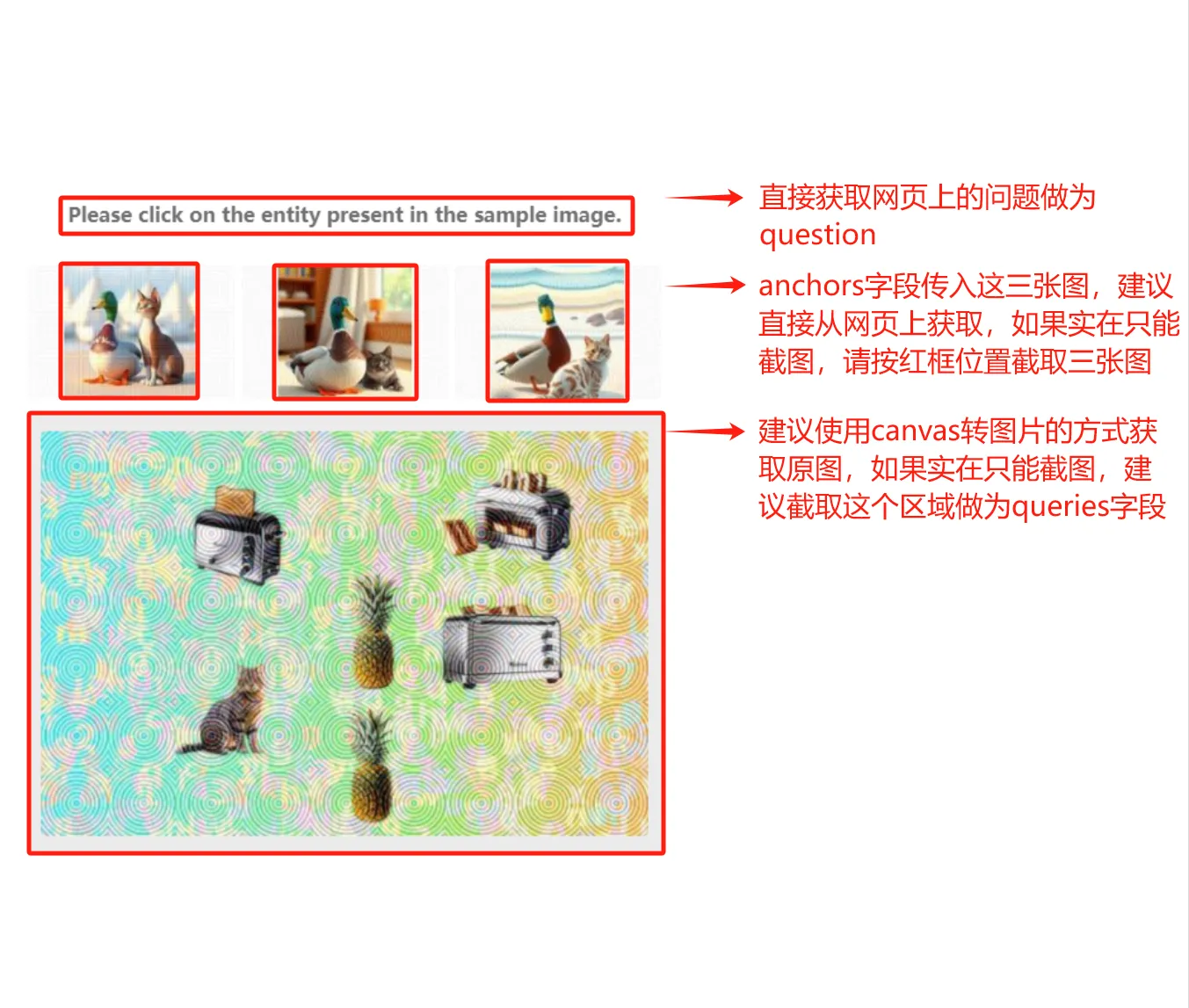
POST https://api.yescaptcha.com/createTask
```json
{
"clientKey": "YOUR_CLIENT_KEY",
"task": {
"type": "HCaptchaClassification",
"question": "Please click on the entity present in the sample image.",
"anchors": [
"BASE64_ANCHOR_1",
"BASE64_ANCHOR_2",
"BASE64_ANCHOR_3"
],
"queries": [
"BASE64_OF_THE_BIG_IMAGE"
]
}
}
```
返回:
```json
{ "errorId": 0, "status": "ready", "solution": { "box": ["221", "213"] } }
```
要点多个目标时,`box` 里依次是多组坐标:`["221", "213", "340", "118", ...]`。
## 拖动到指定位置
题目是“拖动 … 到 …”,要把右边的小块拖到图中对应的位置。
1. `question` 取网页上的题目。
2. 截一张图放进 `queries`,图里要**同时**有要拖动的小块和目标位置,图片任意一边不小于 260 像素。
3. 返回的 `box` 里每一项是一次拖动:`start` 是小块的位置,`end` 是要拖到的位置。有多个小块时逐个拖动。
```json
{
"errorId": 0,
"status": "ready",
"solution": {
"type": "drag",
"box": [{ "start": [644, 218], "end": [239, 315] }]
}
}
```
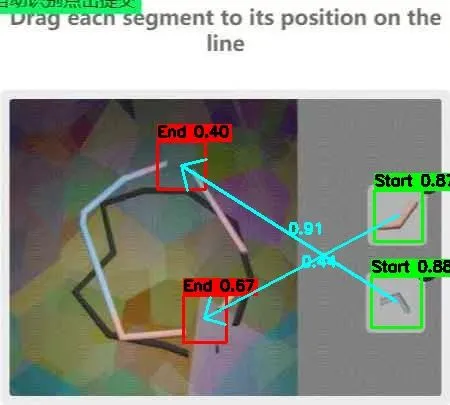
如果你拿到的是协议数据(小块的图片、小块的坐标和背景大图)而不是截图,要先按坐标把小块拼到大图上,拼成和网页截图一样的样式再发送。
## 动画题
题目图片是动画时,把动画(GIF 等格式)的 Base64 放进 `queries`。建议动画时长至少 3 秒、最好 5 到 6 秒,帧率约 12 FPS。
## 上报和返点
点击后验证失败的,可以在 1 小时内用 [`report`](https://docs.yescaptcha.com/zh/api/report/) 上报,约 24 小时后结算返点,规则见 [计费与退点](https://docs.yescaptcha.com/zh/getting-started/billing/)。
## 相关教程
- [hCaptcha 图像识别模拟点击(Selenium)](https://docs.yescaptcha.com/zh/guides/hcaptcha-click-selenium/)
---
# FunCaptcha 图像识别
> 用 YesCaptcha 识别 FunCaptcha(Arkose Labs)的图片题(FunCaptchaClassification):上传 6 宫格图片和英文题目,同步返回应该选第几张;支持的题目示例。
Source: https://docs.yescaptcha.com/zh/tasks/funcaptcha-classification/ · Last verified: 2026-10-15
`FunCaptchaClassification` 识别 FunCaptcha(Arkose Labs)的图片题:把题目图片和英文题目发过来,返回应该选第几张图,由你的程序在浏览器里点击。它**不返回 token**。同步返回,每次 3 点(0.003 元)。
> **提示:** 想要 token 而不是点击位置,用 [FunCaptcha](https://docs.yescaptcha.com/zh/tasks/funcaptcha/);不写代码可以用 [浏览器插件](https://docs.yescaptcha.com/zh/extension/)。
- POST `https://api.yescaptcha.com/createTask` (国际节点)
- POST `https://cn.yescaptcha.com/createTask` (国内节点)
## 类型与价格
| 任务类型 | 价格 | 返回方式 | 说明 |
| --- | --- | --- | --- |
| `FunCaptchaClassification` | 3 点(0.003 元) | 同步 | |
## 请求参数
| 字段 | 类型 | 必填 | 说明 |
| --- | --- | --- | --- |
| `type` | string | 是 | 任务类型,取值见本页"类型与价格" |
| `image` | string | 是 | 题目图片的 Base64 编码,不带 `data:` 前缀 |
| `question` | string | 是 | 题目的英文原文(如 `Pick the image that is the correct way up`),支持的题目见本页 |
- `image` 只放题目的图片部分(通常是 6 宫格),上面的标题、按钮不要截进去;截图要完整,缺一块会影响识别。竖排的 6 宫格直接上传原图即可。
- `question` 直接取网页上显示的英文题目全文,大小写要准确,不要自己翻译。网页是其他语言时,先把验证码切换成英文。服务端根据题目判断题型,所以题目必须正确。
## 请求示例
POST https://api.yescaptcha.com/createTask
```json
{
"clientKey": "YOUR_CLIENT_KEY",
"task": {
"type": "FunCaptchaClassification",
"image": "BASE64_IMAGE",
"question": "Pick the bread"
}
}
```
## 返回结果
```json
{
"errorId": 0,
"status": "ready",
"solution": {
"objects": [4],
"labels": ["parrot", "panda", "octopus", "owl", "bread", "dog"]
},
"taskId": "04a3fa76-11a0-11ed-a58c-0ef20f419382"
}
```
| 字段 | 类型 | 说明 |
| --- | --- | --- |
| `objects` | array | 应该选择的图片序号(从 0 开始,从左到右、从上到下) |
| `labels` | array | 识别出的标签 |
`objects: [4]` 表示选第 5 张图(序号从 0 开始,从左到右、从上到下)。一道题常常要连续做几轮,每轮都要重新截图、重新调用。
## 支持的题目
下表是部分题目示例,**没列出的题目也支持**,直接提交网页上的题目即可;遇到不支持的新题目(返回 `ERROR_UNKNOWN_QUESTION`),请 [联系客服](https://docs.yescaptcha.com/zh/help/contact/)。
共 103 种
| 示例 | 题目(英文) | 中文说明 |
| --- | --- | --- |
|  | `Pick the bread` | 选出面包 |
|  | `Pick one square that shows two identical objects` | 选出两个相同的图形 |
|  | `Pick one square that shows two identical objects` | 选出两个相同的图形 |
|  | `Pick the penguin` | 选出企鹅 |
|  | `Pick the shadow with a different object silhouette` | 选择具有不同对象轮廓的阴影 |
|  | `Pick the dice pair with the same icon facing up` | 选择相同图标的骰子对 |
|  | `Pick the dice pair whose top sides add up to 14` | 选择顶边加起来为 14 的骰子对 |
|  | `Pick the matching cards` | 选择匹配的卡片 |
|  | `Pick the animal looking at the shape that matches the shape it's standing on` | 选择动物看向的形状与它站立的形状相匹配的 |
|  | `Pick one square that shows three of the same object.` | 选出三个相同图形的方块 |
|  | `Pick the mouse that can reach all the cheese in the maze` | 选出能够拿到迷宫里所有奶酪的老鼠 |
|  | `Pick the mouse that can't reach the cheese` | 选出不能够拿到迷宫里所有奶酪的老鼠 |
|  | `Pick the image where the darts add up to 10` | 选择飞镖加起来为 10 的图像 |
|  | `Pick the image that is the correct way up` | 选择正确向上的图像 |
|  | `Pick the dice pair whose top sides add up to 5` | 选择顶边加起来为 5 的骰子对 |
|  | `Pick the wrong shadow` | 选择错误的阴影 |
|  | `Select the animal with the wrong head` | 选择头部错误的动物 |
|  | `Pick the shadow that mathes the icons at the top of the image` | 选择与图像顶部的图标匹配的阴影 |
|  | `Pick the spiral galaxy` | 选择螺旋星系 |
|  | `Pick the image where all animals are walking in the same direction as the arrow` | 选出所有动物都沿着箭头方向行走的图像 |
|  | `Select the image with the icon order Chair then Fence` | 选择先椅子再围栏的图片 |
|  | `Select the image where the total fingers add up to 4` | 选择总共有4根手指的图片 |
|  | `Select the image where the total fingers add up to 3` | 选择总共有3根手指的图片 |
|  | `Pick any square` | 选择任何正方形 |
|  | `Select an image of three circles in any direction on a straight line` | 选取任意方向上三个圆圈在一条直线上的 图片 |
|  | `Pick the image with 3 crosses in a row in any direction` | 选择任何方向连续 3 个叉的图像 |
|  | `Pick the image where the number matches the amount of animals` | 选择数字与动物数量相匹配的图像 |
|  | `Pick the distorted object` | 选择扭曲的物体 |
|  | `Pick the object that is not distorted` | 选择没有扭曲的物体 |
|  | `Select the animal with the wrong head` | 选择头和身体匹配错误的动物 |
|  | `Pick the image with only one rope` | 选择只有一根绳子的图片 |
|  | `Pick the image where the darts add up to 8` | 选择飞镖总数为 8 的图片 |
|  | `Pick the image of the brick cube and the striped heart` | 选择砖块立方体和条纹心形的图像 |
|  | `Pick the image of the brick cube and the striped sphere` | 选择砖块立方体和条纹球体的图像 |
|  | `Pick the image of the brick heart and the striped heart` | 选择砖块心形和条纹心形的图像 |
|  | `Pick the image of the brick sphere and the checkered heart` | 选择砖块球体和方格心形的图像 |
|  | `Pick the image of the checkered cone and the checkered sphere` | 选择方格圆锥体和方格球体的图像 |
|  | `Pick the image of the fuzzy cone and the brick sphere` | 选择毛绒锥体和砖块球体图像 |
|  | `Pick the image of the fuzzy cube and the checkered cube` | 选择毛绒立方体和方格立方体的图像 |
|  | `Pick the image of the fuzzy heart and the brick heart` | 选择毛绒心形和砖块心形的图像 |
|  | `Pick the image of the fuzzy heart and the striped heart` | 选择毛绒心形和条纹心形的图像 |
|  | `Pick the image of the fuzzy cube and the striped cube` | 选择毛绒立方体和条纹立方体的图像 |
|  | `Pick the image of the striped cone and the checkered cube` | 选择条纹圆锥体和方格立方体的图像 |
|  | `Pick the image of the brick cone and the striped cone` | 选择砖块锥体和条纹锥体的图像 |
|  | `Pick the image of the striped cube and the checkered cube` | 选择条纹立方体和方格立方体的图像 |
|  | `Pick the image of the fuzzy sphere and the striped cone` | 选择毛绒球体和条纹锥体的图像 |
|  | `Pick the image of the striped cube and the checkered sphere` | 选择条纹立方体和方格球体的图像 |
|  | `Pick the image of the striped cube and the checkered heart` | 选择条纹立方体和方格心形的图像 |
|  | `Pick the image of the brick cone and the checkered cube` | 选择砖块锥体和方格立方体的图像 |
|  | `Pick the image of the striped heart and the checkered cube` | 选择条纹心形和方格立方体的图像 |
|  | `Pick the image of the brick cone and the checkered sphere` | 选择砖块锥体和方格球体的图像 |
|  | `Pick the image of the fuzzy sphere and the striped cube` | 选择毛绒球体和条纹立方体的图像 |
|  | `Pick the image of 2 striped shapes` | 选择2个条纹形状的图像 |
|  | `Pick the image of 2 checkered shapes` | 选择2个方格形状的图像 |
|  | `Pick the image with the matching reflection` | 选择动物和水中倒影相匹配的图像 |
|  | `Pick the image of the person walking up the stairs` | 选择爬上楼梯的人 |
|  | `Pick the image of the person walking down the stairs` | 选择走下楼梯的人 |
|  | `Pick the cube with icons split in half` | 选择图标分成两半的立方体 |
|  | `Pick the puzzle with the wrong pieces` | 选出错误的拼图 |
|  | `Use the arrows to rotate the animal to face in the direction of the hand` | 选择与手指方向相同的动物图片 |
|  | `Change the dice until the count matches the image on the left` | 相加等于目标点数 |
|  | `Use the arrows to change the number of objects until it matches the left image` | 选择物体数量正确的图片 |
|  | `Use the arrows to place the train on the coordinate point shown in the picture on the left` | 选择停在指定位置的火车 |
|  | `Use the arrows to move the train to the coordinates shown in the picture on the left` | 选择停在指定位置的火车 |
|  | `Using the arrows, move the person to the indicated seat` | 选择坐在指定座位的人物图片 |
|  | `Use the arrows to move the person to the spot indicated by the cross` | 选择站在指示位置上的人 |
|  | `Use the arrows to move the person to the icon indicated by the colored circle` | 选择站在指示位置上的人 |
|  | `Using the arrows, connect the same two icons with the dotted line as shown on the left` | 选择虚线连接相同的两个图标 |
|  | `Use the arrows to move the train into the position indicated in the left image` | 选择停在指定位置的火车 |
|  | `Use the buttons to place the indicated car, in the correct position in the race` | 选择在比赛中正确位置的汽车 |
|  | `Use the arrows to rotate the animal with the same icon to face where the hand is pointing` | 选择具有相同图标的动物面向手指方向的图片 |
|  | `Use the arrows to rotate the object to face in the direction of the hand` | 使用箭头来旋转物体,使其朝向手指向的方向 |
|  | `Use the arrows to find the room that matches the left image` | 使用箭头来找到与左图匹配的房间 |
|  | `Using the arrows, pick the group of rocks that has the amount indicated on the left` | 将石块的数量与左边的数字匹配 |
|  | `using the arrows, find the image where one of the towers of rocks contains the exact amount shown on the left` | 使用箭头,找到正确的图片,要求图中堆叠起的石头数量与左侧所示的完全相同 |
|  | `Use the arrows to rotate the object to face in the direction of the hand` | 使用箭头来旋转物体,使其朝向手指向的方向 |
|  | `use the arrows to find the distance between the two cars that matches the left image` | 使用箭头找到与左图匹配的车距 |
|  | `use the arrows to choose the image where all the darts add up to the number in the left image` | 使用箭头选择图像,要求图像中所有飞镖相加的总和等于左侧图像中的数字 |
|  | `use the arrows to find the image where the number on each ring adds up to the number on the left` | 使用箭头找图像,图像中各戒指上的数值加起来等于左边的数值。 |
|  | `use the arrows to move the icon into the indicated orbit` | 使用箭头将所示图标移动到指定的轨道中 |
|  | `click on the arrows to view different images when the image matches the example on the left, click submit!` | 使用箭头找出缺失左边所示拼块的拼图 |
|  | `use the arrows to find the jigsaw puzzle that is missing the puzzle piece shown on the left` | 使用箭头找出缺失左边所示拼块的拼图。 |
|  | `use the arrows to pick the image where the object directly below the arrow matches the left image` | |
|  | `match the icon on the left with the icon on the top of the dice` | 请将左侧的图标与骰子顶面的图标相匹配 |
|  | `find the image that has the prize on the left held by the claw in the machine on the right` | 找出正确的图片,要求图中右侧抓娃娃机中的爪子抓住的物品即左侧所示奖品。 |
|  | `click on the arrows to view different images when the image matches the example on the left, click submit!` | |
|  | `find the image where the rat can reach the exact amount of cheese as the image on the left.` | 找到正确的图片,让老鼠能拿到和左侧图片中相同数量的奶酪。 |
|  | `use the arrows to find the basket picture with the same content as shown on the left` | |
|  | `use the arrows to match the number of pins that fall with the number shown on the left` | |
|  | `use the arrows to choose the image where the winner has the icon shown in the image on the left` | 使用箭头选择这样的图片:获胜者有左侧图片中显示的图标 |
|  | `use the arrows to select the image where the character is pointing to the shortest route, as shown in the leftmost image` | |
|  | `select the constellation that most closely resembles the image shown on the left` | |
|  | `use the arrows to select the image that has the icons in the same order as in the leftmost image` | 使用箭头来选择图像,使其中的图标与最左边图像的顺序完全一致。 |
|  | `use the arrows to select the image where all the lines are connected to the matching icon` | 用箭头选择所有连线均连接了匹配图标的图像 |
|  | `use the arrows to find the image where the red striped pins completely overlap with the boat on the left` | |
|  | `use the arrows to match the symbol on the left with the cup containing the most liquid` | 使用箭头将左侧图标与盛有最多液体的杯子对应起来 |
|  | `use the arrows to move the characters until they are standing on the same icons as in the picture on the left` | 使用箭头移动人物,直到他们站在与左侧图片中相同的图标上 |
|  | `use arrows to find the shape whose number of sides equals the number shown on the left` | |
|  | `use the arrows to choose the image where the falling balloon has the same icon as shown on the left` | |
|  | `use the arrows to move the character across tiles that have the same icons as shown on the left` | |
|  | `use the arrows to find the image where the number of symbols on the tops of the dice exactly matches the image on the left` | 请使用箭头按钮,找出骰子顶面符号数量与左侧图片完全相同的图片 |
|  | `use the arrows to match the icon inside the bubble with the one shown on the left` | 使用箭头将气泡中的图标与左侧显示的图标相匹配。 |
|  | `using the arrows, find the group of icons that the icon on the left would best fit in` | |
没有匹配的题目
## 上报和返点
一组题目最后提交失败,但不知道是哪一轮错了,可以把这一组的任务 ID 一起用 [`report`](https://docs.yescaptcha.com/zh/api/report/) 上报(1 小时内),约 24 小时后结算返点,规则见 [计费与退点](https://docs.yescaptcha.com/zh/getting-started/billing/)。
---
# AWS WAF / bCaptcha 图像识别
> 用 YesCaptcha 识别 AWS WAF CAPTCHA 和 bCaptcha 的九宫格图片题(AwsClassification、bCaptchaClassification):上传整张图和题目,同步返回要点击的格子。
Source: https://docs.yescaptcha.com/zh/tasks/aws-bcaptcha-classification/ · Last verified: 2026-10-15
`AwsClassification` 识别 AWS WAF CAPTCHA 的九宫格图片题,`bCaptchaClassification` 识别 bCaptcha 的九宫格图片题:把整张图片和题目发过来,返回要点击哪几个格子,由你的程序在浏览器里点击。它们**不返回 token**。同步返回,每次 8 点(0.008 元)。
不写代码可以用 [浏览器插件](https://docs.yescaptcha.com/zh/extension/)。
- POST `https://api.yescaptcha.com/createTask` (国际节点)
- POST `https://cn.yescaptcha.com/createTask` (国内节点)
## 类型与价格
| 任务类型 | 价格 | 返回方式 | 说明 |
| --- | --- | --- | --- |
| `AwsClassification` | 8 点(0.008 元) | 同步 | |
| `bCaptchaClassification` | 8 点(0.008 元) | 同步 | |
两个类型参数和返回格式相同,按验证码的来源选:AWS WAF 的用 `AwsClassification`,bCaptcha 的用 `bCaptchaClassification`。
## 请求参数
| 字段 | 类型 | 必填 | 说明 |
| --- | --- | --- | --- |
| `type` | string | 是 | 任务类型,取值见本页"类型与价格" |
| `queries` | string | 是 | 整张九宫格图片的 Base64 编码(一张图) |
| `question` | string | 否 | 题目原文整句,直接取网页上显示的,例如 `Select all hats` 或 `选择全部 帽子`;其他语言会自动翻译 |
`queries` 放**整张**九宫格图片(一张图,不是 9 张小图);`question` 直接取网页上的整句题目,中文、英文都可以,其他语言会自动翻译。
## 请求示例
POST https://api.yescaptcha.com/createTask
```json
{
"clientKey": "YOUR_CLIENT_KEY",
"task": {
"type": "AwsClassification",
"queries": "BASE64_IMAGE",
"question": "Select all hats"
}
}
```
## 返回结果
```json
{
"errorId": 0,
"status": "ready",
"solution": {
"label": "Select All Hats",
"objects": [false, true, false, false, true, true, true, true, false],
"top_k": [1, 4, 5, 6, 7],
"confidences": [0.0, 1.0, 0.0, 0.255, 1.0, 1.0, 0.9637, 0.9999, 0.0]
},
"taskId": "2053f690-3c3b-11f0-8ffb-d2c180657082"
}
```
| 字段 | 类型 | 说明 |
| --- | --- | --- |
| `label` | string | 识别出的题目目标 |
| `objects` | array | 9 个格子是否是目标(true / false),从左到右、从上到下 |
| `top_k` | array | 是目标的图片序号(从 0 开始),和 `objects` 意思相同,选一个用即可 |
| `confidences` | array | 每个结果的置信度 |
9 个格子按 3x3 从左到右、从上到下编号 0 到 8。`objects` 和 `top_k` 意思相同,选一个用:点击 `objects` 为 `true` 的格子,或者 `top_k` 里的序号。
## 上报和返点
点击后验证失败的,可以在 1 小时内用 [`report`](https://docs.yescaptcha.com/zh/api/report/) 上报,约 24 小时后结算返点,规则见 [计费与退点](https://docs.yescaptcha.com/zh/getting-started/billing/)。
---
# YesCaptcha 人机助手
> YesCaptcha 人机助手(浏览器插件):在 Chrome、Firefox 里自动识别并点击 reCAPTCHA、hCaptcha、FunCaptcha、AWS WAF 等验证码。插件免费,按识别用到的 API 扣点;商店链接和安装包下载。
Source: https://docs.yescaptcha.com/zh/extension/ · Last verified: 2026-10-15
YesCaptcha 人机助手(YesCaptcha Assistant)是 Chrome 和 Firefox 的浏览器插件:打开有验证码的网页时,它把验证码图片发给 YesCaptcha 识别,再自动点击,不需要写代码。插件本身免费,识别时按用到的 API 扣点,和 API 共用同一个账户和余额。
## 能做什么
- 自动识别并点击 reCAPTCHA v2、hCaptcha、FunCaptcha、AWS WAF、bCaptcha 的图片题。
- 普通的字符验证码:在图片上右键“标记为验证码”、在输入框上右键“输入验证码”,插件会识别并填入。
- 可以在设置里分别开关各种验证码,调整点击速度、失败重试等。
- 不是所有网站都能通过,建议先试用。
## 安装
**从商店安装(推荐,会自动更新):**
- Chrome(以及 Edge 等 Chromium 内核浏览器):[Chrome 网上应用店](https://chromewebstore.google.com/detail/yescaptcha-assistant/jiofmdifioeejeilfkpegipdjiopiekl)
- Firefox:[Firefox 附加组件](https://addons.mozilla.org/firefox/addon/yescaptcha-assistant/)
**打不开商店时,下载安装包:**
Chrome 版
版本
1.4.9
大小
1.1 MB
更新日期
2026-10-05
[下载](https://docs.yescaptcha.com/downloads/yescaptcha-assistant-chrome-1.4.9.zip)[Chrome 网上应用店](https://chromewebstore.google.com/detail/yescaptcha-assistant/jiofmdifioeejeilfkpegipdjiopiekl)
Firefox 版
版本
0.4.6
大小
0.9 MB
[下载](https://docs.yescaptcha.com/downloads/yescaptcha-assistant-firefox-0.4.6.xpi)[Firefox 附加组件](https://addons.mozilla.org/firefox/addon/yescaptcha-assistant/)
Firefox 商店里的版本可能比这里的安装包旧,需要最新版可以用安装包。
### Chrome 用安装包安装
1. 下载 zip 文件,解压到一个固定的文件夹(之后不要删除或移动这个文件夹)。
2. 在地址栏打开 `chrome://extensions`,打开右上角的“开发者模式”。
3. 点“加载已解压的扩展程序”,选择刚才解压出的文件夹。
4. 在工具栏点插件图标,填入你的 `clientKey`。
用安装包安装的不会自动更新,有新版本时要重新下载。
### Firefox 用安装包安装
1. 下载 `.xpi` 文件。
2. 在地址栏打开 `about:addons`,点齿轮图标,选“从文件安装附加组件”,选择下载的文件。
3. 在工具栏点插件图标,填入你的 `clientKey`。
## 设置
1. 在 [yescaptcha.com](https://yescaptcha.com/) 注册并充值,在仪表盘复制 `clientKey`,见 [快速开始](https://docs.yescaptcha.com/zh/getting-started/quickstart/)。
2. 点插件图标,在设置面板填入密钥,能看到余额就说明设置好了。
3. 打开有验证码的网页,插件会自动开始识别。
## 费用
插件免费。识别时按用到的类型扣点,例如 reCAPTCHA 图片题按 [reCAPTCHA v2 图像识别](https://docs.yescaptcha.com/zh/tasks/recaptcha-classification/) 计价,hCaptcha 按 [hCaptcha 图像识别](https://docs.yescaptcha.com/zh/tasks/hcaptcha-classification/) 计价。点错的可以申请返点,见 [计费与退点](https://docs.yescaptcha.com/zh/getting-started/billing/)。
---
# 判断验证码类型
> 怎么判断网页上是哪种验证码:reCAPTCHA v2、v2 隐形版、v3、企业版,hCaptcha,Cloudflare Turnstile 和 5 秒盾的区别,以及对应用哪个 YesCaptcha 任务类型。
Source: https://docs.yescaptcha.com/zh/guides/identify-captcha/ · Last verified: 2026-10-15
选对任务类型的第一步是认出验证码。最可靠的办法是打开浏览器的开发者工具(F12),在 Network(网络)面板里看网页加载了哪个验证码的脚本;也可以从外观判断。
## 速查表
| 你看到的 | 是什么 | 用哪个任务类型 |
| --- | --- | --- |
| “进行人机身份验证 / I’m not a robot”复选框 | reCAPTCHA v2 | [reCAPTCHA v2](https://docs.yescaptcha.com/zh/tasks/recaptcha-v2/) |
| 没有复选框,点提交才弹出图片题;右下角有 reCAPTCHA 小标 | reCAPTCHA v2 隐形版(或 v3) | 见下面“reCAPTCHA 的版本” |
| 没有任何交互,右下角只有 reCAPTCHA 小标 | reCAPTCHA v3 | [reCAPTCHA v3](https://docs.yescaptcha.com/zh/tasks/recaptcha-v3/) |
| “我是人类”复选框,图片题标着 hCaptcha | hCaptcha | [hCaptcha](https://docs.yescaptcha.com/zh/tasks/hcaptcha/) |
| 表单里嵌着 Cloudflare 的验证框,打勾后页面不跳转 | Cloudflare Turnstile | [Turnstile](https://docs.yescaptcha.com/zh/tasks/turnstile/) |
| 整个页面显示“请稍候… / 正在检查您的连接”,自动跳转 | Cloudflare 5 秒盾 | [Cloudflare 5 秒盾](https://docs.yescaptcha.com/zh/tasks/cloudflare-challenge/) |
| Arkose Labs 的拼图、选图题(如“选出正确朝上的图片”) | FunCaptcha | [FunCaptcha](https://docs.yescaptcha.com/zh/tasks/funcaptcha/) |
| 一张带扭曲字母数字的图片 | 字符验证码 | [图片英数字识别](https://docs.yescaptcha.com/zh/tasks/image-to-text/) |
## reCAPTCHA 的版本
在 Network 面板里搜索 `api.js` 或 `enterprise.js`:
| 加载的脚本 | 版本 |
| --- | --- |
| `recaptcha/api.js`,没有 `render` 参数或 `render=explicit` | v2 普通版 |
| 同上,并且 `anchor` 请求的地址里有 `size=invisible` | v2 隐形版,任务里加 `"isInvisible": true` |
| `recaptcha/api.js?render=网站密钥`(`render` 不是 `explicit`) | v3 普通版 |
| `recaptcha/enterprise.js`,没有 `render` 参数或 `render=explicit` | v2 企业版 |
| `recaptcha/enterprise.js?render=网站密钥` | v3 企业版 |
例子:
```text
https://www.google.com/recaptcha/api.js?onload=onloadcallback&render=explicit → v2 普通版
https://www.google.com/recaptcha/api.js?render=6LdyC2cUAAAAACGuDKpXeDorzUDWXmdqeg-xy696 → v3 普通版
https://www.google.com/recaptcha/enterprise.js?render=explicit → v2 企业版
```
v2 隐形版有时用 v3 的类型才能通过,两种都可以试试。
也可以在控制台(Console)里运行下面这段代码,它会列出页面上所有 reCAPTCHA 的版本、网站密钥、页面地址和回调函数:
find-recaptcha-clients.js
```js
// Paste into the browser DevTools console on a page with reCAPTCHA, then run findRecaptchaClients().
// Lists every reCAPTCHA on the page: version (V2/V3), sitekey, page URL and the callback function.
function findRecaptchaClients() {
if (typeof ___grecaptcha_cfg === 'undefined') return [];
return Object.entries(___grecaptcha_cfg.clients).map(([cid, client]) => {
const data = { id: cid, version: cid >= 10000 ? 'V3' : 'V2' };
const objects = Object.entries(client).filter(([, value]) => value && typeof value === 'object');
objects.forEach(([toplevelKey, toplevel]) => {
const found = Object.entries(toplevel).find(
([, value]) => value && typeof value === 'object' && 'sitekey' in value && 'size' in value,
);
if (toplevel instanceof HTMLElement && toplevel.tagName === 'DIV') data.pageurl = toplevel.baseURI;
if (found) {
const [sublevelKey, sublevel] = found;
data.sitekey = sublevel.sitekey;
const callbackKey = data.version === 'V2' ? 'callback' : 'promise-callback';
const callback = sublevel[callbackKey];
if (!callback) {
data.callback = null;
data.function = null;
} else {
data.function = callback;
const keys = [cid, toplevelKey, sublevelKey, callbackKey].map((key) => `['${key}']`).join('');
data.callback = `___grecaptcha_cfg.clients${keys}`;
}
}
});
return data;
});
}
findRecaptchaClients();
```
运行结果示例:
```json
[
{
"id": "0",
"version": "V2",
"sitekey": "6Le-wvkSAAAAAPBMRTvw0Q4Muexq9bi0DJwx_mJ-",
"function": "onSuccess",
"callback": "___grecaptcha_cfg.clients['0']['l']['l']['callback']",
"pageurl": "https://www.google.com/recaptcha/api2/demo"
}
]
```
Google 的官方演示页可以用来对照:v2 普通版 `https://www.google.com/recaptcha/api2/demo`,v2 隐形版 `https://www.google.com/recaptcha/api2/demo?invisible=true`。
## Turnstile 和 5 秒盾
两者都来自 Cloudflare,但不是同一种:
- **Turnstile** 是嵌在网页表单里的一个验证框,验证完成后打勾,页面本身不跳转。网页加载 `challenges.cloudflare.com/turnstile/v0/api.js`。用 [Turnstile](https://docs.yescaptcha.com/zh/tasks/turnstile/)。
- **5 秒盾** 是整个页面都被替换成 Cloudflare 的检查页,显示“请稍候…”“xx.com 需要先检查您的连接的安全性”,里面可能也有一个验证框;通过后自动跳到真正的页面。源码里有 `__cf_chl_rt_tk` 或 `cdn-cgi/challenge-platform`。用 [Cloudflare 5 秒盾](https://docs.yescaptcha.com/zh/tasks/cloudflare-challenge/)。
用程序请求时返回 403 和“Just a moment…”,但用浏览器能直接打开的,多半只是 TLS 指纹被拦,换用能模拟浏览器 TLS 指纹的库(例如 curl\_cffi)就能请求,不需要过盾。
---
# 查找 reCAPTCHA 参数
> 怎么找 reCAPTCHA 的 websiteKey(sitekey)、websiteURL、v3 的 pageAction 和回调函数:在开发者工具的 Network、Sources、Console 里查找,附自动查找脚本。
Source: https://docs.yescaptcha.com/zh/guides/find-recaptcha-parameters/ · Last verified: 2026-10-15
创建 reCAPTCHA 任务需要 `websiteURL`(出现验证码的网页地址)和 `websiteKey`(网站密钥),v3 还需要 `pageAction`。用 Selenium 之类的工具模拟提交时,还要知道回调函数。这些都能在浏览器的开发者工具(F12)里找到。
## 最快的办法:自动查找脚本
打开出现验证码的网页,按 F12 打开控制台(Console),粘贴并运行:
find-recaptcha-clients.js
```js
// Paste into the browser DevTools console on a page with reCAPTCHA, then run findRecaptchaClients().
// Lists every reCAPTCHA on the page: version (V2/V3), sitekey, page URL and the callback function.
function findRecaptchaClients() {
if (typeof ___grecaptcha_cfg === 'undefined') return [];
return Object.entries(___grecaptcha_cfg.clients).map(([cid, client]) => {
const data = { id: cid, version: cid >= 10000 ? 'V3' : 'V2' };
const objects = Object.entries(client).filter(([, value]) => value && typeof value === 'object');
objects.forEach(([toplevelKey, toplevel]) => {
const found = Object.entries(toplevel).find(
([, value]) => value && typeof value === 'object' && 'sitekey' in value && 'size' in value,
);
if (toplevel instanceof HTMLElement && toplevel.tagName === 'DIV') data.pageurl = toplevel.baseURI;
if (found) {
const [sublevelKey, sublevel] = found;
data.sitekey = sublevel.sitekey;
const callbackKey = data.version === 'V2' ? 'callback' : 'promise-callback';
const callback = sublevel[callbackKey];
if (!callback) {
data.callback = null;
data.function = null;
} else {
data.function = callback;
const keys = [cid, toplevelKey, sublevelKey, callbackKey].map((key) => `['${key}']`).join('');
data.callback = `___grecaptcha_cfg.clients${keys}`;
}
}
});
return data;
});
}
findRecaptchaClients();
```
返回结果里,`sitekey` 就是 `websiteKey`,`pageurl` 就是 `websiteURL`,`version` 是 v2 还是 v3,`function` 和 `callback` 是回调函数:
```json
[
{
"id": "0",
"version": "V2",
"sitekey": "6Le-wvkSAAAAAPBMRTvw0Q4Muexq9bi0DJwx_mJ-",
"function": "onSuccess",
"callback": "___grecaptcha_cfg.clients['0']['l']['l']['callback']",
"pageurl": "https://www.google.com/recaptcha/api2/demo"
}
]
```
返回空数组说明页面还没加载 reCAPTCHA,等验证码出现后再运行。
## websiteKey 和 websiteURL
在 Network 面板里搜索 `anchor`,找到类似这样的请求:
```text
https://www.google.com/recaptcha/api2/anchor?ar=1&k=6LfW6wATAAAAAHLqO2pb8bDBahxlMxNdo9g947u9&co=...&hl=en&size=normal
```
- `k=` 后面的值就是 `websiteKey`。
- `websiteURL` 填出现验证码的那个网页的完整地址(这个请求的 `Referer` 一般就是它)。
也可以在页面源码里搜 `data-sitekey`。
## pageAction(v3)
`pageAction` 是网页调用 `grecaptcha.execute(网站密钥, {action: '...'})` 时传的 `action`,必须和网页的一致。
**方法一:搜索源码。** 在开发者工具的 Sources 面板里右键“Search in all files”,普通 v3 搜 `.execute(`,企业版 v3 搜 `.enterprise.execute`,看后面的 `action`:
```js
grecaptcha.ready(function () {
grecaptcha.execute('6LdpS-gUAAAAAL3Qr2yP7rkrQjkKBVvEY_48JS5l', { action: 'login' }).then(function (token) {
// ...
});
});
```
这里 `pageAction` 是 `login`。
**方法二:断点。** 代码被混淆、搜不到时,在控制台运行 `debug(grecaptcha.execute)`(企业版 `debug(grecaptcha.enterprise.execute)`),然后在网页上进行会触发验证的操作(例如点登录)。断点停下后,在右侧 Scope 里看 `action` 的值。
一个网站可能在不同步骤用不同的 `action`(例如注册时先 `signup/submit_email` 再 `signup/success`),要取你要通过的那一步的值。按 F8 继续执行,可以看到下一个 `action`。
## 回调函数
用 Selenium 等工具在浏览器里填 token 时,填完要调用网页的回调函数,告诉网页验证已完成:
- 在 Elements 面板搜索 `data-callback`,它的值就是回调函数名,例如 `data-callback="onSuccess"`。
- 或者搜索 `grecaptcha.render`,看参数里的 `callback`。
- 或者在控制台查看 `___grecaptcha_cfg.clients`,或用上面的自动查找脚本。
调用方法:
```python
driver.execute_script("onSuccess(arguments[0])", g_recaptcha_response)
```
有的网页没有回调函数,把 token 填进 `g-recaptcha-response` 文本框后直接提交表单即可。完整流程见 [用 token 完成 reCAPTCHA](https://docs.yescaptcha.com/zh/guides/submit-recaptcha-token/)。
---
# 查找 hCaptcha 参数
> 怎么找 hCaptcha 的 websiteKey(sitekey)、websiteURL 和企业版的 rqdata:在网页源码搜 data-sitekey,或在 Network 里找 checksiteconfig、getcaptcha 请求。
Source: https://docs.yescaptcha.com/zh/guides/find-hcaptcha-parameters/ · Last verified: 2026-10-15
创建 [hCaptcha](https://docs.yescaptcha.com/zh/tasks/hcaptcha/) 任务需要 `websiteURL`(出现验证码的网页地址)和 `websiteKey`(网站密钥,UUID 格式),企业版有时还要 `rqdata`。都可以在浏览器的开发者工具(F12)里找到。
## websiteKey
**方法一:搜网页源码。** 在 Elements 面板按 Ctrl+F(Mac 上 Cmd+F)搜索 `data-sitekey`:
```html
```
`data-sitekey` 的值就是 `websiteKey`。
**方法二:看网络请求。** 在 Network 面板搜索 `hcaptcha`,找到 `checksiteconfig` 请求,地址里 `sitekey=` 后面的值就是 `websiteKey`:
```text
https://api.hcaptcha.com/checksiteconfig?v=...&host=example.com&sitekey=51829642-2cda-4b09-896c-594f89d700cc&sc=1&swa=1
```
## websiteURL
填出现验证码的那个网页的完整地址,**不是** `hcaptcha.com`。上面请求里的 `host=` 就是这个网页的域名。
## rqdata(企业版)
部分网站使用企业版 hCaptcha,每次加载验证码时由网站下发一个 `rqdata`,不传就无法通过。它通常出现在网站自己的接口返回里(例如登录接口返回的 `captcha_rqdata`),或者在调用 `hcaptcha.render` / `hcaptcha.setData` 时传入。拿到后放进任务的 `rqdata` 字段;`rqdata` 一般只能用一次,每次都要取新的。
## userAgent
`userAgent` 只能填 [`/useragent`](https://docs.yescaptcha.com/zh/api/useragent/) 返回的值;提交 token 时用识别结果里返回的 `userAgent`。
---
# 查找 Turnstile 参数
> 怎么找 Cloudflare Turnstile 的 websiteKey(sitekey,0x 开头)和 websiteURL:在网页源码搜 data-sitekey 或 turnstile.render,或在 Network 里看 challenges.cloudflare.com 的请求。
Source: https://docs.yescaptcha.com/zh/guides/find-turnstile-parameters/ · Last verified: 2026-10-15
创建 [Turnstile](https://docs.yescaptcha.com/zh/tasks/turnstile/) 任务需要 `websiteURL`(出现验证框的网页地址)和 `websiteKey`(网站密钥,一般以 `0x` 开头)。先确认是 Turnstile 而不是 5 秒盾,见 [判断验证码类型](https://docs.yescaptcha.com/zh/guides/identify-captcha/)。
## websiteKey
**方法一:搜网页源码。** 在开发者工具(F12)的 Elements 面板搜索 `data-sitekey`:
```html
```
**方法二:搜脚本。** 用 JavaScript 渲染的验证框,在 Sources 面板里右键“Search in all files”,搜 `turnstile.render`,看参数里的 `sitekey`:
```js
turnstile.render('#container', { sitekey: '0x4AAAAAAAxxxxxxxxxxxxxx', callback: onDone });
```
**方法三:看网络请求。** 在 Network 面板搜索 `challenges.cloudflare.com`,验证框 iframe 的地址里包含以 `0x` 开头的网站密钥。
## websiteURL
填出现验证框的那个网页的完整地址,例如 `https://example.com/login`。
## 提交 token
识别完成后,把 `token` 填进表单里名为 `cf-turnstile-response` 的隐藏字段(用 `turnstile.render` 且设置了 `callback` 的,调用这个回调函数并传入 token),再提交表单。提交请求的 User-Agent 用识别结果里的 `userAgent`。
---
# 用 token 完成 reCAPTCHA
> 拿到 reCAPTCHA 的 token(gRecaptchaResponse)之后怎么用:原理、直接发请求提交(g-recaptcha-response 字段)、在浏览器里填入并调用回调函数,附 Google 演示页的完整 Python 示例。
Source: https://docs.yescaptcha.com/zh/guides/submit-recaptcha-token/ · Last verified: 2026-10-15
YesCaptcha 返回的 `gRecaptchaResponse` 就是你在网页上点完验证码后、Google 交给网页的那个结果。拿到它之后,你需要像浏览器一样把它**提交给目标网站**(不是提交给 Google 或 YesCaptcha),网站拿去向 Google 核实后放行。有两种做法:直接发请求提交,或者在浏览器里填进页面再提交。
## 原理
正常访问时的流程:
1. 网页加载 reCAPTCHA,用户完成验证;
2. Google 给网页一个 token,网页把它放进 `g-recaptcha-response` 文本框(或交给回调函数);
3. 用户提交表单,token 随表单发给网站服务器;
4. 网站服务器拿 token 向 Google 核实,通过就放行。
用 YesCaptcha 时,第 1、2 步由我们完成:你用 `websiteURL`、`websiteKey` 创建任务,拿到 token,然后从第 3 步接着做。
token 一次性使用,约 120 秒内有效,建议拿到后 60 秒内提交。
## 方法一:直接发请求提交(推荐)
1. 在浏览器里正常操作一次:按 F12 打开 Network 面板,完成验证码并提交,找到提交表单的那个请求。
2. 在请求的 Payload(或 Form Data)里找到携带 token 的字段,通常叫 `g-recaptcha-response`,token 以 `03A` 开头;有的网站会改名,例如 `grecaptcharesponse`、`captcha`。
3. 在你的程序里发一个一样的请求,把字段的值换成 YesCaptcha 返回的 token。其他字段、Cookie、请求头也要和浏览器的一致,网站往往同时检查它们。
Google 演示页的完整例子:先识别,再把 token 用 `g-recaptcha-response` 字段提交回演示页:
recaptcha_requests.py
```python
"""Solve reCAPTCHA v2 on Google's demo page and submit the token with plain HTTP (no browser).
Run: pip install requests
export YESCAPTCHA_CLIENT_KEY=your_client_key
python recaptcha_requests.py
Each run creates one NoCaptchaTaskProxyless task (charged per the price list).
"""
import os
import time
import requests
CLIENT_KEY = os.environ["YESCAPTCHA_CLIENT_KEY"]
API = "https://api.yescaptcha.com"
WEBSITE_URL = "https://www.google.com/recaptcha/api2/demo"
WEBSITE_KEY = "6Le-wvkSAAAAAPBMRTvw0Q4Muexq9bi0DJwx_mJ-"
def call(method, payload):
data = requests.post(f"{API}/{method}", json={"clientKey": CLIENT_KEY, **payload}, timeout=30).json()
if data.get("errorId"):
raise RuntimeError(f"{data.get('errorCode')}: {data.get('errorDescription')}")
return data
def get_token():
task = {"type": "NoCaptchaTaskProxyless", "websiteURL": WEBSITE_URL, "websiteKey": WEBSITE_KEY}
task_id = call("createTask", {"task": task})["taskId"]
for _ in range(36): # poll every 5 seconds, for up to about 3 minutes
time.sleep(5)
result = call("getTaskResult", {"taskId": task_id})
if result.get("status") == "ready":
return result["solution"]["gRecaptchaResponse"]
raise TimeoutError(task_id)
token = get_token()
print("token:", token[:40], "...")
# Submit the token the same way the browser does: the demo form posts the field
# "g-recaptcha-response" back to the page. Check your own site's request in DevTools > Network.
page = requests.post(WEBSITE_URL, data={"g-recaptcha-response": token}, timeout=30)
print("passed" if "Verification Success" in page.text else "not passed", page.status_code)
```
## 方法二:在浏览器里填入(Selenium 等)
用 Selenium、Playwright 之类的工具操作真实浏览器时:
1. 从页面读出 `data-sitekey`,用它创建任务拿到 token。
2. 把 token 写进页面里的 `g-recaptcha-response` 文本框。
3. 如果页面设置了回调函数(`data-callback="..."`),调用它并传入 token;有的网站只有调用了回调,提交按钮才会变成可点击。
4. 提交表单。
```js
// 第 2 步:写入 token(在页面里执行)
document.getElementById('g-recaptcha-response').value = 'TOKEN';
// 第 3 步:有回调函数时调用,例如 data-callback="onSuccess"
onSuccess('TOKEN');
```
页面上有多个 reCAPTCHA 时,文本框的 id 可能是 `g-recaptcha-response-1` 这样的;找不到这个文本框时,先手动完成一次验证,在 Elements 里搜 `03A`,看结果被放在哪里。回调函数怎么找见 [查找 reCAPTCHA 参数](https://docs.yescaptcha.com/zh/guides/find-recaptcha-parameters/#%E5%9B%9E%E8%B0%83%E5%87%BD%E6%95%B0)。
完整例子(Selenium 4):
recaptcha_selenium.py
```python
"""Solve reCAPTCHA v2 on Google's demo page in a real browser with Selenium 4:
get a token from YesCaptcha, put it into the page, then submit the form.
Run: pip install requests selenium
export YESCAPTCHA_CLIENT_KEY=your_client_key
python recaptcha_selenium.py
Each run creates one NoCaptchaTaskProxyless task (charged per the price list).
"""
import os
import time
import requests
from selenium import webdriver
from selenium.webdriver.common.by import By
CLIENT_KEY = os.environ["YESCAPTCHA_CLIENT_KEY"]
API = "https://api.yescaptcha.com"
WEBSITE_URL = "https://www.google.com/recaptcha/api2/demo"
def call(method, payload):
data = requests.post(f"{API}/{method}", json={"clientKey": CLIENT_KEY, **payload}, timeout=30).json()
if data.get("errorId"):
raise RuntimeError(f"{data.get('errorCode')}: {data.get('errorDescription')}")
return data
def get_token(website_url, website_key):
task = {"type": "NoCaptchaTaskProxyless", "websiteURL": website_url, "websiteKey": website_key}
task_id = call("createTask", {"task": task})["taskId"]
for _ in range(36):
time.sleep(5)
result = call("getTaskResult", {"taskId": task_id})
if result.get("status") == "ready":
return result["solution"]["gRecaptchaResponse"]
raise TimeoutError(task_id)
driver = webdriver.Chrome() # Selenium 4 downloads a matching chromedriver automatically
try:
driver.get(WEBSITE_URL)
site_key = driver.find_element(By.CSS_SELECTOR, "[data-sitekey]").get_attribute("data-sitekey")
token = get_token(WEBSITE_URL, site_key)
# Put the token where reCAPTCHA keeps it ...
driver.execute_script(
"document.getElementById('g-recaptcha-response').value = arguments[0];", token
)
# ... and, if the page uses a callback (data-callback="..."), call it:
callback = driver.find_element(By.CSS_SELECTOR, "[data-sitekey]").get_attribute("data-callback")
if callback:
driver.execute_script(f"window[{callback!r}](arguments[0]);", token)
driver.find_element(By.ID, "recaptcha-demo-submit").click()
time.sleep(2)
print("passed" if "Verification Success" in driver.page_source else "not passed")
finally:
driver.quit()
```
## reCAPTCHA v3
v3 没有复选框,网页在需要时调用 `grecaptcha.execute(网站密钥, {action: '...'})` 拿 token,然后把 token 放进它自己的请求里(字段名由网站决定,常见 `g-recaptcha-response`、`token`、`recaptchaToken`)。做法和方法一相同:在 Network 里找到带 token 的请求照着发;创建任务时 `pageAction` 要和网页的 `action` 一致。
## 提交了还是不通过
- token 过期了:拿到后尽快提交,不要超过 60 秒。
- 提交的不是网站检查的那个字段,或者漏了其他字段、Cookie:对照浏览器里的请求逐项检查。
- 网站同时检查 IP、User-Agent 等:用自带代理的类型(如 `NoCaptchaTask`),提交时走同一个代理。
- v3 分数不够:确认 `pageAction`,或改用固定高分的类型,见 [reCAPTCHA v3](https://docs.yescaptcha.com/zh/tasks/recaptcha-v3/)。
- 网站的风控还看其他行为信号,token 方式通过率低时,可以改用 [图像识别](https://docs.yescaptcha.com/zh/tasks/recaptcha-classification/) 在浏览器里真实点击,或者用 [浏览器插件](https://docs.yescaptcha.com/zh/extension/)。
---
# reCAPTCHA v2 图像识别模拟点击(Selenium)
> 用 Python Selenium 4 和 ReCaptchaV2Classification 在浏览器里自动点击 reCAPTCHA v2 的图片题:触发验证码、读取题目和图片、调用识别接口、点击格子、提交,完整示例代码。
Source: https://docs.yescaptcha.com/zh/guides/recaptcha-click-selenium/ · Last verified: 2026-10-15
这篇教程用 Selenium 4 打开 Google 的 reCAPTCHA 演示页,在真实浏览器里完成图片题:读出题目和图片,交给 [reCAPTCHA v2 图像识别](https://docs.yescaptcha.com/zh/tasks/recaptcha-classification/)(`ReCaptchaV2Classification`)判断该点哪几格,再模拟点击。和拿 token 的方式相比,这种方式在浏览器里真实完成验证,适合 token 通过率低的网站。
不想写代码可以直接用 [浏览器插件](https://docs.yescaptcha.com/zh/extension/),它就是基于同一个接口自动点击的。
## 准备
```bash
pip install requests selenium pillow
export YESCAPTCHA_CLIENT_KEY=你的clientKey
```
需要安装 Chrome。Selenium 4 会自动下载匹配的 chromedriver。
## 流程
1. **点复选框。** 复选框在 `title="reCAPTCHA"` 的 iframe 里,先切换进去,点 `#recaptcha-anchor`。
2. **切到题目的 iframe。** 题目在另一个 iframe(title 包含 “challenge”)里。
3. **读题目。** `.rc-imageselect-desc-wrapper strong` 里加粗的文字就是要找的目标,例如 “traffic lights”。接口要的是题目 ID,用对照表把名称换成 ID(`/m/015qff`),见 [题目 ID](https://docs.yescaptcha.com/zh/tasks/recaptcha-classification/#%E9%A2%98%E7%9B%AE-id)。浏览器界面用英文最方便对照。
4. **取图片。** 格子里的图片其实是同一张大图,取 `td.rc-imageselect-tile img` 的 `src` 下载下来。9 格(3x3)缩放到 300×300,16 格(4x4)缩放到 450×450,转成 Base64。
5. **识别。** 调用 `createTask`,类型 `ReCaptchaV2Classification`,传 `image`、`question`。加上 `"confidence": 0.5`,3x3 图片会一次返回所有符合的格子,不用再处理点完后刷新出来的小图。
6. **点击。** 返回的 `objects` 是格子序号,从 0 开始、从左到右、从上到下,依次点击对应的 `td`。
7. **验证。** 点 `#recaptcha-verify-button`。如果又出了新的一轮题目,回到第 3 步;题目窗口关闭就是通过了。
8. **提交表单。** 回到主页面点提交按钮。
## 完整代码
recaptcha_click_selenium.py
```python
"""Click through a reCAPTCHA v2 image challenge with Selenium 4 and ReCaptchaV2Classification.
Flow: open the page -> click the checkbox -> read the target name and the grid image ->
ask YesCaptcha which tiles to click -> click them -> press Verify. Repeat if a new challenge appears.
Run: pip install requests selenium pillow
export YESCAPTCHA_CLIENT_KEY=your_client_key
python recaptcha_click_selenium.py
Each recognized image is charged (see the price list). reCAPTCHA's page structure can change;
adjust the selectors below if a step stops working.
"""
import base64
import io
import os
import time
import requests
from PIL import Image
from selenium import webdriver
from selenium.webdriver.common.by import By
from selenium.webdriver.support import expected_conditions as EC
from selenium.webdriver.support.wait import WebDriverWait
CLIENT_KEY = os.environ["YESCAPTCHA_CLIENT_KEY"]
PAGE_URL = "https://www.google.com/recaptcha/api2/demo"
# Target names shown in the challenge (English UI) -> question IDs.
# Full list: https://docs.yescaptcha.com/en/tasks/recaptcha-classification/
QUESTION_IDS = {
"taxis": "/m/0pg52", "bus": "/m/01bjv", "buses": "/m/01bjv", "motorcycles": "/m/04_sv",
"tractors": "/m/013xlm", "chimneys": "/m/01jk_4", "crosswalks": "/m/014xcs",
"traffic lights": "/m/015qff", "bicycles": "/m/0199g", "parking meters": "/m/015qbp",
"cars": "/m/0k4j", "bridges": "/m/015kr", "boats": "/m/019jd", "palm trees": "/m/0cdl1",
"mountains or hills": "/m/09d_r", "fire hydrants": "/m/01pns0", "a fire hydrant": "/m/01pns0",
"stairs": "/m/01lynh",
}
def classify(image_b64, question):
task = {"type": "ReCaptchaV2Classification", "image": image_b64, "question": question, "confidence": 0.5}
data = requests.post(
"https://api.yescaptcha.com/createTask",
json={"clientKey": CLIENT_KEY, "task": task},
timeout=30,
).json()
if data.get("errorId"):
raise RuntimeError(f"{data.get('errorCode')}: {data.get('errorDescription')}")
return data["solution"] # synchronous: the solution comes back right away
def grid_image_b64(url, size):
"""Download the challenge image and scale it to the standard size (300 for 3x3, 450 for 4x4)."""
img = Image.open(io.BytesIO(requests.get(url, timeout=30).content)).convert("RGB")
img = img.resize((size, size))
buf = io.BytesIO()
img.save(buf, format="JPEG")
return base64.b64encode(buf.getvalue()).decode()
driver = webdriver.Chrome()
wait = WebDriverWait(driver, 15)
try:
driver.get(PAGE_URL)
# 1. Click the checkbox (inside the "reCAPTCHA" iframe)
wait.until(EC.frame_to_be_available_and_switch_to_it((By.CSS_SELECTOR, 'iframe[title="reCAPTCHA"]')))
wait.until(EC.element_to_be_clickable((By.ID, "recaptcha-anchor"))).click()
driver.switch_to.default_content()
# 2. Switch to the challenge iframe and solve rounds until it closes
wait.until(EC.frame_to_be_available_and_switch_to_it(
(By.XPATH, '//iframe[contains(@title, "challenge")]')))
for _ in range(5):
target = wait.until(EC.presence_of_element_located(
(By.CSS_SELECTOR, ".rc-imageselect-desc-wrapper strong"))).text.strip().lower()
question = QUESTION_IDS.get(target)
if not question:
print("unsupported target, reloading:", target)
driver.find_element(By.ID, "recaptcha-reload-button").click()
time.sleep(2)
continue
tiles = driver.find_elements(By.CSS_SELECTOR, "td.rc-imageselect-tile")
size = 450 if len(tiles) == 16 else 300
url = driver.find_element(By.CSS_SELECTOR, "td.rc-imageselect-tile img").get_attribute("src")
solution = classify(grid_image_b64(url, size), question)
for index in solution.get("objects", []):
tiles[index].click()
time.sleep(0.3)
time.sleep(1)
driver.find_element(By.ID, "recaptcha-verify-button").click()
time.sleep(3)
driver.switch_to.default_content()
frame = driver.find_element(By.XPATH, '//iframe[contains(@title, "challenge")]')
if not frame.is_displayed(): # challenge closed: passed
break
driver.switch_to.frame(frame)
driver.switch_to.default_content()
driver.find_element(By.ID, "recaptcha-demo-submit").click()
time.sleep(2)
print("passed" if "Verification Success" in driver.page_source else "not passed")
finally:
driver.quit()
```
## 注意
- reCAPTCHA 的页面结构会更新,代码里的选择器失效时要按实际页面调整。
- 每次识别一张图都会扣点(价格见 [reCAPTCHA v2 图像识别](https://docs.yescaptcha.com/zh/tasks/recaptcha-classification/))。点击后验证失败的任务可以在 1 小时内 [上报](https://docs.yescaptcha.com/zh/api/report/),申请返点。
- 遇到对照表里没有的题目,可以点刷新按钮换一题,或者联系客服增加支持。
---
# hCaptcha 图像识别模拟点击(Selenium)
> 用 Python Selenium 4 和 HCaptchaClassification 在浏览器里自动完成 hCaptcha 的九宫格图片题:点复选框、读题目和 9 张图片、调用识别接口、点击、提交,完整示例代码。
Source: https://docs.yescaptcha.com/zh/guides/hcaptcha-click-selenium/ · Last verified: 2026-10-15
这篇教程用 Selenium 4 打开 hCaptcha 的演示页,在真实浏览器里完成九宫格图片题:读出题目和 9 张图片,交给 [hCaptcha 图像识别](https://docs.yescaptcha.com/zh/tasks/hcaptcha-classification/)(`HCaptchaClassification`)判断哪些是目标,再模拟点击。
hCaptcha 还有“点击指定位置”“拖动”等题型,它们返回坐标而不是格子,处理方法见 [hCaptcha 图像识别](https://docs.yescaptcha.com/zh/tasks/hcaptcha-classification/)。不想写代码可以直接用 [浏览器插件](https://docs.yescaptcha.com/zh/extension/),这些题型插件都支持。
## 准备
```bash
pip install requests selenium
export YESCAPTCHA_CLIENT_KEY=你的clientKey
```
## 流程
1. **点复选框。** 复选框在地址带 `frame=checkbox` 的 hCaptcha iframe 里,切换进去点 `#checkbox`。
2. **切到题目的 iframe。** 题目在地址带 `frame=challenge` 的 iframe 里。
3. **读题目。** `.prompt-text` 的文字就是题目,原样传给接口(建议把 hCaptcha 的界面语言切成简体中文或英文)。题目旁边有示例小图的,把小图也放进 `anchors`。
4. **取图片。** 每个格子 `.task-image .image` 的背景图就是一张小图,按顺序下载、转成 Base64,组成 `queries` 列表。
5. **识别。** 调用 `createTask`,类型 `HCaptchaClassification`。返回的 `objects` 和格子一一对应,`true` 的是目标。
6. **点击并提交。** 点击是目标的格子,点提交按钮。可能会连续出几轮,重复第 3 到 6 步。
7. **完成。** 通过后,页面上 `h-captcha-response` 字段里就有 token,随表单一起提交。
## 完整代码
hcaptcha_click_selenium.py
```python
"""Click through an hCaptcha 3x3 image challenge with Selenium 4 and HCaptchaClassification.
Flow: open the page -> click the checkbox -> read the question and the 9 images ->
ask YesCaptcha which images match -> click them -> submit. Repeat while new rounds appear.
Run: pip install requests selenium
export YESCAPTCHA_CLIENT_KEY=your_client_key
python hcaptcha_click_selenium.py
Each recognized round is charged (see the price list; rounds with no target found are free).
hCaptcha changes its page structure often; adjust the selectors below if a step stops working.
Click and drag questions return coordinates instead; see the HCaptchaClassification page.
"""
import base64
import os
import re
import time
import requests
from selenium import webdriver
from selenium.webdriver.common.by import By
from selenium.webdriver.support import expected_conditions as EC
from selenium.webdriver.support.wait import WebDriverWait
CLIENT_KEY = os.environ["YESCAPTCHA_CLIENT_KEY"]
PAGE_URL = "https://accounts.hcaptcha.com/demo"
def classify(question, images_b64):
task = {"type": "HCaptchaClassification", "question": question, "queries": images_b64}
data = requests.post(
"https://api.yescaptcha.com/createTask",
json={"clientKey": CLIENT_KEY, "task": task},
timeout=60,
).json()
if data.get("errorId"):
raise RuntimeError(f"{data.get('errorCode')}: {data.get('errorDescription')}")
return data["solution"] # synchronous
def background_image_b64(element):
"""The tiles are s with a CSS background image; download it and Base64-encode it."""
style = element.get_attribute("style") or ""
match = re.search(r'url\("?(.*?)"?\)', style)
if not match:
return None
return base64.b64encode(requests.get(match.group(1), timeout=30).content).decode()
driver = webdriver.Chrome()
wait = WebDriverWait(driver, 15)
try:
driver.get(PAGE_URL)
# 1. Click the checkbox (inside the first hCaptcha iframe)
wait.until(EC.frame_to_be_available_and_switch_to_it(
(By.CSS_SELECTOR, 'iframe[src*="hcaptcha"][src*="frame=checkbox"]')))
wait.until(EC.element_to_be_clickable((By.ID, "checkbox"))).click()
driver.switch_to.default_content()
# 2. Solve rounds in the challenge iframe
wait.until(EC.frame_to_be_available_and_switch_to_it(
(By.CSS_SELECTOR, 'iframe[src*="hcaptcha"][src*="frame=challenge"]')))
for _ in range(5):
question = wait.until(EC.presence_of_element_located((By.CSS_SELECTOR, ".prompt-text"))).text.strip()
tiles = driver.find_elements(By.CSS_SELECTOR, ".task-image")
images = [background_image_b64(t.find_element(By.CSS_SELECTOR, ".image")) for t in tiles]
if not tiles or None in images:
print("not a 3x3 image challenge; see the docs for click/drag questions")
break
solution = classify(question, images)
for tile, hit in zip(tiles, solution.get("objects", [])):
if hit:
tile.click()
time.sleep(0.3)
driver.find_element(By.CSS_SELECTOR, ".button-submit").click()
time.sleep(3)
if not driver.find_elements(By.CSS_SELECTOR, ".task-image"):
break
driver.switch_to.default_content()
token = driver.find_element(By.NAME, "h-captcha-response").get_attribute("value")
print("token received" if token else "not passed")
finally:
driver.quit()
```
## 注意
- hCaptcha 的页面结构经常变化,代码里的选择器失效时要按实际页面调整。
- 每轮识别扣点;没有识别出目标的不扣点。点击后验证失败的可以在 1 小时内 [上报](https://docs.yescaptcha.com/zh/api/report/),申请返点。
- 遇到新题目返回 `ERROR_UNKNOWN_QUESTION` 时,可以刷新换一题,或者联系客服。
---
# 示例代码与 SDK
> YesCaptcha 的可运行示例代码(Python、Node.js、curl、C#、易语言)和网友提供的非官方 SDK(Python、Node.js、Go)。
Source: https://docs.yescaptcha.com/zh/samples/ · Last verified: 2026-10-15
这里的示例都是完整、可以直接运行的文件,从环境变量 `YESCAPTCHA_CLIENT_KEY` 读取 clientKey。各任务类型页里也有按该类型生成的 curl、Python、Node.js 示例。
[Python](https://docs.yescaptcha.com/zh/samples/python/)查询余额、第一个请求、可复用的客户端、并发控制、Selenium
[Node.js](https://docs.yescaptcha.com/zh/samples/nodejs/)Node.js 18+,不需要第三方库
[C#](https://docs.yescaptcha.com/zh/samples/csharp/).NET 6+
[易语言](https://docs.yescaptcha.com/zh/samples/easy-language/)网友提供的模拟点击示例
只用命令行测试:curl 的例子见 [快速开始](https://docs.yescaptcha.com/zh/getting-started/quickstart/) 和 [getBalance](https://docs.yescaptcha.com/zh/api/get-balance/)。
## 社区 SDK
以下 SDK 由网友提供,**非官方**,我们没有审核过代码,使用前请自行评估,有问题请联系作者:
| 语言 | 项目 |
| --- | --- |
| Python | [github.com/yescaptcha/yescaptcha-python](https://github.com/yescaptcha/yescaptcha-python) |
| Node.js | [github.com/ScoLib/yescaptcha](https://github.com/ScoLib/yescaptcha) |
| Go | [github.com/FreedWu/yescaptcha](https://github.com/FreedWu/yescaptcha) |
| Go | [github.com/deanxv/yescaptcha-go](https://github.com/deanxv/yescaptcha-go) |
使用任何 SDK 时,请确认它用的接口地址是 `api.yescaptcha.com` 或 `cn.yescaptcha.com`,任务类型名和本站一致。
---
# Python
> YesCaptcha 的 Python 示例:查询余额、识别图片验证码、可复用的客户端类(创建任务、每 5 秒轮询)、asyncio 并发控制,以及 requests 和 Selenium 提交 reCAPTCHA。
Source: https://docs.yescaptcha.com/zh/samples/python/ · Last verified: 2026-10-15
运行环境:Python 3.8 以上,`pip install requests`。运行前设置环境变量:
```bash
export YESCAPTCHA_CLIENT_KEY=你的clientKey
```
## 查询余额
不扣点,用来确认 clientKey 正确:
get_balance.py
```python
"""Check the balance. getBalance is free and is a quick way to verify your clientKey."""
import os
import requests
CLIENT_KEY = os.environ["YESCAPTCHA_CLIENT_KEY"]
r = requests.post(
"https://api.yescaptcha.com/getBalance",
json={"clientKey": CLIENT_KEY},
timeout=30,
)
data = r.json()
if data.get("errorId"):
# e.g. ERROR_KEY_DOES_NOT_EXIST when the clientKey is wrong
print("error:", data.get("errorCode"), data.get("errorDescription"))
else:
print("balance (points):", data["balance"])
```
## 识别一张图片验证码
同步类型 `ImageToTextTaskOcrBase`,一次请求拿到结果。示例图片:[captcha.jpg](https://docs.yescaptcha.com/samples/captcha.jpg)。
quickstart.py
```python
"""First request: read an alphanumeric image captcha with ImageToTextTaskOcrBase
(synchronous, 2 points per image).
Usage:
export YESCAPTCHA_CLIENT_KEY=your_client_key
python quickstart.py captcha.png
"""
import base64
import os
import sys
import requests
CLIENT_KEY = os.environ["YESCAPTCHA_CLIENT_KEY"]
image_path = sys.argv[1] if len(sys.argv) > 1 else "captcha.png"
with open(image_path, "rb") as f:
body = base64.b64encode(f.read()).decode() # no "data:" prefix
r = requests.post(
"https://api.yescaptcha.com/createTask",
json={
"clientKey": CLIENT_KEY,
"task": {"type": "ImageToTextTaskOcrBase", "body": body},
},
timeout=30,
)
data = r.json()
if data.get("errorId"):
raise SystemExit(f"{data.get('errorCode')}: {data.get('errorDescription')}")
print("text:", data["solution"]["text"])
```
## 可复用的客户端
把下面的文件复制进你的项目,同步和异步类型都能用:
yescaptcha.py
```python
"""A small client you can copy into your project: create tasks, poll results, check the balance.
from yescaptcha import YesCaptcha
client = YesCaptcha(os.environ["YESCAPTCHA_CLIENT_KEY"])
solution = client.solve({
"type": "NoCaptchaTaskProxyless",
"websiteURL": "https://www.google.com/recaptcha/api2/demo",
"websiteKey": "6Le-wvkSAAAAAPBMRTvw0Q4Muexq9bi0DJwx_mJ-",
})
print(solution["gRecaptchaResponse"])
"""
import os
import time
import requests
class YesCaptchaError(Exception):
def __init__(self, code, description):
super().__init__(f"{code}: {description}")
self.code = code
self.description = description
class YesCaptcha:
def __init__(self, client_key, endpoint="https://api.yescaptcha.com", poll_interval=5, timeout=180):
self.client_key = client_key
self.endpoint = endpoint.rstrip("/")
self.poll_interval = poll_interval # 5 s: polling the same taskId more often only returns "processing"
self.timeout = timeout
self.session = requests.Session()
def call(self, method, payload=None):
body = {"clientKey": self.client_key, **(payload or {})}
data = self.session.post(f"{self.endpoint}/{method}", json=body, timeout=30).json()
if data.get("errorId"):
raise YesCaptchaError(data.get("errorCode"), data.get("errorDescription"))
return data
def balance(self):
return self.call("getBalance")["balance"]
def solve(self, task):
created = self.call("createTask", {"task": task})
if created.get("status") == "ready": # synchronous types return the solution directly
return created["solution"]
task_id = created["taskId"]
deadline = time.time() + self.timeout
while time.time() < deadline:
time.sleep(self.poll_interval)
result = self.call("getTaskResult", {"taskId": task_id})
if result.get("status") == "ready":
return result["solution"]
raise TimeoutError(f"task {task_id} not ready after {self.timeout}s")
if __name__ == "__main__":
client = YesCaptcha(os.environ["YESCAPTCHA_CLIENT_KEY"])
print("balance:", client.balance())
```
```python
from yescaptcha import YesCaptcha
client = YesCaptcha(os.environ["YESCAPTCHA_CLIENT_KEY"])
solution = client.solve({
"type": "HCaptchaTaskProxyless",
"websiteURL": "https://accounts.hcaptcha.com/demo",
"websiteKey": "a5f74b19-9e45-40e0-b45d-47ff91b7a6c2",
})
print(solution["gRecaptchaResponse"])
```
出错时抛出 `YesCaptchaError`,`e.code` 是错误码,含义见 [错误码](https://docs.yescaptcha.com/zh/api/errors/)。
## 控制并发
批量发任务时限制同时在处理中的请求数,收到 `ERROR_THREADS_MAXIMUM` 稍等再试(需要 `pip install aiohttp`),说明见 [并发限制与自动暂停](https://docs.yescaptcha.com/zh/api/rate-limits/):
concurrency.py
```python
"""Limit concurrency: keep the number of requests waiting for a result below your limit, and back off
on ERROR_THREADS_MAXIMUM (rejected requests are not charged). Requires: pip install aiohttp"""
import asyncio
import os
import aiohttp
CLIENT_KEY = os.environ["YESCAPTCHA_CLIENT_KEY"]
LIMIT = 15 # below your concurrency limit
sem = asyncio.Semaphore(LIMIT)
async def solve(session, task):
async with sem: # at most LIMIT requests in progress at a time
result = {}
for attempt in range(5):
async with session.post(
"https://api.yescaptcha.com/createTask",
json={"clientKey": CLIENT_KEY, "task": task},
) as resp:
result = await resp.json()
if result.get("errorCode") != "ERROR_THREADS_MAXIMUM":
return result
await asyncio.sleep(1 + attempt) # over the limit: wait and retry
return result
async def main(tasks):
async with aiohttp.ClientSession() as session:
return await asyncio.gather(*(solve(session, t) for t in tasks))
if __name__ == "__main__":
print(asyncio.run(main([])))
```
## 提交 reCAPTCHA token
- 用 requests 直接提交:见 [用 token 完成 reCAPTCHA](https://docs.yescaptcha.com/zh/guides/submit-recaptcha-token/#%E6%96%B9%E6%B3%95%E4%B8%80%E7%9B%B4%E6%8E%A5%E5%8F%91%E8%AF%B7%E6%B1%82%E6%8F%90%E4%BA%A4%E6%8E%A8%E8%8D%90)
- 用 Selenium 在浏览器里填入:见 [用 token 完成 reCAPTCHA](https://docs.yescaptcha.com/zh/guides/submit-recaptcha-token/#%E6%96%B9%E6%B3%95%E4%BA%8C%E5%9C%A8%E6%B5%8F%E8%A7%88%E5%99%A8%E9%87%8C%E5%A1%AB%E5%85%A5selenium-%E7%AD%89)
- 用 Selenium 模拟点击图片题:见 [reCAPTCHA v2 图像识别模拟点击](https://docs.yescaptcha.com/zh/guides/recaptcha-click-selenium/)、[hCaptcha 图像识别模拟点击](https://docs.yescaptcha.com/zh/guides/hcaptcha-click-selenium/)
---
# Node.js
> YesCaptcha 的 Node.js 示例(Node.js 18+,用自带的 fetch,不需要第三方库):查询余额、识别图片验证码、可复用的客户端类(创建任务、每 5 秒轮询)。
Source: https://docs.yescaptcha.com/zh/samples/nodejs/ · Last verified: 2026-10-15
运行环境:Node.js 18 以上(自带 `fetch`),示例是 ES module(`.mjs`),不需要安装第三方库。运行前设置环境变量:
```bash
export YESCAPTCHA_CLIENT_KEY=你的clientKey
```
## 查询余额
不扣点,用来确认 clientKey 正确:
get-balance.mjs
```js
// Check the balance. getBalance is free and is a quick way to verify your clientKey. Node.js 18+
const CLIENT_KEY = process.env.YESCAPTCHA_CLIENT_KEY;
const res = await fetch('https://api.yescaptcha.com/getBalance', {
method: 'POST',
headers: { 'Content-Type': 'application/json' },
body: JSON.stringify({ clientKey: CLIENT_KEY }),
});
const data = await res.json();
if (data.errorId) {
// e.g. ERROR_KEY_DOES_NOT_EXIST when the clientKey is wrong
console.log('error:', data.errorCode, data.errorDescription);
} else {
console.log('balance (points):', data.balance);
}
```
## 识别一张图片验证码
同步类型 `ImageToTextTaskOcrBase`,一次请求拿到结果。示例图片:[captcha.jpg](https://docs.yescaptcha.com/samples/captcha.jpg)。运行 `node quickstart.mjs captcha.jpg`。
quickstart.mjs
```js
// First request: read an alphanumeric image captcha with ImageToTextTaskOcrBase (synchronous, 2 points per image).
// Usage: YESCAPTCHA_CLIENT_KEY=your_client_key node quickstart.mjs captcha.png
import { readFileSync } from 'node:fs';
const CLIENT_KEY = process.env.YESCAPTCHA_CLIENT_KEY;
const body = readFileSync(process.argv[2] ?? 'captcha.png').toString('base64'); // no "data:" prefix
const res = await fetch('https://api.yescaptcha.com/createTask', {
method: 'POST',
headers: { 'Content-Type': 'application/json' },
body: JSON.stringify({ clientKey: CLIENT_KEY, task: { type: 'ImageToTextTaskOcrBase', body } }),
});
const data = await res.json();
if (data.errorId) throw new Error(`${data.errorCode}: ${data.errorDescription}`);
console.log('text:', data.solution.text);
```
## 可复用的客户端
yescaptcha.mjs
```js
// A small client you can copy into your project: create tasks, poll results, check the balance. Node.js 18+
//
// import { YesCaptcha } from './yescaptcha.mjs';
// const client = new YesCaptcha(process.env.YESCAPTCHA_CLIENT_KEY);
// const solution = await client.solve({ type: 'NoCaptchaTaskProxyless', websiteURL: '...', websiteKey: '...' });
export class YesCaptchaError extends Error {
constructor(code, description) {
super(`${code}: ${description}`);
this.code = code;
}
}
export class YesCaptcha {
constructor(clientKey, { endpoint = 'https://api.yescaptcha.com', pollInterval = 5000, timeout = 180000 } = {}) {
this.clientKey = clientKey;
this.endpoint = endpoint.replace(/\/$/, '');
this.pollInterval = pollInterval; // 5 s: polling the same taskId more often only returns "processing"
this.timeout = timeout;
}
async call(method, payload = {}) {
const res = await fetch(`${this.endpoint}/${method}`, {
method: 'POST',
headers: { 'Content-Type': 'application/json' },
body: JSON.stringify({ clientKey: this.clientKey, ...payload }),
});
const data = await res.json();
if (data.errorId) throw new YesCaptchaError(data.errorCode, data.errorDescription);
return data;
}
async balance() {
return (await this.call('getBalance')).balance;
}
async solve(task) {
const created = await this.call('createTask', { task });
if (created.status === 'ready') return created.solution; // synchronous types return the solution directly
const deadline = Date.now() + this.timeout;
while (Date.now() < deadline) {
await new Promise((r) => setTimeout(r, this.pollInterval));
const result = await this.call('getTaskResult', { taskId: created.taskId });
if (result.status === 'ready') return result.solution;
}
throw new Error(`task ${created.taskId} not ready after ${this.timeout} ms`);
}
}
if (import.meta.url === `file://${process.argv[1]}`) {
const client = new YesCaptcha(process.env.YESCAPTCHA_CLIENT_KEY);
console.log('balance:', await client.balance());
}
```
```js
import { YesCaptcha } from './yescaptcha.mjs';
const client = new YesCaptcha(process.env.YESCAPTCHA_CLIENT_KEY);
const solution = await client.solve({
type: 'TurnstileTaskProxyless',
websiteURL: 'https://example.com/login',
websiteKey: '0x4AAAAAAA_SITE_KEY',
});
console.log(solution.token);
```
出错时抛出 `YesCaptchaError`,`err.code` 是错误码,含义见 [错误码](https://docs.yescaptcha.com/zh/api/errors/)。
---
# C#
> YesCaptcha 的 C# 示例(.NET 6+,HttpClient + System.Text.Json):查询余额,创建 reCAPTCHA v2 任务并每 5 秒轮询结果。
Source: https://docs.yescaptcha.com/zh/samples/csharp/ · Last verified: 2026-10-15
运行环境:.NET 6 以上,只用标准库(`HttpClient`、`System.Text.Json`)。
```bash
dotnet new console -o YesCaptchaDemo
cd YesCaptchaDemo
export YESCAPTCHA_CLIENT_KEY=你的clientKey
dotnet run
```
Program.cs
```csharp
// YesCaptcha C# sample (.NET 6+): check the balance, then solve a reCAPTCHA v2.
// Run: dotnet new console -o YesCaptchaDemo, replace Program.cs with this file, set YESCAPTCHA_CLIENT_KEY, then dotnet run
using System;
using System.Net.Http;
using System.Net.Http.Json;
using System.Text.Json;
using System.Text.Json.Nodes;
using System.Threading.Tasks;
class Program
{
const string Api = "https://api.yescaptcha.com";
static readonly HttpClient Http = new HttpClient { Timeout = TimeSpan.FromSeconds(30) };
static readonly string ClientKey = Environment.GetEnvironmentVariable("YESCAPTCHA_CLIENT_KEY") ?? "";
static async Task Call(string method, JsonObject payload)
{
payload["clientKey"] = ClientKey;
var res = await Http.PostAsJsonAsync($"{Api}/{method}", payload);
var data = JsonNode.Parse(await res.Content.ReadAsStringAsync())!;
if ((int?)data["errorId"] != 0)
throw new Exception($"{data["errorCode"]}: {data["errorDescription"]}");
return data;
}
static async Task Solve(JsonObject task)
{
var created = await Call("createTask", new JsonObject { ["task"] = task });
if ((string?)created["status"] == "ready") return created["solution"]!; // synchronous types
var taskId = (string)created["taskId"]!;
for (var i = 0; i < 36; i++) // poll every 5 seconds, for up to about 3 minutes
{
await Task.Delay(5000);
var result = await Call("getTaskResult", new JsonObject { ["taskId"] = taskId });
if ((string?)result["status"] == "ready") return result["solution"]!;
}
throw new TimeoutException(taskId);
}
static async Task Main()
{
var balance = await Call("getBalance", new JsonObject());
Console.WriteLine($"balance (points): {balance["balance"]}");
var solution = await Solve(new JsonObject
{
["type"] = "NoCaptchaTaskProxyless",
["websiteURL"] = "https://www.google.com/recaptcha/api2/demo",
["websiteKey"] = "6Le-wvkSAAAAAPBMRTvw0Q4Muexq9bi0DJwx_mJ-",
});
Console.WriteLine(solution["gRecaptchaResponse"]);
}
}
```
换成其他任务类型时,只要改 `Solve` 里的任务对象,字段见各 [任务类型](https://docs.yescaptcha.com/zh/tasks/) 页。同步类型(图像识别、`ImageToTextTaskOcrBase`)在 `createTask` 里直接返回结果,`Solve` 已经处理了这种情况。
---
# 易语言
> 网友提供的 YesCaptcha 易语言示例:reCAPTCHA、hCaptcha 模拟点击,FunCaptcha 图像识别,reCAPTCHA token 提交;下载包和调用接口的要点。
Source: https://docs.yescaptcha.com/zh/samples/easy-language/ · Last verified: 2026-10-15
易语言示例由网友提供(南方填表、松等),仅供参考,我们没有逐行审核。示例包含:
- reCAPTCHA、hCaptcha 的模拟点击(启动浏览器后自动识别并点击)
- FunCaptcha 图像识别
- reCAPTCHA token 的提交
> **下载包:** 示例包(最大的约 87 MB,含浏览器)正在迁移到新的下载地址,暂时请 [联系客服](https://docs.yescaptcha.com/zh/help/contact/) 获取。
## 用易语言调用接口的要点
不依赖示例包,用易语言的网页访问命令(POST)就能调用 API:
1. 地址 `https://api.yescaptcha.com/createTask`,方法 `POST`,协议头加 `Content-Type: application/json`。
2. 提交的内容是 JSON 文本,例如 `{"clientKey":"你的clientKey","task":{"type":"ImageToTextTaskOcrBase","body":"图片的Base64"}}`。
3. 返回的 JSON 里 `errorId` 为 0 表示成功;异步类型取 `taskId`,每 5 秒向 `https://api.yescaptcha.com/getTaskResult` 提交 `{"clientKey":"…","taskId":"…"}`,直到 `status` 为 `ready`。
4. 图片的 Base64 不要带 `data:image/...;base64,` 前缀,也不要有换行。
请求和返回的格式见 [请求与响应](https://docs.yescaptcha.com/zh/api/overview/)。
## 示例跑不起来
- 提示无法创建浏览器:先用示例包里自带的浏览器;卸载可能冲突的其他浏览器;或者编译成程序后再运行。
- 返回错误码:对照 [错误码](https://docs.yescaptcha.com/zh/api/errors/) 检查参数。
---
# 充值与 VIP
> YesCaptcha 怎么充值(微信支付、支付宝、PayPal、加密货币),1 元 = 1000 点;累计充值自动升级 VIP 1 到 VIP 10,之后每次充值按比例赠送点数。
Source: https://docs.yescaptcha.com/zh/account/recharge/ · Last verified: 2026-10-15
在 [yescaptcha.com](https://yescaptcha.com/) 后台的在线充值页面([yescaptcha.com/payment.html](https://yescaptcha.com/payment.html))充值,1 元 = 1000 点,到账后立即可用。累计充值达到一定金额会自动升级 VIP,之后每次充值按 VIP 等级的比例额外赠送点数。
## 充值方式
| 方式 | 说明 |
| --- | --- |
| 微信支付 | 扫码支付 |
| 支付宝 | 扫码或跳转支付 |
| PayPal | 适合海外用户 |
| 加密货币 | 通过 Cryptomus 支付,支持 BTC、ETH、USDT 等 |
| 对公转账 | 联系客服,由财务确认后手工加款 |
充值记录可以在充值页面查看。充值遇到问题请 [联系客服](https://docs.yescaptcha.com/zh/help/contact/),并提供订单信息。
## VIP 等级
累计充值金额达到下表的门槛,自动升级到对应等级;升级后,之后的每次充值都按赠送比例额外到账点数。
| 等级 | 累计充值 | 每次充值赠送 |
| --- | --- | --- |
| VIP 1 | 10 元 | 2% |
| VIP 2 | 100 元 | 5% |
| VIP 3 | 500 元 | 8% |
| VIP 4 | 1,000 元 | 10% |
| VIP 5 | 2,000 元 | 15% |
| VIP 6 | 3,000 元 | 20% |
| VIP 7 | 6,000 元 | 25% |
| VIP 8 | 12,000 元 | 30% |
| VIP 9 | 24,000 元 | 35% |
| VIP 10 | 48,000 元 | 40% |
- **累计计算**:不管分几次充值,累计金额达到门槛就升级。
- **按充值后的累计金额算**:例如第一次就充值 1000 元,累计达到 VIP 4 的门槛,这次充值就按 VIP 4 的比例赠送。
- 通过朋友的邀请链接注册,会直接获得一定的 VIP 等级,见 [邀请奖励](https://docs.yescaptcha.com/zh/account/referral/)。
- 当前等级和赠送比例可以在后台的充值页面看到。
---
# 邀请奖励
> YesCaptcha 邀请奖励:邀请的用户注册即获得 VIP(你的等级减 1,VIP1 到 VIP6),你得到对方消费金额的 20%(同时有开发者分成时各得一半),可转为余额或满 100 元在后台申请提现。
Source: https://docs.yescaptcha.com/zh/account/referral/ · Last verified: 2026-10-15
邀请朋友注册 YesCaptcha,朋友注册即获得 VIP 等级,你按朋友的消费金额得到 20% 的奖励。奖励可以转为账户余额,也可以满 100 元后在后台申请提现。
## 怎么邀请
登录 [yescaptcha.com](https://yescaptcha.com/) 后台,在仪表盘的推荐计划面板里可以看到你的邀请链接、已邀请的人数和累计的奖励。把邀请链接发给朋友,朋友通过链接注册即可。
## 规则
1. **朋友的 VIP**:朋友注册后直接获得 VIP 等级,为你的等级减 1,最低 VIP 1、最高 VIP 6。例如你是 VIP 6,朋友注册后就是 VIP 5。各等级的赠送比例见 [充值与 VIP](https://docs.yescaptcha.com/zh/account/recharge/)。
2. **你的奖励**:朋友每次消费(识别扣点),你得到消费金额的 **20%**。
3. **和开发者分成同时存在时**:朋友的任务同时带有某个开发者的 ID(见 [开发者分成](https://docs.yescaptcha.com/zh/account/developer/))时,邀请人和开发者**各得 10%**。
4. 朋友上报识别错误并获得返点的任务,对应的奖励会扣回。
5. 奖励余额可以用 [`getBalance`](https://docs.yescaptcha.com/zh/api/get-balance/) 的 `inviteBalance` 查询(单位:元)。
## 使用奖励
- **转为余额**:在后台把奖励转入账户余额,按 1 元 = 1000 点用于识别。
- **提现**:奖励满 **100 元**后,在后台提交提现申请,审核后打款。
- 提现收入的个人所得税由你自行申报。
## 写文章推荐
在论坛、博客、知乎、公众号等平台写与 YesCaptcha 有关的推荐、教程、经验分享、插件或代码库,可以把链接发给客服,我们评估后可能给予点数或 VIP 等级奖励(视内容质量而定)。
奖励规则如有调整,以本页和 [服务更新记录](https://docs.yescaptcha.com/zh/changelog/) 为准。
---
# 开发者分成
> YesCaptcha 开发者分成:你开发的软件或插件在用户的请求里带上你的 softID,你得到用户消费金额的 20%(同时有邀请人时各得 10%),可转为余额或满 100 元在后台申请提现。
Source: https://docs.yescaptcha.com/zh/account/developer/ · Last verified: 2026-10-15
如果你开发的软件、脚本或插件接入了 YesCaptcha,给别人使用时在他们的请求里带上你的开发者 ID(`softID`),就能按他们的消费金额得到分成。用户用自己的 `clientKey`、扣自己的点,分成不会让用户多付钱。
## 怎么接入
1. 用你自己的 `clientKey` 调用 [`getSoftID`](https://docs.yescaptcha.com/zh/api/get-soft-id/),得到你的开发者 ID:
```json
{ "errorId": 0, "softID": 3, "balance": 0.004 }
```
2. 在你的软件发出的每个 `createTask` 请求里,加上顶层字段 `softID`(和 `clientKey`、`task` 同级,注意大小写):
```json
{
"clientKey": "THE_USERS_CLIENT_KEY",
"task": { "type": "NoCaptchaTaskProxyless", "websiteURL": "https://www.google.com/recaptcha/api2/demo", "websiteKey": "6Le-wvkSAAAAAPBMRTvw0Q4Muexq9bi0DJwx_mJ-" },
"softID": 3
}
```
`clientKey` 是使用者自己的密钥。
## 分成规则
- 带有你的 `softID` 的任务,按用户实际消费金额的 **20%** 计入你的开发者分成。
- 这个用户同时是别人邀请来的(见 [邀请奖励](https://docs.yescaptcha.com/zh/account/referral/))时,开发者和邀请人**各得 10%**。
- 只有成功扣点的任务才有分成;失败、超时退点的任务没有。用户上报识别错误并获得返点的任务,对应的分成会扣回。
- 分成余额用 [`getSoftID`](https://docs.yescaptcha.com/zh/api/get-soft-id/) 的 `balance` 或 [`getBalance`](https://docs.yescaptcha.com/zh/api/get-balance/) 的 `softBalance` 查询,单位是元。
## 使用分成
- **转为余额**:在后台把分成转入账户余额,按 1 元 = 1000 点用于识别。
- **提现**:分成满 **100 元**后,在后台提交提现申请,审核后打款。
- 提现收入的个人所得税由你自行申报。
---
# 常见问题
> YesCaptcha 常见问题:识别失败扣不扣点、token 多久有效、通过率、是人工还是机器识别、会不会封号、一个 clientKey 能否多处使用、选哪个节点、插件和 API 的区别。
Source: https://docs.yescaptcha.com/zh/help/faq/ · Last verified: 2026-10-15
## YesCaptcha 识别失败扣不扣点?
不扣。识别失败(`ERROR_CAPTCHA_UNSOLVABLE`)和超时(`ERROR_TASK_TIMEOUT`)的任务自动退点,参数错误等返回错误码的请求不扣点。拿到了 token 但目标网站不接受的,按成功计费,因为我们无法知道网站的判定结果;图像识别类型点错了可以上报申请返点。详见 [计费与退点](https://docs.yescaptcha.com/zh/getting-started/billing/)。
## 识别一次多少钱?
按任务类型扣固定的点数,1 元 = 1000 点,不同类型价格不同。全部价格见 [任务类型与价格](https://docs.yescaptcha.com/zh/tasks/),机器可读的版本见 [/data/task-types.json](https://docs.yescaptcha.com/data/task-types.json)。
## token 多久内有效?
reCAPTCHA、hCaptcha、Turnstile 的 token 都是一次性使用。reCAPTCHA 的 token 约 120 秒内有效,建议拿到后 60 秒内提交;有效期由验证码厂商决定。
## 为什么拿到的 token 有时不能通过?
token 能否通过由目标网站判定。网站会结合分数、IP、浏览器环境等判断,门槛随时可能调整,所以通过率因网站而异。可以换同类的其他任务类型对比,用自带代理的类型并在提交时走同一个代理,或者改用图像识别在浏览器里真实点击。
## 识别要多久?
异步任务一般几秒到几十秒,最长约 110 秒(少数类型 180 到 220 秒),超时自动退点。图像识别和图片英数字是同步的,一次请求就返回。
## 是人工识别还是机器识别?
机器识别,基于机器学习模型。
## 使用 YesCaptcha 会不会导致账号被封?
我们只返回识别结果,不接触你在目标网站上的账号。目标网站如何判定、是否封号由网站自己决定,请遵守目标网站的规则;YesCaptcha 仅限合法用途,禁止用于非法用途。
## 一个 clientKey 能在多个程序、多个浏览器里同时用吗?
可以。同一账户下的请求合并计算 [并发限制](https://docs.yescaptcha.com/zh/api/rate-limits/),共用同一份余额。
## 用国际节点还是国内节点?
服务器在中国大陆的用 `cn.yescaptcha.com`,其他地区用 `api.yescaptcha.com`。在哪个节点创建的任务,就到哪个节点查询结果。见 [接入地址](https://docs.yescaptcha.com/zh/getting-started/endpoints/)。
## 浏览器插件和 API 有什么区别?
插件也是调用同一套 API 完成识别的,免费安装,按用到的 API 扣点,适合不写代码在浏览器里使用;API 适合在程序里批量处理。见 [浏览器插件](https://docs.yescaptcha.com/zh/extension/)。
## 为什么被暂停了,返回 ERROR\_IP\_BLOCKED\_5MIN?
同一个 clientKey 一分钟内产生了太多错误请求,被自动暂停几分钟,到期自动恢复。响应里的 `blockReason` 是触发暂停的错误码,按它修正程序。见 [并发限制与自动暂停](https://docs.yescaptcha.com/zh/api/rate-limits/)。
## 支持哪些网站?
我们按验证码类型提供识别,不针对具体网站。能否通过取决于目标网站的设置,建议先小批量测试。个别网站暂不支持时会返回 `ERROR_DOMAIN_NOT_ALLOWED`。
---
# 连接与网络问题
> 连不上 YesCaptcha API 怎么办:Failed to establish a new connection、DNS 解析失败、代理软件干扰、SSL 证书错误(Certificate has expired、SSLEOFError)的排查步骤。
Source: https://docs.yescaptcha.com/zh/help/troubleshooting/ · Last verified: 2026-10-15
调用接口时报连接错误(例如 `Failed to establish a new connection`、`getaddrinfo failed`、超时、SSL 错误),一般是本机网络、DNS 或代理软件的问题。按下面的顺序排查。
## 1\. 先换一个节点试试
YesCaptcha 有两个节点:`https://api.yescaptcha.com`(国际)和 `https://cn.yescaptcha.com`(国内)。在中国大陆的服务器上用国内节点,其他地区用国际节点。换节点后,查询结果也要用同一个节点。
```bash
curl -s https://api.yescaptcha.com/getBalance -H 'Content-Type: application/json' -d '{"clientKey": "YOUR_CLIENT_KEY"}'
curl -s https://cn.yescaptcha.com/getBalance -H 'Content-Type: application/json' -d '{"clientKey": "YOUR_CLIENT_KEY"}'
```
有一个能返回 JSON,就说明网络是通的,问题在另一个节点的线路上。
## 2\. 检查代理软件
访问 YesCaptcha 不需要代理。电脑上开着代理或 VPN 软件时:
- 先关掉再试;
- 必须开着的,改成按规则分流(PAC 模式)而不是全局模式,或者把 `api.yescaptcha.com`、`cn.yescaptcha.com` 加进直连名单;
- Python 在开着代理时报 `SSLEOFError(8, 'EOF occurred in violation of protocol')`,多半也是代理导致,关掉代理或让这两个域名直连即可。
## 3\. 检查网络和 DNS
```bash
ping api.yescaptcha.com
```
- 提示找不到主机:DNS 解析失败。刷新 DNS 缓存(Windows:`ipconfig /flushdns`;macOS:`sudo dscacheutil -flushcache; sudo killall -HUP mDNSResponder`),或者把电脑的 DNS 改成公共 DNS(例如 `223.5.5.5`、`119.29.29.29`、`8.8.8.8`)再试。
- ping 不通但能解析出地址:可能是网络屏蔽了 ICMP,不代表接口不通,以第 1 步的 curl 结果为准。
## 4\. SSL 证书错误
- 报 `Certificate has expired`、`certificate verify failed`:先检查电脑的**系统时间**是否正确;再把操作系统、Python 的 `certifi`、Postman 等工具更新到最新版本,让它们带上最新的根证书。
- 请始终用 `https://`,不要为了绕过证书错误改用 `http://` 或关闭证书校验。
## 5\. 还是不行
[联系客服](https://docs.yescaptcha.com/zh/help/contact/),附上:完整的错误信息、你用的节点、服务器所在地区、第 1 步 curl 的输出。
---
# 联系我们
> 联系 YesCaptcha 客服:微信、QQ、WhatsApp、LINE、Telegram @yescaptcha_official、邮箱 yescaptcha@gmail.com,服务时间 UTC+8 9:00–21:00。
Source: https://docs.yescaptcha.com/zh/help/contact/ · Last verified: 2026-10-15
YesCaptcha 客服的服务时间是 **UTC+8(北京时间)9:00–21:00**。回复慢时请留言,我们会尽快处理。
- 邮箱:[yescaptcha@gmail.com](mailto:yescaptcha@gmail.com)
- Telegram:[@yescaptcha\_official](https://t.me/yescaptcha_official)
扫码添加:

**WeChat**微信扫码加好友,可以拉你进用户群

**QQ**QQ 扫码加好友

**WhatsApp**用 WhatsApp 相机扫码添加

**LINE**在 LINE 的"加入好友"里扫码

**[Telegram](https://t.me/yescaptcha_official)**@yescaptcha\_official
联系时请附上:
- 你的账户邮箱或用户 ID(**不要**发 `clientKey`);
- 相关的 `taskId`、错误码和发生时间;
- 用的是哪个任务类型、哪个节点(`api.yescaptcha.com` 或 `cn.yescaptcha.com`)。
很多问题可以先在 [常见问题](https://docs.yescaptcha.com/zh/help/faq/)、[错误码](https://docs.yescaptcha.com/zh/api/errors/) 和 [连接与网络问题](https://docs.yescaptcha.com/zh/help/troubleshooting/) 里找到答案。
---
# 服务更新记录
> YesCaptcha 对用户有影响的变化,按日期记录:新上线和下线的任务类型、计费和返点规则、并发限制、文档迁移。从 2026-10 开始记。
Source: https://docs.yescaptcha.com/zh/changelog/ · Last verified: 2026-10-15
这里按日期记录对用户有影响的变化:任务类型的上线和下线、计费规则、限流规则等。最新的在最上面。
## 2026-10-15
- **文档迁移**:文档从 Confluence 迁到本站(docs.yescaptcha.com),提供中文和英文,中文为准;提供 [llms.txt](https://docs.yescaptcha.com/llms.txt)、[OpenAPI](https://docs.yescaptcha.com/openapi.json) 和每页的 Markdown 版,方便 AI 和程序读取。
- **上报返点改为约 24 小时后结算**:图像识别类型上报识别错误后,不再立即返点,约 24 小时后统一结算;失败率明显高于同期的,按同期失败率返还。见 [计费与退点](https://docs.yescaptcha.com/zh/getting-started/billing/)。
- **并发限制**:开始按账号、按任务类型统计同时处理中的任务数,超额时返回 `ERROR_THREADS_MAXIMUM`,不扣点、不计入自动暂停。各类型的额度定下来后在 [并发限制与自动暂停](https://docs.yescaptcha.com/zh/api/rate-limits/) 公布。
- **补充公开的任务类型**:`HCaptchaTask`、`NoCaptchaTask`、`TurnstileTask`、`RecaptchaV2EnterpriseTask`(自带代理),`FunCaptchaTaskProxylessM1`、`FunCaptchaTask`、`HCaptchaTaskProxylessM1` 写进文档。
- **FunCaptcha token 类型**:`FunCaptchaTaskProxylessM1`、`FunCaptchaTask` 可用;`FunCaptchaTaskProxyless` 的线路从 2026-09-10 前后起无法识别成功,正在修复,失败的任务自动退点。
- **下线**:reCAPTCHA K1 定制指纹系列、`FunCaptchaTaskS1`、`CloudFlareTaskS1`、`TurnstileTaskS2`、`TurnstileTaskProxylessS2`、`bCaptcha2Classification`、`GeneralClassification` 停止服务。
## 2026-10-15 之前
- **独享服务器**自助租赁服务已下线。